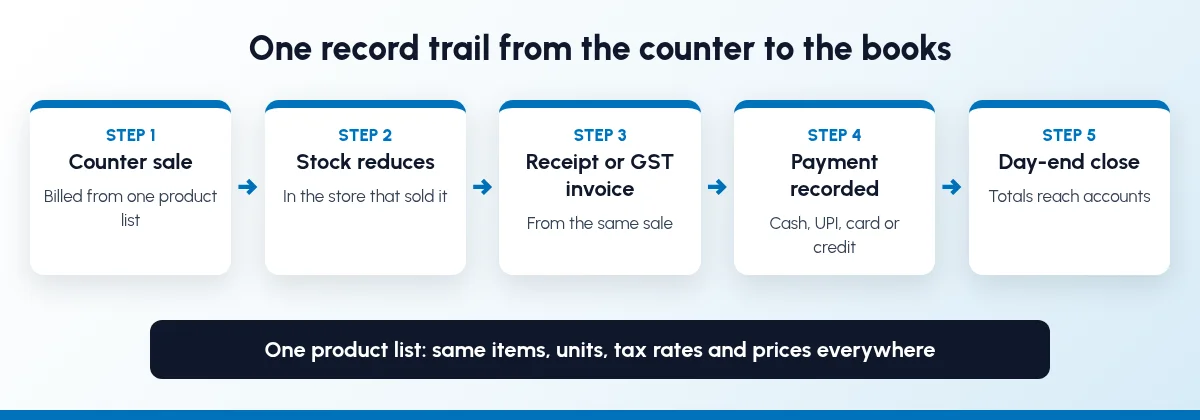
Short answer: Here is how to manage point of sale and invoicing together: run the counter, the stock and the invoices from one system and one product list. Each counter sale should reduce stock in the store it was sold from, print a receipt or GST invoice from the same record, and flow into accounts. Close each counter session at day end, match cash and digital payments, and let low stock trigger a reorder.
This guide is for owners of shops, showrooms, restaurants, hotel outlets and factory sales counters in India who bill at a counter and also sell on credit or to businesses. It covers why POS, stock and invoices drift apart, what "in sync" should mean, a seven-step setup, a daily close routine, what to check when you compare POS software, and what Sales Automation Suite documents today. If you also take orders on quotation, start with our guide to inventory and sales integration.
Why do POS, stock and invoices stop matching?
Most counters start with a billing machine or a standalone billing app, a stock register and an accountant who enters the day's totals later. Each one is right on its own. Together, they disagree:
Two product lists. The billing app has one set of item names and rates, the stock register another. A sale of "Tile 600x600 Glossy" never reduces "GVT 60x60 GL".
Stock moves only on paper. Counter sales reduce the shelf but not the register, so the system shows stock you sold last week.
Business buyers need a separate bill. A contractor or dealer asks for a GST invoice with their GSTIN, so someone types the sale again in the accounts software.
Credit sales live in a notebook. Goods leave the counter, the bill sits in a diary and the payment follow-up depends on memory.
Day-end totals are re-keyed. Cash, UPI and card totals are written on a slip and entered later, so mismatches are found weeks after they happen.
Each branch is an island. A second counter or outlet runs its own billing, and nobody can see total stock without phoning around.
The cost does not show on the day. It shows as stock counts that never match, buyers waiting for a corrected invoice, and an accountant who spends month end chasing slips.
What does "POS, stock and invoices in sync" mean?
It means one record trail from the counter to the books, built on one product list:
One product master. Every item has one code, one barcode where you use them, one unit of measure, one tax rate and one price list, used by the counter, the stores team and accounts.
Stock that moves with the sale. A counter sale reduces stock in the store or outlet that sold it. A return adds it back.
One invoice from one sale. The receipt and, when the buyer needs it, the GST invoice come from the same sale. Nobody types it twice.
Payments recorded at the counter. Cash, UPI, card and credit are recorded against the sale, not on a slip.
A daily close that posts to accounts. Each counter session is closed, counted and matched, and its totals reach accounts without re-entry.
Reorder from real stock. Minimum levels per item flag what to buy before the shelf is empty.
If counter sales and orders on quotation both draw from the same godown, both must read the same stock figure. Otherwise one channel sells what the other has already promised.
How to manage point of sale and invoicing together, step by step
Move in the order the work flows. Each step is useful on its own, so settle in before the next.
Step 1: Clean up products, prices and tax rates
Start with the item list, not the billing screen. Give each item one code and one unit of measure, add barcodes if you scan at the counter, and set the GST rate and HSN or SAC code on the item, as your CA advises. Put counter prices and dealer or contractor prices in separate price lists, so the counter does not overwrite trade rates.
Step 2: Set up stores, outlets and counters
Decide where stock sits: the main godown, the showroom floor, each outlet or the kitchen store. Link each billing counter to the store it sells from. Count what is actually on the shelf and enter it as opening stock. Every later step depends on that number being right.
Step 3: Bill every counter sale from the product list
Train counter staff to pick or scan items from the product list, never to type free-text items or round off rates by hand. Discounts should follow rules you set, with a reason, so the price on the invoice is the one you approved.
Step 4: Give business buyers a GST invoice from the same sale
When a buyer gives a GSTIN, select or create the customer at the counter so the invoice carries their name, GSTIN and address. The invoice should come from the same sale, not from a second entry in another program. Our guide to the GST quotation format in CRM lists the fields a GST document should carry. Check with your CA which counter sales need a full tax invoice and whether e-invoicing applies to your business.
Step 5: Record every payment, including credit
Record each payment mode at the counter: cash, UPI, card or credit. A credit sale should create an open invoice on the customer's account, so the amount due appears in follow-ups instead of in a diary. Our WhatsApp CRM automation guide explains how payment reminders fit into a follow-up routine.
Step 6: Close every counter session at day end
At closing, each cashier closes their session. The system shows expected cash and digital totals, the cashier enters what was counted, and any difference is recorded with a reason. The checklist below keeps this to a few minutes.
Step 7: Let low stock trigger a reorder
Set minimum and maximum levels for your fast-moving items. When stock falls below the minimum, the system should suggest or create a purchase order, so the next customer does not hear "out of stock". Review slow movers once a month, because counter stock that nobody buys is cash on a shelf.
What should a daily POS close check?
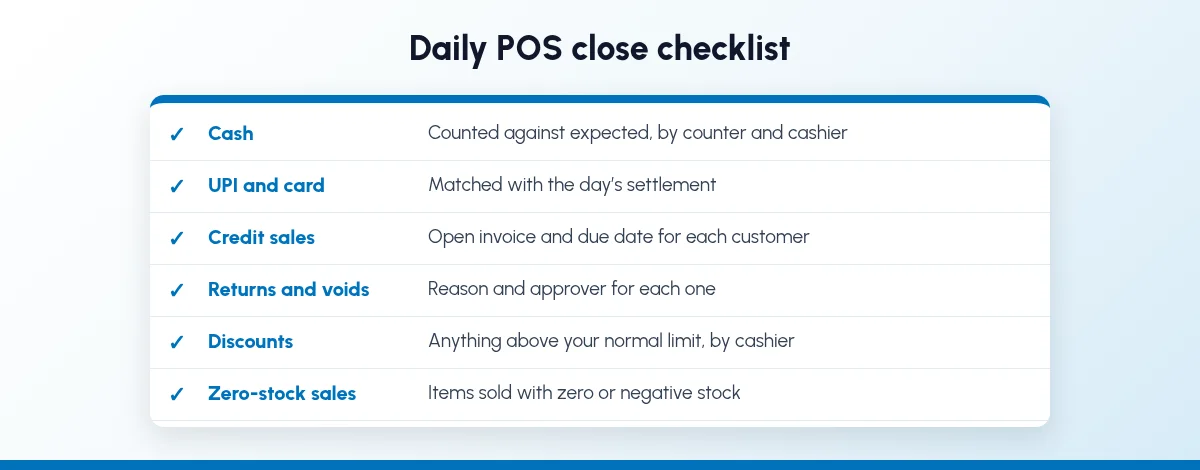
A short close every evening catches problems while people still remember the day:
Cash counted against expected cash, by counter and cashier, with every difference given a reason.
UPI and card totals matched against the payment app or bank settlement for the day.
Credit sales listed by customer, each with an open invoice and a due date.
Returns and voids, each with a reason and the name of the person who approved it.
Discounts above your normal limit, by cashier.
Items sold with zero or negative stock, which point to a wrong opening figure, a missed receipt or a wrong item at billing.
Then confirm that the session's totals have reached accounts. If you still close the day in a spreadsheet, our guide to moving sales management off Excel sheets shows how to make the switch without losing history.
Is POS different for restaurants, hotels and showrooms?
The routine is the same, and the record changes slightly:
Restaurants and cafes: orders are taken by table, sent to the kitchen and billed at the end, and stock often means ingredients rather than finished items. Ask whether the software reduces ingredient stock from a recipe, or only tracks finished items.
Hotels and rentals: the restaurant, room service and any shop or rental desk bill to the same guest, so the outlet bill must reach the guest's folio and the accounts. The SAS hotel and rental page (checked 27 Oct 2026) describes SAS Hotel Management for rooms, amenities, food, events and bookings, and SAS Rental Sales for renting products out from sales.
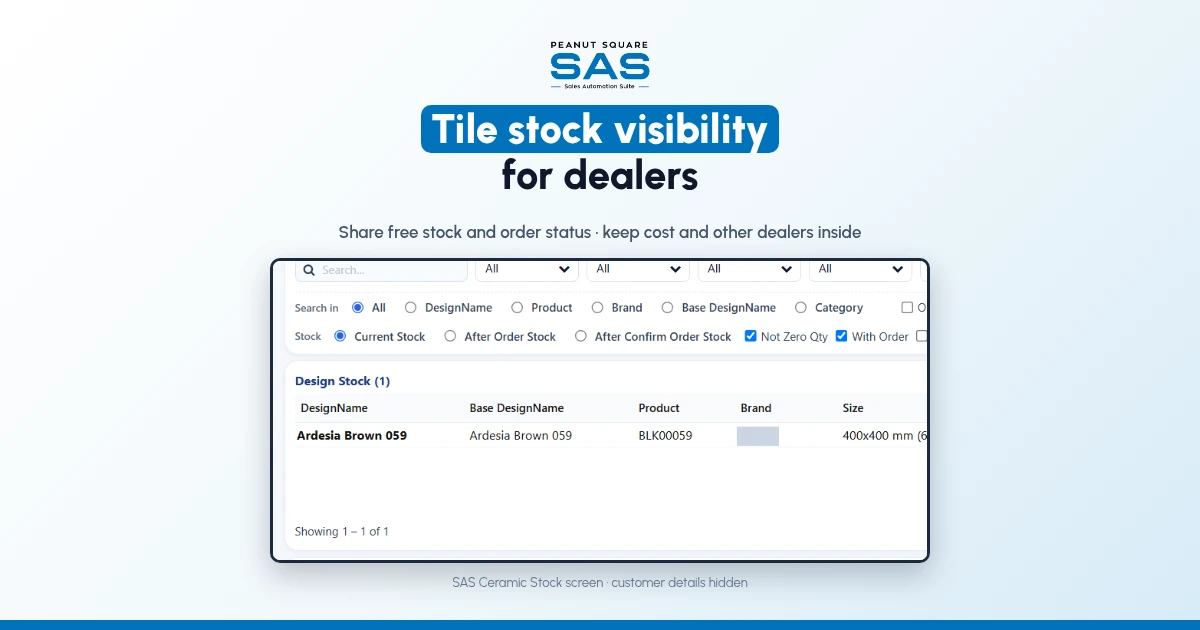
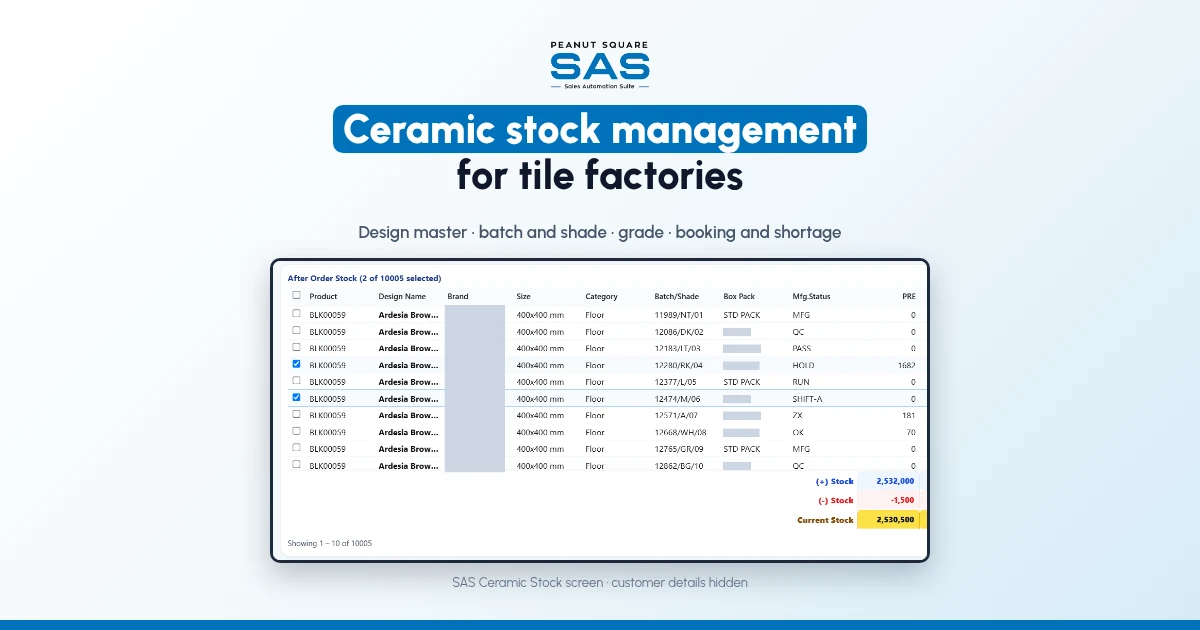
Tile, sanitaryware and furniture showrooms: a counter sale is often only part of the deal. The rest goes out as a quotation, a part delivery or a credit invoice, so counter stock and order stock must be one figure. For design-wise stock, see our guide to tile dealer design stock management, and the SAS ceramic store sales page (checked 27 Oct 2026).
Factory sales counters: walk-in buyers and dealers buy from the same finished-goods stock that production fills, so the counter must not sell stock already booked for a dealer order.
What should you check in POS and invoicing software?
Ask for a live demo on your own items and your own day, not a slide. These questions separate one connected system from a billing app with an export button:
One product list: do the counter, sales orders, purchase and stock use the same items, units, tax rates and price lists?
Stock per store: does each counter sale reduce stock in the right store or outlet, and when: at the sale or only at day-end close?
GST invoice at the counter: can a buyer with a GSTIN get a tax invoice from the same sale, in the format your CA needs?
Offline billing: can the counter keep billing when the internet drops, and how do those sales reach stock and accounts afterwards?
Payments: which payment modes can be recorded, and are credit sales tracked as open invoices on the customer?
Daily close: does each session show expected and counted cash, and do totals post to accounts without re-entry?
Returns: does a return add stock back and create a credit note against the original bill?
Restaurant needs: if you run a kitchen, ask about table orders, kitchen tickets and ingredient stock.
Printers and devices: which receipt printers, barcode scanners and tablets does it support?
Users and cost: how are counter staff licensed, and is POS in the plan price or quoted separately?
Ask the vendor to show each answer on screen and to put anything not shown into the written quote. Our ERP and CRM buyer's checklist lists the wider questions to ask before you sign, and if your billing still sits in Tally and Excel, read how to move from Tally and Excel to an ERP first.
How does Sales Automation Suite handle POS, stock and invoicing?
SAS lists Point of Sale, Inventory and Invoicing as apps in one suite. Here is what the live SAS pages show today, and what they leave open.
Sales Automation Suite (SAS) from Peanut Square is one ERP and CRM built for how India sells. It is meant for India B2B sellers who outgrow a CRM-only stack and want one INR-priced ERP+CRM with India lead portals and WhatsApp on the pricing page, on Cloud or On-Premise. Peanut Square is based in Ahmedabad and holds ISO 9001:2015 and ISO 27001:2022 certification.
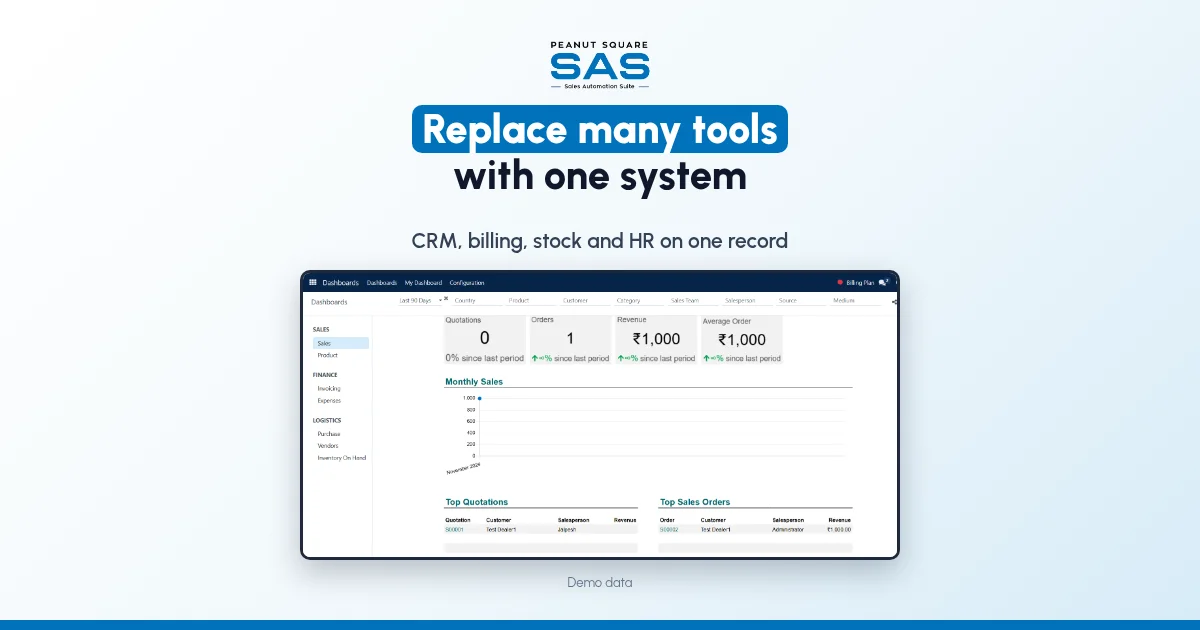
The SAS home page (checked 27 Oct 2026) says SAS connects CRM, inventory, sales, manufacturing and POS into a single unified workspace. What the SAS app and help pages describe:
Point of Sale: the SAS POS app page (checked 27 Oct 2026) describes online and offline billing, offline payments, self-ordering through kiosks or mobile devices, rewards and loyalty, gift cards, refunds through an eWallet, invoicing and multiple payment methods, on any device.
Inventory: the SAS Inventory help guide (checked 27 Oct 2026) says the Inventory module works with Sales, Point of Sale, Purchase, Accounting and Manufacturing. The SAS replenishment guide (checked 27 Oct 2026) describes minimum and maximum quantities per product, with on-hand and forecast figures and manual or automatic reorders.
Invoicing: the SAS Invoicing app page (checked 27 Oct 2026) describes pre-filled customer details, products and prices added to invoices, tax rates applied automatically, and payment status updated as payments come in.
Restaurant: the SAS Restaurant app page (checked 27 Oct 2026) lists quick order taking with modifiers, menus, online table reservations, table management, kitchen and bar integration and payment processing.
Plan features: the SAS pricing page (checked 27 Oct 2026) lists Billing and POS Print under CRM and Sales, and Multiple Stores, Batches, Expiry, Min levels, Stock Reconciliation and Stock Availability under Inventory, alongside Accounting.
The SAS pages we checked don't settle every counter question. They don't say exactly when a POS sale reduces stock, how a counter sale becomes a GST tax invoice for a business buyer, how offline sales sync back, or how the daily close posts to accounts. Ask the SAS team to run your own counter day, from opening stock to day-end close, in a demo, and to put each answer in the written quote.
On price: ₹300/user/month on Premium (40% off ₹500, GST extra, billed yearly).
If several of the problems above sound familiar, you may also recognise the signs your business has outgrown a CRM-only tool.
To see it with your own process: Book a free demo at sas.peanutsquare.com
How do I manage point of sale and invoicing together?
Run the counter, stock and invoices from one system with one product list. Each counter sale should reduce stock in the store that sold it, produce the receipt or GST invoice from the same record, and record the payment mode. Close every counter session at day end and match cash and digital payments.
Can one system handle both counter sales and GST invoices for business buyers?
It should. When a buyer gives a GSTIN, the counter should be able to select the customer and issue a tax invoice from the same sale, so nobody types it again in accounts. Check the invoice format with your CA and ask the vendor to show it in a demo.
Why does my POS stock never match the shelf?
Usually because the counter and the stock register use different item lists, opening stock was never counted, or returns and wrong-item billing are not corrected. Clean the product list, count the shelf, bill only from the list and review items sold at zero or negative stock every day.
What should a POS daily closing report show?
Expected versus counted cash by counter and cashier, UPI and card totals, credit sales by customer, returns and voids with reasons, large discounts, and items sold with zero or negative stock. The totals should then reach accounts without being typed again.
Does SAS have a point of sale app?
Yes. The SAS POS app page lists online and offline billing, offline payments, self-ordering, loyalty, gift cards, invoicing and multiple payment methods, and the SAS Inventory help guide says Inventory works with Point of Sale. Ask the SAS team to show how a counter sale reaches stock and accounts in a demo.