Short answer: Ceramic stock management in a tile factory works when every design has one master record, stock is kept per design by batch or shade, grade and manufacturing status, and every movement in or out of the plant and godown is entered with its shift, source and truck. Then confirmed dealer orders are booked against that stock, so the factory sees, by age, what is free, what is booked and where it is short before it promises a dispatch.
This guide opens a 30-day series for tile makers and dealers in Morbi, Gujarat and Maharashtra. It covers why factory stock drifts, what a ceramic stock record should hold, a setup plan, who sees what, and the SAS Ceramic Stock screens. Dealers can read our tile dealer stock management guide for the trading side.
Why does stock drift in a ceramic tile factory?
A plant in Morbi does not make "a tile". It makes a design in a size, finish and punch, in batches that can differ in shade, sorted into grades and packed into boxes. One design can sit in the godown as dozens of lines. Stock drifts when those lines are counted as one, or when movements are written down late.
Where it usually slips:
Design names multiply. Sales, the plant and the box use slightly different names, so one design shows up as two.
Batches and grades are mixed. A large dealer order is filled from two batches, or the wrong grade, and comes back as a complaint.
Plant output is entered at the end of the day. The racks fill by shift, but the screen catches up later from a paper slip.
Dispatch is not linked to an order. A truck leaves with boxes that were never booked against the order they went to.
Booked stock looks free. Confirmed orders are not subtracted, so two dealers are promised the same boxes.
None of this needs a bigger godown. It needs one stock record per design line that the plant, the godown and sales all read.
What should ceramic stock management hold?
A workable record answers four questions for every design: what it is, how much of each batch and grade you have, where it is, and how much is already promised.
A design master. One code per design, with brand, size, category, finish, punch, weight and an active or discontinued status.
Stock by batch or shade. Each batch or shade number is its own line under the design.
Stock by grade. Quantity split by grade, with a total, so one order can be filled from one grade.
Manufacturing status and box pack. Each line shows its status on the floor and how it is packed.
Location. The rack or godown location of each line, so dispatch finds it.
Movements with their source. Every entry in and out, with shift, source, quantity and truck.
Booking and shortage, by age. Confirmed order quantity held against stock, what is left after booking, and where orders are short.
How do I set up ceramic stock management in a tile factory?
Set it up in this order. Each step is useful on its own, so the plant and godown can settle in before the next one.
Step 1: Build the design master
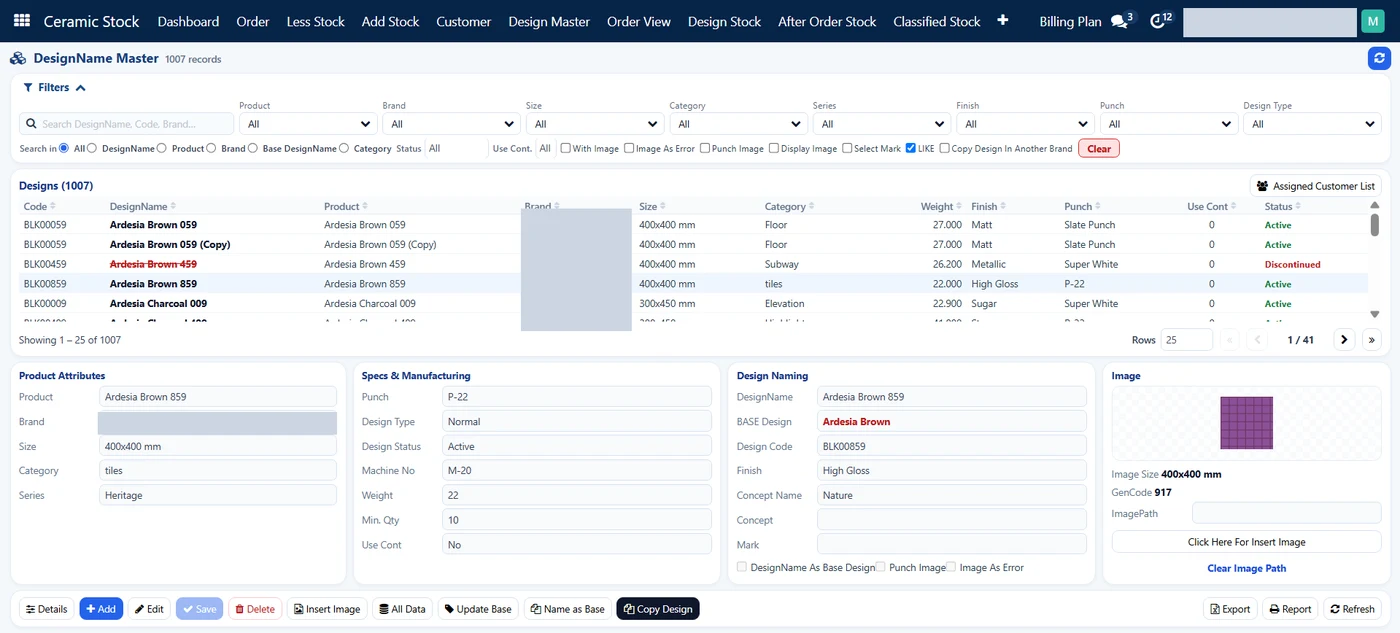
The Design Master in SAS Ceramic Stock. Brand names hidden.
List every design you make and give each one code. Record its base design, brand, size (for example 400×400 mm), category, finish, punch, weight and minimum quantity. Mark old designs as discontinued instead of deleting them, and attach a design image so sales, dispatch and dealers look at the same tile.
Step 2: Decide your batch, shade and grade rules
Write down how a batch or shade number is formed and which grades you sort into. Keep it the same across plants. Every lot that leaves the sorting line should carry a batch or shade number and a grade.
Step 3: Enter plant output by shift, as it happens
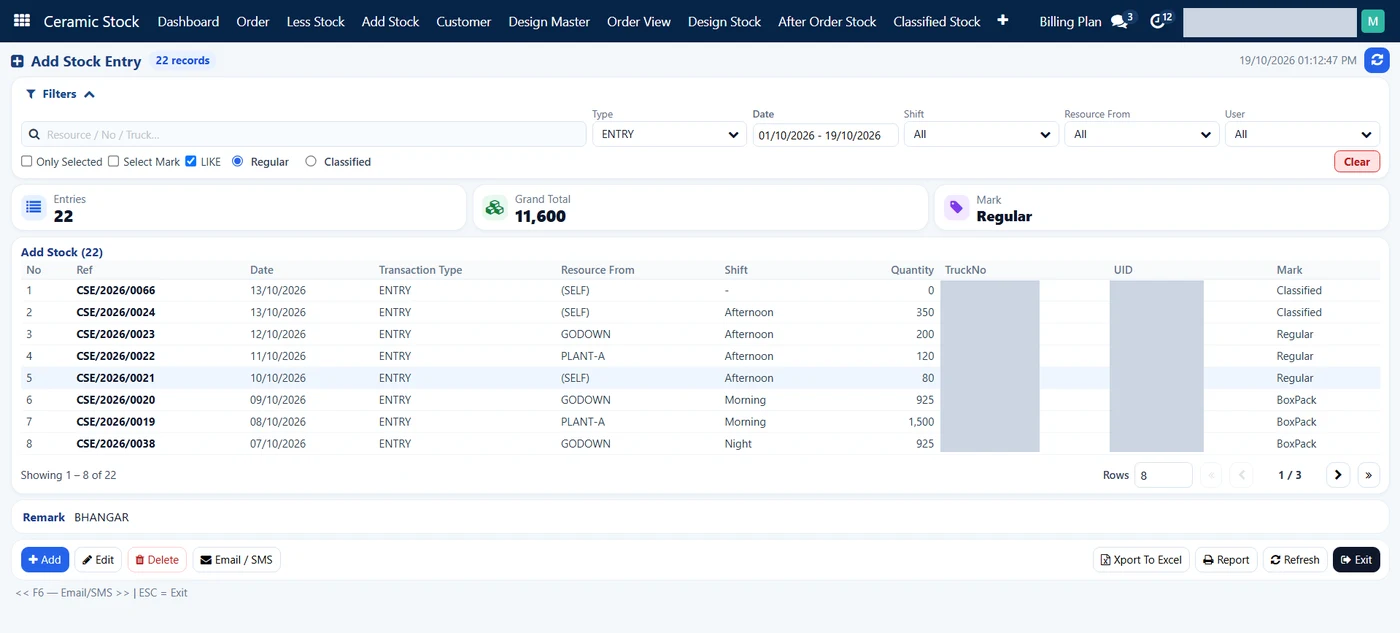
Add Stock entries by source and shift. Truck numbers and users hidden.
Each time stock comes in from the plant or another godown, make an entry: source, shift, quantity, the truck if it came by road, and whether it is regular, classified or box pack stock. A count that is a day late is a count sales cannot trust.
Step 4: Record every exit against an order
When stock leaves, enter it with the dealer, city, quantity, truck, P.O. and invoice number. Link it to the sales order where you can, so the exit reduces the booking as well as the stock. Keep box pack stock in its own register.
Step 5: Book confirmed dealer orders against stock
Once an order is confirmed, hold its quantity against the design and grade. Sales should see current stock, stock after orders and stock after confirmed orders, so the same boxes are not promised twice.
Step 6: Review booking, shortage and age every week
Group stock by how long it has been sitting, with booking and shortage next to it. Shortage tells the plant what to make next. Old, unbooked stock tells sales what to offer dealers first.
What do the plant, the godown and sales each need to see?
All three read the same records. Only the plant and godown create stock entries; sales reads and books.
Plant: Needs to see: Shortage by design and grade, manufacturing status of each batch; Should own: Production entries by shift and source
Godown: Needs to see: Every batch or shade line with its location, box pack stock; Should own: Entries in and out, with truck, P.O. and invoice
Sales: Needs to see: Stock per design by grade after confirmed orders, orders booked against a design; Should own: Bookings, and the ready, half-ready or not-ready status told to dealers
Dealers: Needs to see: Their own orders and whether each is ready, half-ready or not ready; Should own: Their orders
How does Sales Automation Suite handle ceramic stock management?
Sales Automation Suite (SAS) from Peanut Square is one ERP and CRM built for how India sells. It is meant for Indian B2B sellers who outgrow a CRM-only stack: India lead portals and WhatsApp are on the pricing page, the price is in rupees, and it runs on Cloud or On-Premise.
The SAS page for tile manufacturers and traders lists SAS Ceramic Stock Management, which keeps a design master and stock per design, and Product Carton Management, which "tracks cartons and pieces and shows stock in cartons". The SAS Morbi page names Renite Vitrified, a vitrified tile maker in Morbi, as a customer using SAS CRM and automation alongside its other tools.
The screens below are SAS Ceramic Stock screens shared by Nishant Patel on 19 Oct 2026 (customer details hidden). In the SAS Ceramic Stock screens, ready, half-ready and not-ready are tracked on orders, in the Order View and Dashboard, not on stock lines.
Design Master
One record per design, with code, design name, product, brand, size, category, weight, finish, punch, minimum quantity and active or discontinued status. Side panels group product attributes (including series), specs and manufacturing (design type, machine number, weight) and design naming (base design, concept name, mark). A design can carry an image, be copied, or be copied to another brand.
After Order Stock and Classified Stock
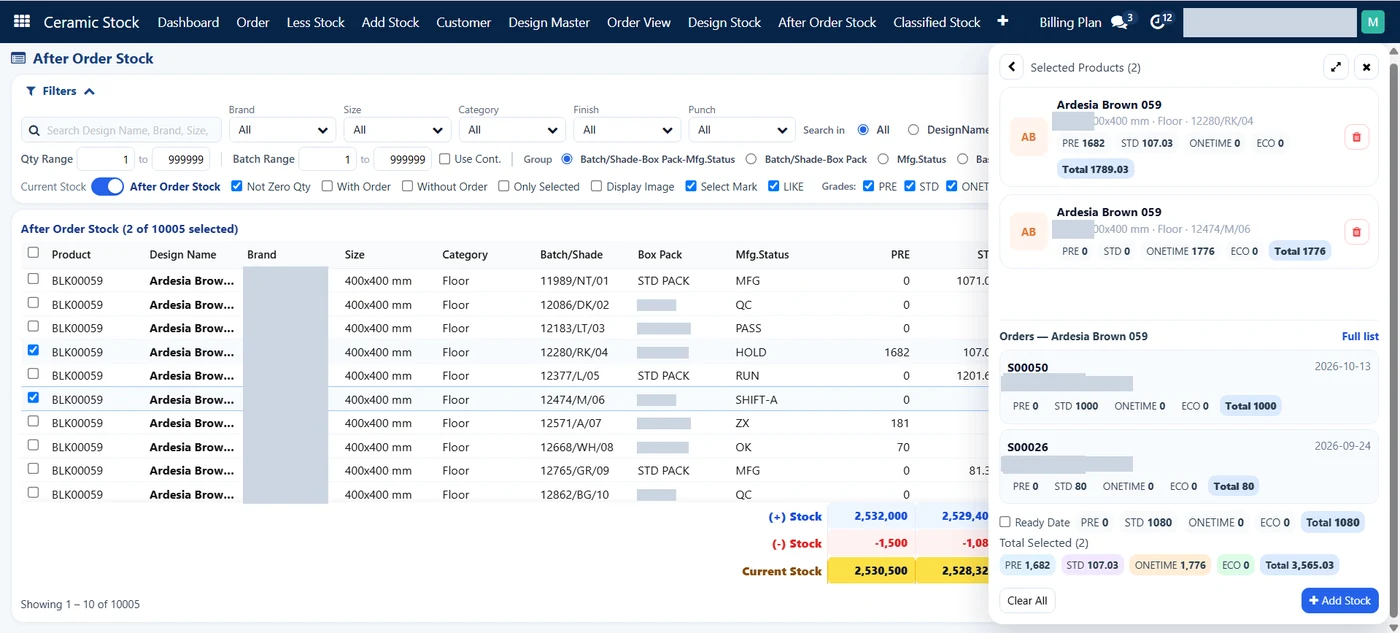
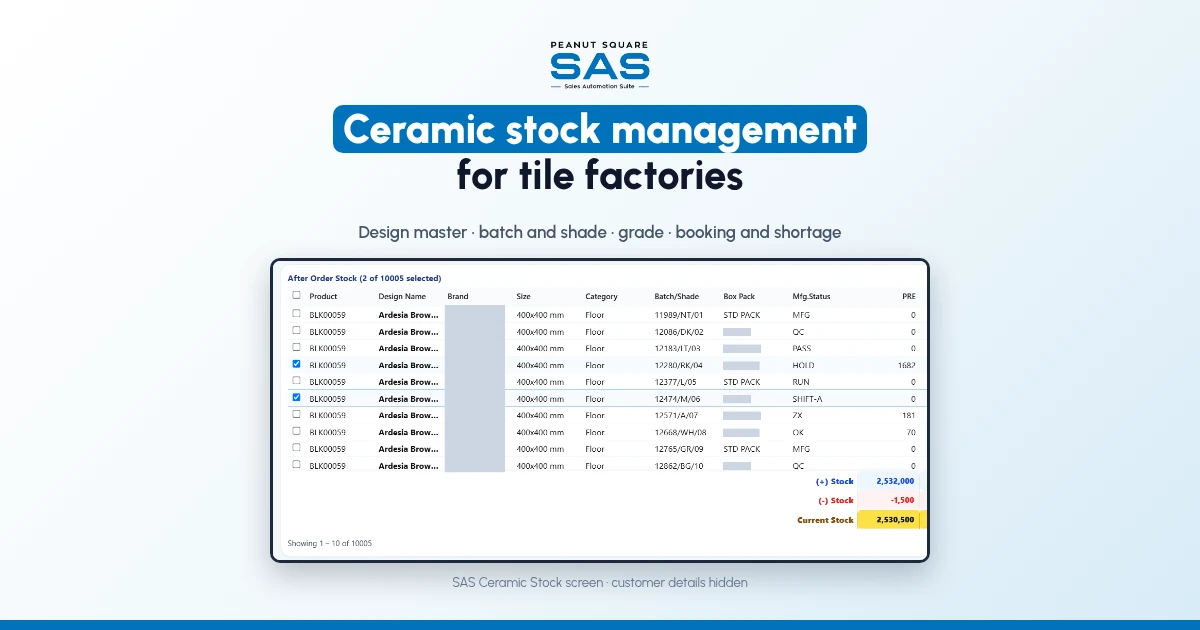
After Order Stock: one design by batch or shade, grade and manufacturing status. Names hidden.
Stock for each design line by batch or shade number, box pack and manufacturing status (for example QC, PASS or HOLD), split into four grade columns (PRE, STD, ONETIME and ECO in the screens checked) with a total. Selecting lines opens the orders already booked against that design. The Classified Stock view adds finish, punch and location.
Add Stock, Less Stock and PackBox Stock
Add Stock entries record stock coming in, with the source (plant, godown or self), shift, quantity, truck number and a mark of regular, classified or box pack. Less Stock entries record stock going out, with dealer, city, quantity, P.O., invoice and truck number, and totals with weight. PackBox Stock keeps box pack entries and exits in their own list, each moving from draft to done.
Order View and Dashboard
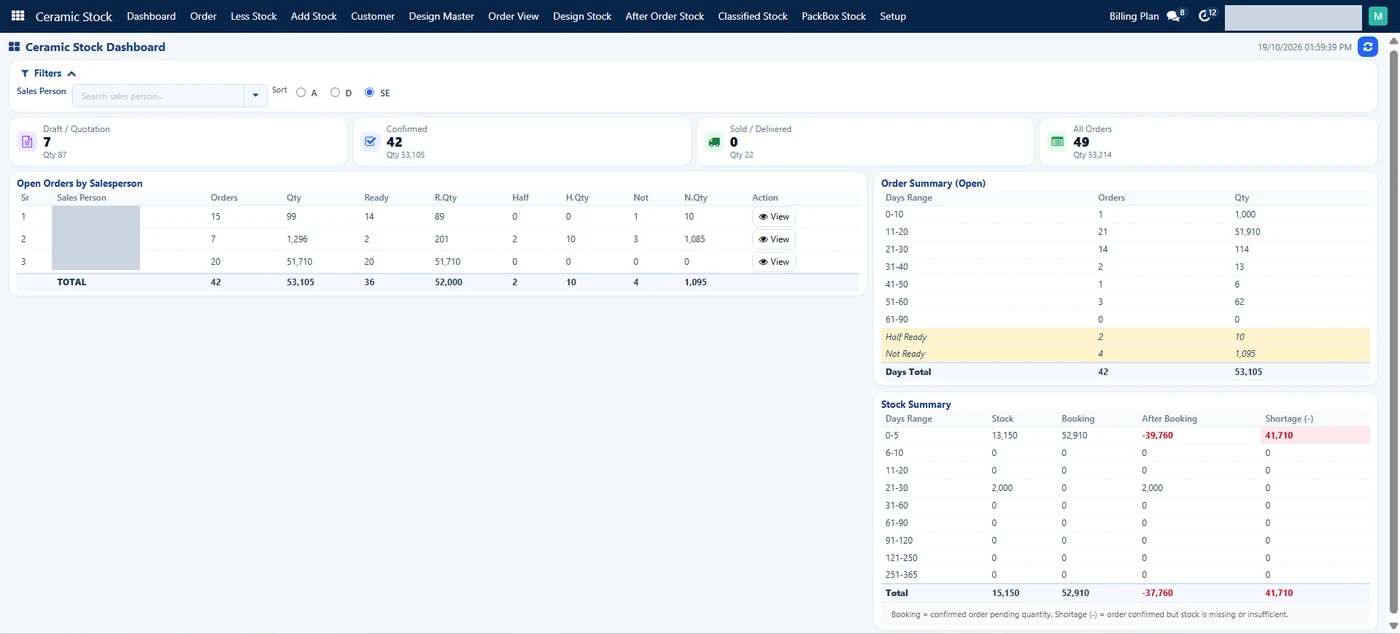
Ceramic Stock Dashboard: open orders by status, and stock by age with booking and shortage. Salesperson names hidden.
The Order View counts open orders as ready, half ready or not ready. The Ceramic Stock Dashboard shows draft, confirmed and delivered orders, open orders by salesperson with ready, half and not-ready quantity, and a Stock Summary by days range (0 to 5 days up to 251 to 365 days) with stock, booking, stock after booking and shortage. The dashboard defines booking as confirmed order quantity still pending, and shortage as order quantity confirmed where stock is missing or not enough.
The SAS pricing page lists Inventory, Multiple Stores, Batches, Min levels and Stock Reconciliation on the plan. Knowledge base articles cover lot and serial numbers and product packaging. For the sales side of a Morbi factory, read ERP and CRM for Morbi tile factories and inventory and sales integration.
On price: ₹300/user/month on Premium (40% off ₹500, GST extra, billed yearly).
SAS is built by Peanut Square in Ahmedabad, Gujarat. The SAS tile industry page lists ISO 9001:2015 and ISO 27001:2022.
To see it with your own process: Book a free demo at sas.peanutsquare.com
How should a ceramic tile factory manage stock by design, batch and grade?
Keep one master record per design, then stock each batch or shade number as its own line, split by grade, with its manufacturing status and location. Enter every movement in and out with its shift, source and truck, and book confirmed orders against the stock.
Why track batch and shade separately in ceramic stock?
Batches of the same design can differ slightly in shade. Keeping each batch apart lets you fill a dealer's order from one batch and one grade, and avoid mixed-shade complaints after the tiles are laid.
What is the difference between booking and shortage in tile stock?
Booking is confirmed order quantity still waiting to be dispatched. Shortage is confirmed order quantity that current stock cannot cover. The SAS Ceramic Stock Dashboard shows both next to stock for each days range.
Who should enter stock in a tile factory?
The plant and the godown. They make the entries in and out, by shift, with the source and truck. Sales should read stock and book orders against it, not change stock figures.
Does SAS have ceramic stock management for tile manufacturers?
Yes. The SAS tile industry page lists SAS Ceramic Stock Management and Product Carton Management. The Ceramic Stock screens include a Design Master, stock by batch or shade and grade, Add Stock and Less Stock entries, PackBox Stock, an Order View and a dashboard with booking and shortage.