Short answer: Tile dealer stock management works when every design has one record, and stock is counted against it in cartons and loose pieces, kept apart by shade or batch, and marked ready, half-ready or not-ready. Add the date each lot arrived, so its age shows next to the quantity. Then salespeople check the design before they promise a date, and old stock gets offered before it turns into dead stock.
This guide covers why tile stock gets out of hand, how to set up design-wise stock and aging step by step, what sales and the godown should each own, and how Sales Automation Suite handles it.
Why does tile stock get out of hand at a dealer?
A tile trader does not sell "tiles". They sell a design, in a size, a finish and a grade, from one shade batch, counted in boxes. One design in the catalogue can be ten separate stock lines in the godown. Most stock problems start when those lines are treated as one.
This is where it slips:
The design name hides the real item. The design is in stock, but only in glossy, and the buyer wanted matt. Or it is there in 600×600 mm and the order is for 600×1200 mm.
Shades get mixed. Two batches of the same design can differ slightly in tone. If they are counted together, a large order ships in two shades and comes back as a complaint.
Cartons and pieces live in different books. The godown counts full cartons. Broken cartons and loose pieces sit in a corner and never reach the stock figure.
Sales quotes from memory. The salesperson checks a WhatsApp photo of the rack or calls the store keeper, and promises stock that is still at the factory or already booked for another dealer.
Old designs sit unnoticed. Nobody sees that a design has been on the rack for months until the space is needed for new stock.
None of this needs a bigger godown. It needs a design-wise stock record that sales can read.
What does design-wise stock management mean for a tile dealer?
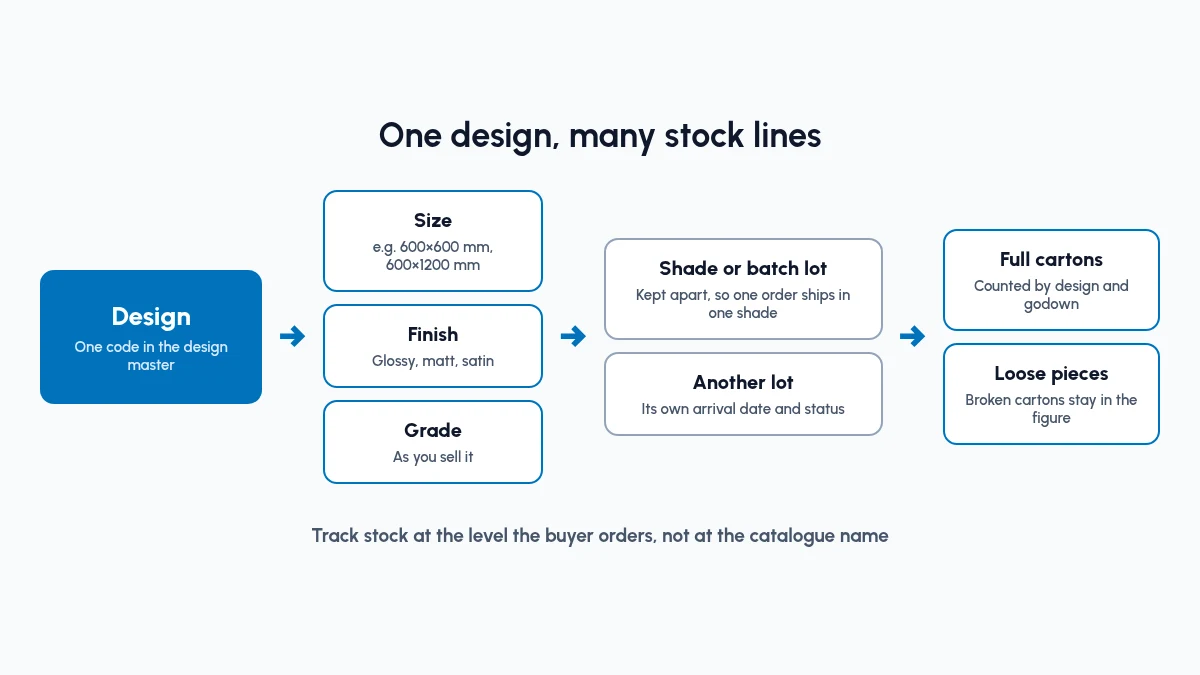
Track stock at the level the buyer orders: design, size, finish, grade and shade, in cartons and pieces.
It means you track stock at the level the buyer orders, and you can see how long it has been sitting. In practice:
One design master. Each design has one code, with its size, finish and grade, so a design name is never ambiguous.
Stock per design, per godown. Quantity on hand is recorded against the design, in each godown or store you run.
Cartons and pieces. Stock shows full cartons and loose pieces, so broken boxes are counted, not lost.
Shade or batch kept apart. Each batch of a design is its own lot, so one order can ship from one shade.
A status on every lot. Ready, half-ready or not-ready, so sales knows what can go out today.
Aging. The date each lot arrived, so slow designs show up before they become dead stock.
How do tile traders track design-wise stock and aging?
Set it up in this order. Each step helps on its own, so the team can settle in before the next one.
Step 1: Build one design master
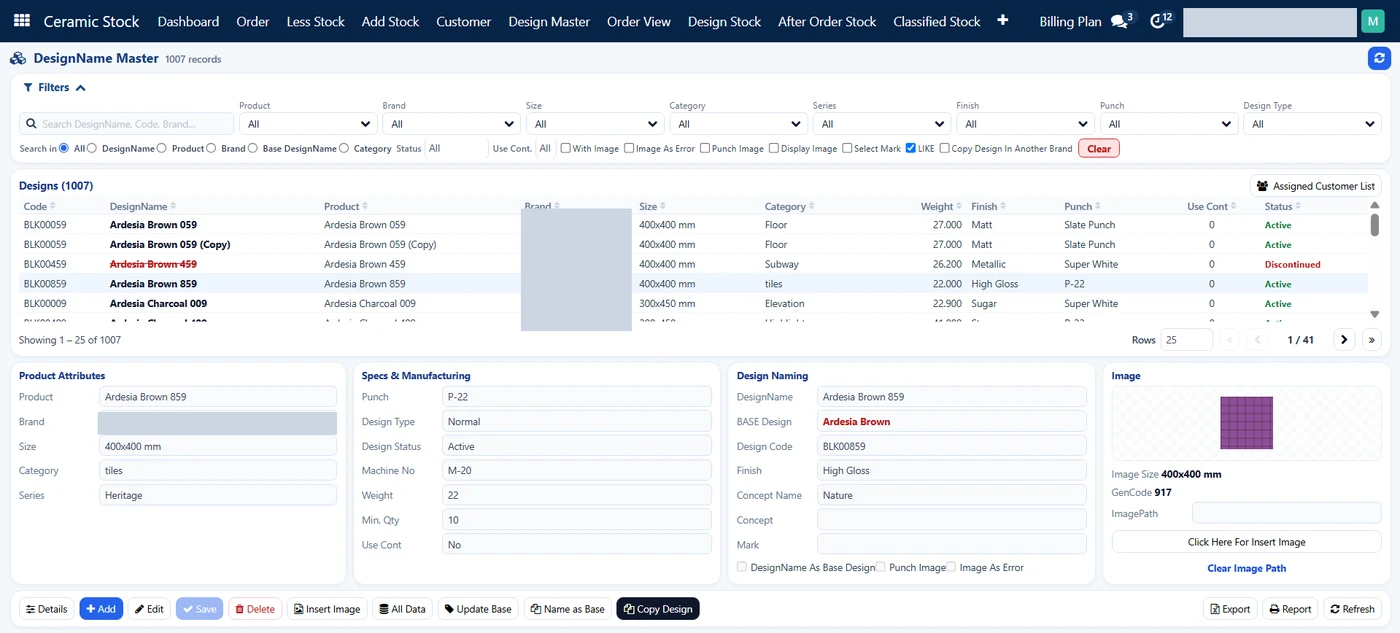
The Design Master in SAS Ceramic Stock. Brand names hidden.
List every design you sell, then split it into the variations a buyer actually orders: size (for example 600×600 mm or 600×1200 mm), finish (glossy, matt or satin) and grade. Give each combination one code. Close codes for designs you no longer buy. If two salespeople call the same tile by different names, settle it here.
In SAS Ceramic Stock, this is the Design Master screen. Each design has a code, a design name and a base design, with its brand, size, category (floor, subway or elevation in the screens we checked), finish, punch, weight and a status of active or discontinued. A design can carry its own image, and a design can be copied to make a new one.
Step 2: Count stock in cartons and loose pieces
Do one full physical count by design and godown. Record full cartons and loose pieces separately, and note how many pieces make one carton for each design. Enter this as opening stock. If this count is wrong, every later figure will be wrong too.
Step 3: Keep each shade or batch apart
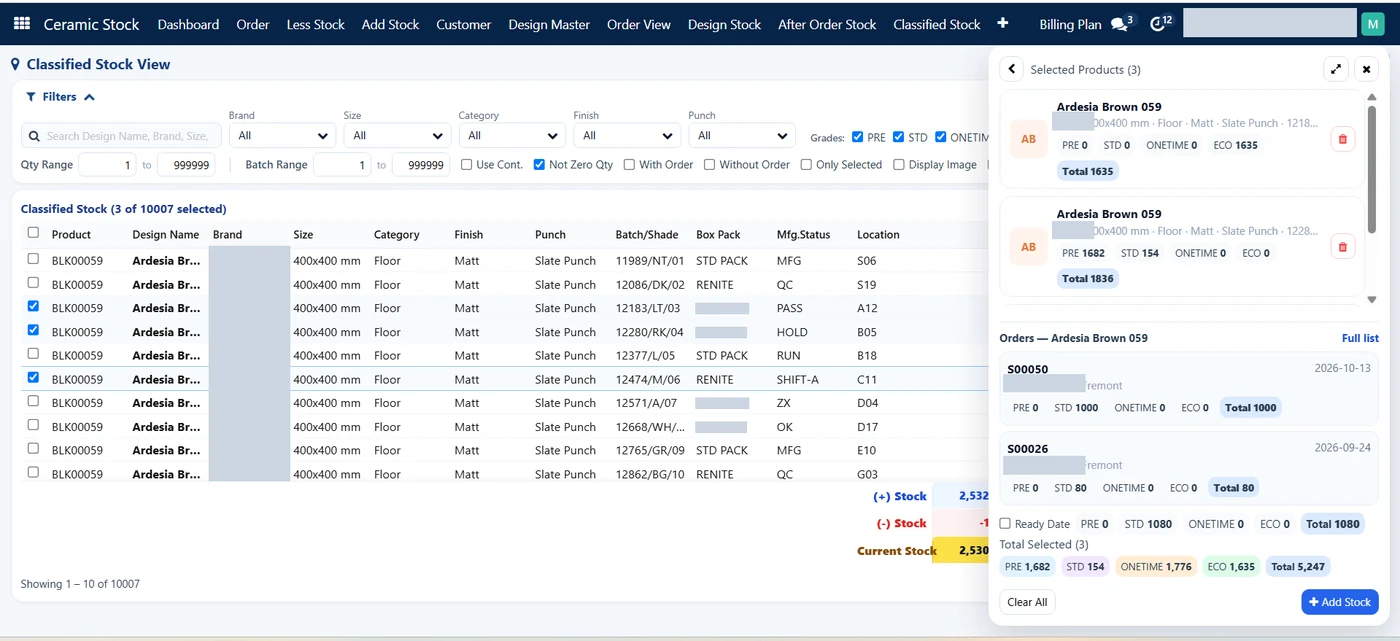
Classified Stock View: one design, many batch or shade lines, each with a location. Names hidden.
When a new lot arrives, give it a batch or shade number and keep it as a separate line under the design. Before you quote a large order, check that one batch can cover it. If it cannot, tell the buyer before dispatch, not after.
SAS Ceramic Stock keeps batch or shade inside the stock screen itself. The After Order Stock and Classified Stock views list each design line by batch or shade number, box pack and manufacturing status, and the Classified view adds the rack or location. Stock is shown in four grade columns (PRE, STD, ONETIME and ECO in the screens we checked) with a total, so you can see whether one batch and grade can cover an order.
Step 4: Mark every lot ready, half-ready or not-ready
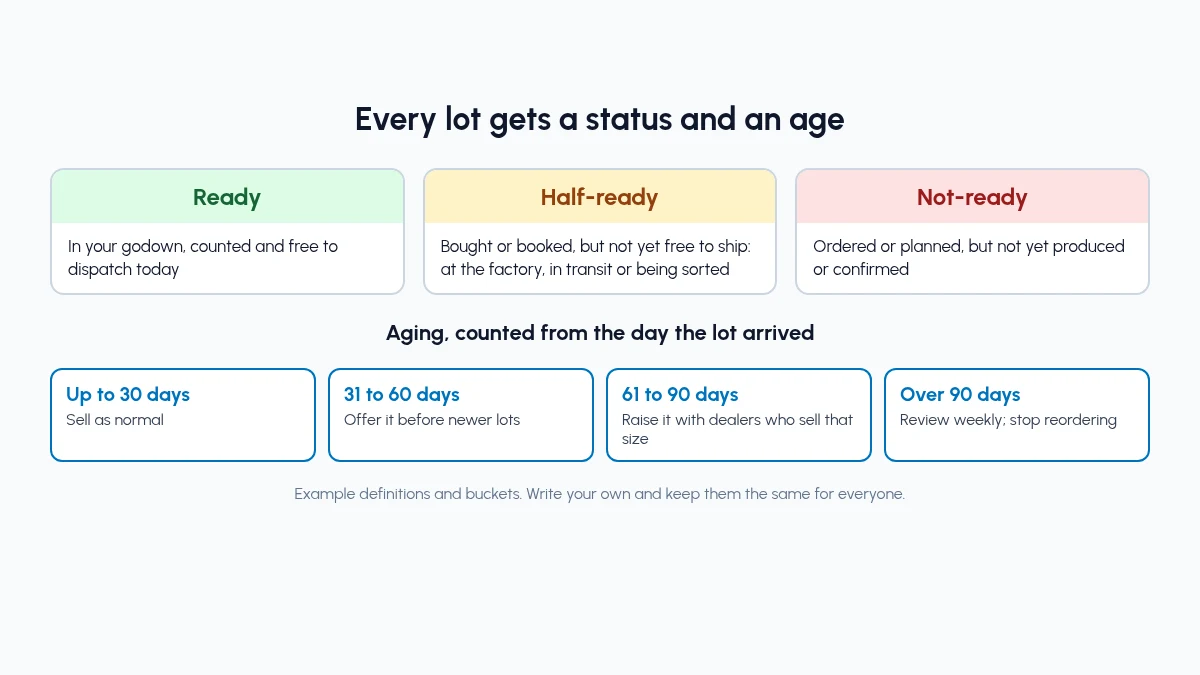
Every lot gets a status and an age. Example definitions; write your own.
Write down what each status means for your business, and keep the meaning the same for everyone. A trader might use:
Ready: in your godown, counted, and free to dispatch today.
Half-ready: bought or booked but not yet free to ship, for example still at the factory, in transit, or waiting to be sorted.
Not-ready: ordered or planned, but not yet produced or confirmed.
A manufacturer will define these by production stage instead. What matters is that a salesperson who reads "ready" knows the stock can go out today.
In the SAS Ceramic Stock screens we checked, ready, half-ready and not-ready are tracked on orders. The Order View counts open orders as Ready, Half Ready or Not Ready, with the share of each, and shows the ready quantity and not-ready quantity for the orders listed. The Ceramic Stock Dashboard splits each salesperson's open orders the same way.
Step 5: Track aging from the day stock arrives
Record the date each lot was received or produced, and group stock by age. Simple buckets are enough to start, for example up to 30 days, 31 to 60, 61 to 90 and over 90 days. Pick buckets that fit how fast your designs move, and review the oldest ones every week, design by design.
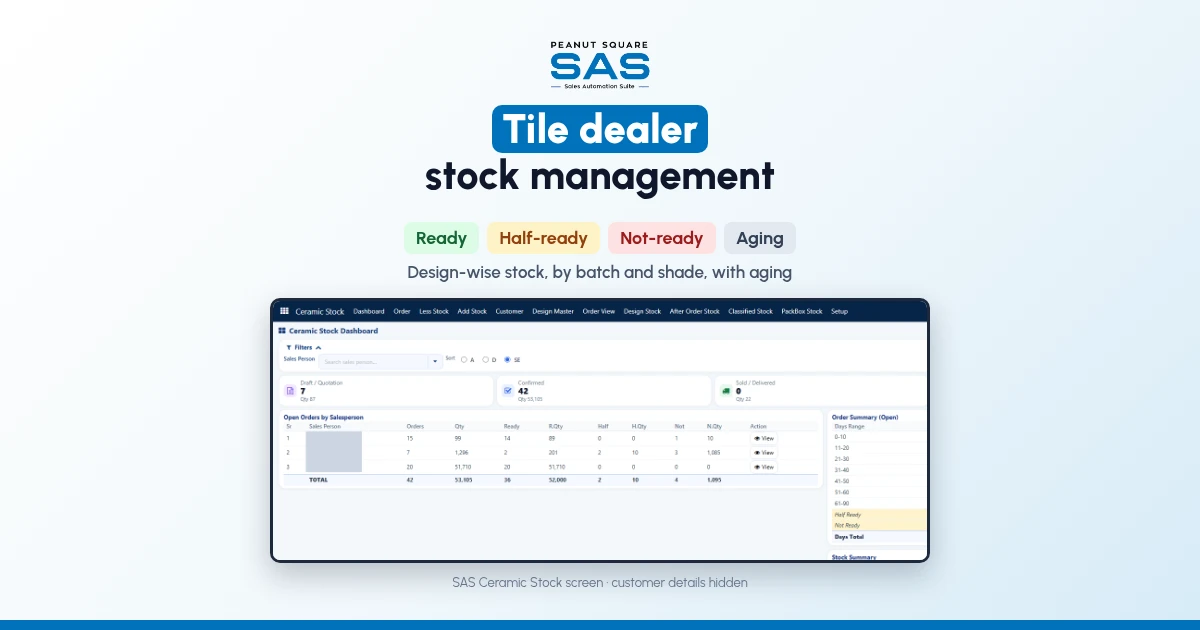
The Ceramic Stock Dashboard in SAS already groups this. Its Stock Summary shows stock in day ranges (0 to 5, 6 to 10, 11 to 20, 21 to 30, 31 to 60, 61 to 90, 91 to 120, 121 to 250 and 251 to 365 days), with booking, stock after booking and shortage next to each. The dashboard defines booking as confirmed order quantity still pending, and shortage as order quantity confirmed where stock is missing or not enough. Its Order Summary groups open orders by age in the same way.
Step 6: Check the design before you quote a date
Make it a habit: before a salesperson quotes a quantity and a delivery date, they check the design's ready stock and its batch. Enquiries from IndiaMART, JustDial and WhatsApp should land in the same system as the stock, so the check is a screen, not a phone call to the godown. Our guides to IndiaMART CRM integration and WhatsApp CRM automation cover the enquiry side, and inventory and sales integration covers linking quotations to stock.
What should sales see, and what should the godown own?
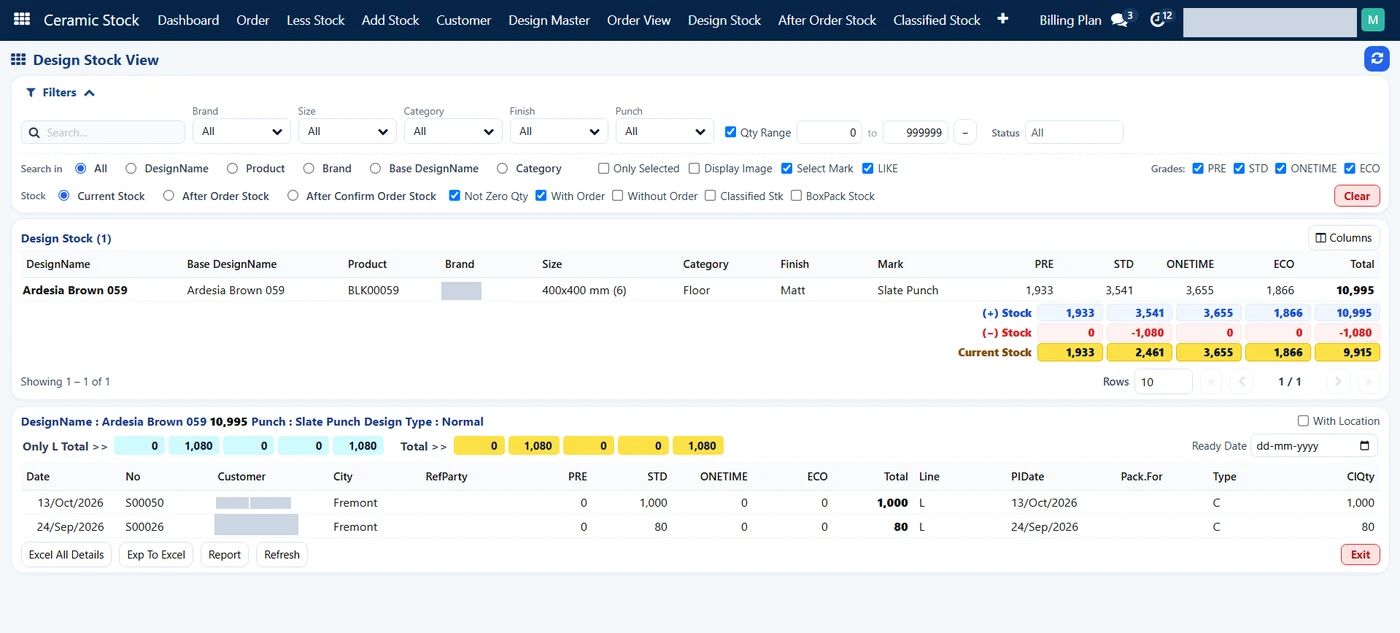
Design Stock View: what sales checks before promising a date. Names hidden.
Design-wise stock does not mean every salesperson edits stock. Keep the roles clear.
In SAS, the Design Stock View is the screen for sales: pick a design and it shows stock by grade, the plus and minus movements, current stock, and below it the orders booked against that design, with a ready date filter. Stock comes in and goes out through Add Stock and Less Stock entries, which is the godown's side of the work.
Sales should see:
Ready, half-ready and not-ready stock per design
Full cartons and loose pieces available
Which shade or batch can cover an order
How old the stock of each design is
Delivery status of their own dealers' orders
The godown and purchase should own:
Receipts from the factory and transfers between godowns
Physical counts and the difference from book stock
Batch or shade numbers on each new lot
Breakage, damaged cartons and stock adjustments
Reorders for designs that sell, and stopping designs that do not
What sales sees helps a salesperson promise well and offer older stock first. What the godown owns keeps the stock figure honest. Both sides read the same records.
What should a tile dealer do with aging stock?
Aging is only useful if someone acts on it. We will not put a number on the gain, because it depends on how much old stock you carry. These habits are a sensible start:
Review the oldest designs every week. Sales and the godown look at the same aging list, design by design.
Offer older designs first. When a buyer's need fits an older design, the salesperson shows that one before the newest arrival.
Talk to dealers about specific designs. A dealer who sells that size and finish may take a slow design if you ask with a clear offer.
Stop reordering slow designs. If a design keeps landing in the oldest bucket, leave it off the next purchase order.
Sell broken cartons as small lots. Once loose pieces are in the stock figure, they can be offered for small jobs instead of being written off later.
How does Sales Automation Suite handle tile dealer stock management?
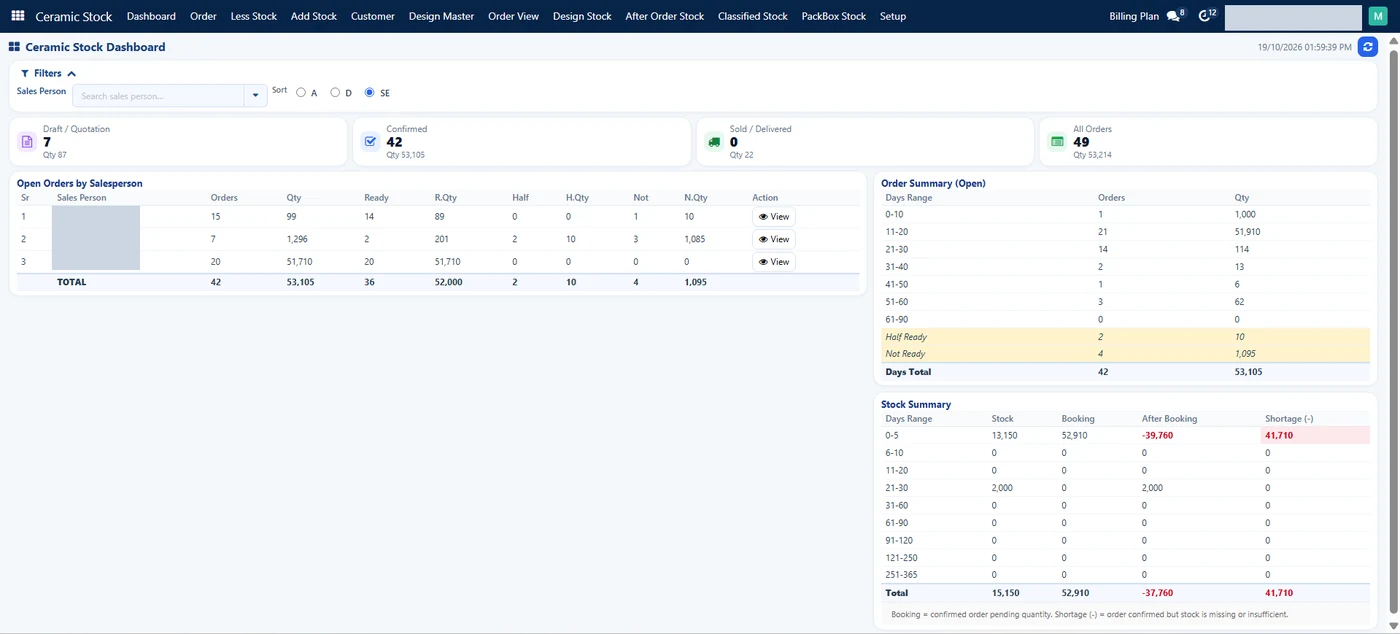
Ceramic Stock Dashboard: open orders by salesperson, and stock by age with booking and shortage. Names hidden.
Sales Automation Suite (SAS) from Peanut Square is one ERP and CRM built for how India sells. It is meant for India B2B sellers who outgrow a CRM-only stack and want one INR-priced ERP+CRM with India lead portals and WhatsApp on the pricing page, on Cloud or On-Premise.
The SAS page for tile manufacturers and traders (checked 16 Oct 2026) lists these modules for tile businesses:
SAS Ceramic Stock Management "keeps a design master and stock per design, with a salesperson dashboard that splits stock into ready, half-ready and not-ready, plus aging."
Product Carton Management "tracks cartons and pieces and shows stock in cartons."
SAS Dealers keeps one master for dealers and customers with area, city, stage and salesperson assignment, and a dealer dashboard.
SAS Delivery LR Transport records the LR number and transport name on delivery orders.
The same page says traders use the same modules as makers. The SAS page for Morbi tile businesses (checked 16 Oct 2026) sets out the order of work: an enquiry lands as a lead, it is assigned to a salesperson, and "before quoting a date, the salesperson checks design stock: ready, half-ready or not-ready, with aging."
Screens from SAS Ceramic Stock (shared by Nishant Patel, 19 Oct 2026; customer details hidden) show how this works day to day:
Design Master: one record per design with code, base design, brand, size, category, finish, punch, weight, minimum quantity, design image and active or discontinued status.
Design Stock View: stock per design by grade, with current stock, stock after orders and stock after confirmed orders, and the orders booked against the design.
After Order Stock and Classified Stock: stock lines by batch or shade number, box pack and manufacturing status, with the location in the Classified view.
Add Stock and Less Stock: entries in and out, with the source (plant, godown or self), shift, quantity, truck number, P.O. and invoice number, marked as regular, classified or box pack.
Order View and Dashboard: open orders as ready, half ready or not ready, open orders by salesperson, and stock by days range with booking and shortage.
The SAS knowledge base (all checked 16 Oct 2026) covers the inventory tools underneath:
Lot numbers "refer to a batch of products with shared characteristics", and products can be tracked by lot from the receipt onwards (lot and serial numbers).
Product attributes such as size, colour and material group products, and product variants can be built from them (product attributes, product variants).
Product packaging is meant for packing different quantities of the same product (product packaging).
Inventory adjustments show on-hand quantity, counted quantity and the difference for each product, with its lot and package (inventory adjustments).
A dealer record in Ceramic SAS holds area, stage, type of customer, salesperson, sales team and area sales manager (create a new dealer in Ceramic SAS).
The SAS pricing page (checked 16 Oct 2026) lists Inventory, Multiple Stores, Batches, Min levels and Stock Reconciliation on the plan, alongside IndiaMART, TradeIndia, JustDial, Meta forms and Free WhatsApp Automation.
On price: ₹300/user/month on Premium (40% off ₹500, GST extra, billed yearly). Implementation is a separate one-time cost. Source: SAS pricing, checked 16 Oct 2026.
SAS is built by Peanut Square in Ahmedabad. The tile industry page lists ISO 9001:2015 and ISO 27001:2022.
How do tile traders track design-wise stock and aging?
Give every design one code with its size, finish and grade, then count stock against it in cartons and loose pieces, separately for each shade or batch. Mark each lot ready, half-ready or not-ready, and record the date it arrived so its age shows next to the quantity.
Why should tile stock be tracked by shade or batch?
Batches of the same design can differ slightly in tone. Keeping each batch apart lets you ship a large order from one shade and avoid mixed-shade complaints.
What does stock aging mean for a tile dealer?
It is how long a lot has been in your godown since it arrived. Grouping stock by age shows which designs are slow, so sales can offer them first and purchase can stop reordering them.
Should salespeople be able to change stock figures?
Usually not. Sales should see ready stock, batches and aging. The godown should own receipts, counts, breakage and adjustments, so the figure stays trustworthy.
Does SAS show ready, half-ready and not-ready tile stock?
Yes. The SAS tile industry page describes SAS Ceramic Stock Management as keeping a design master and stock per design, with a salesperson dashboard for ready, half-ready and not-ready, plus aging (checked 16 Oct 2026). In the Ceramic Stock screens, the Order View and Dashboard split open orders into ready, half ready and not ready, and the Dashboard shows stock by days range with booking and shortage.