
 Sales
How to Add and Manage Product Variants & Attributes
The Product variant option in the Sales module makes it simple to specify various variations of a product. You must enable the Product Variants option from the module’s Settings menu to access this functionality, as seen in the image below.
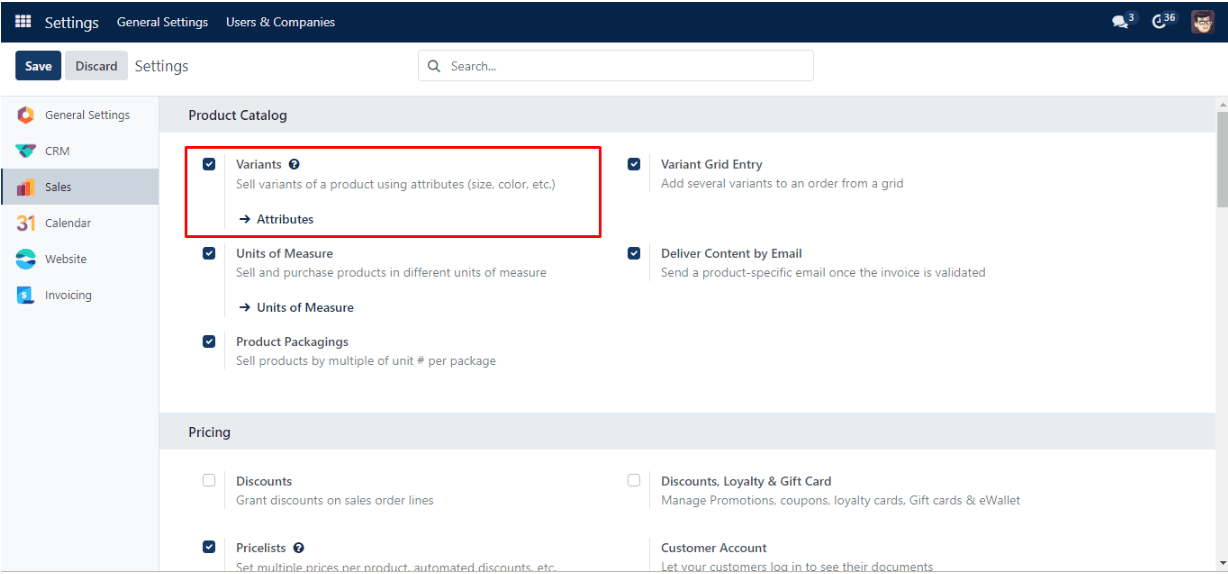
When you enable this feature, you will have access to a new option under the Products menu is called Product Variants. This will enable you to market items based on various features.
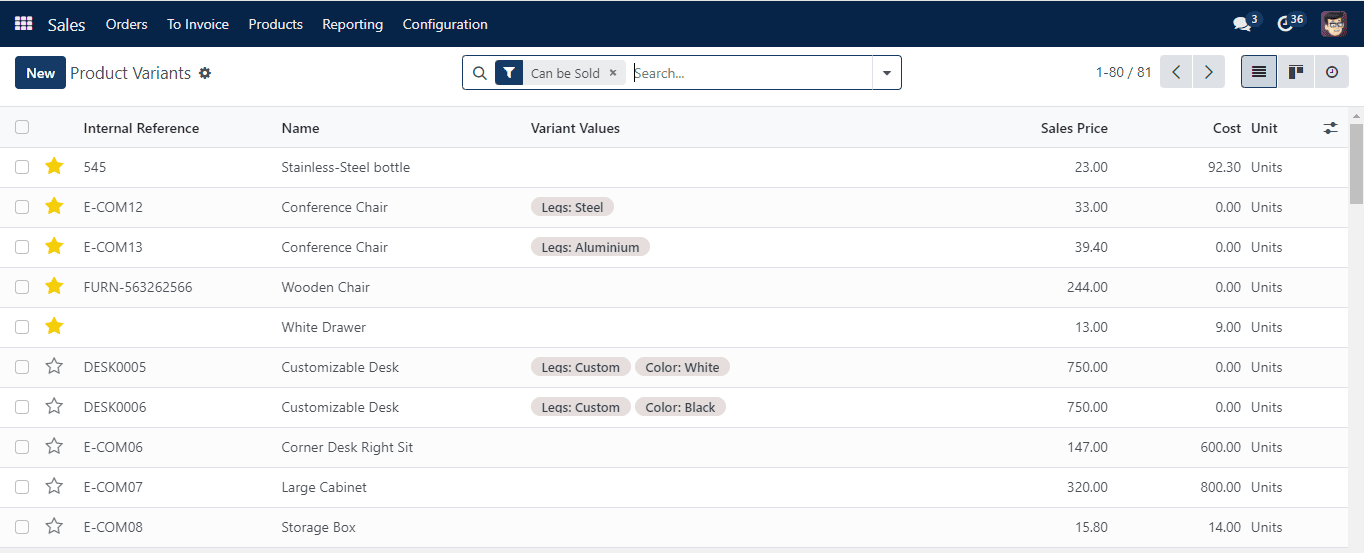
The Product Variants window is seen above. The Internal Reference, Name, Variant Values, Sales Price, Cost are all included in the list preview. The Create button makes it simple to set up a new product version. Configuring a new product variation follows the same stages as the product setup described previously.
You may select the Configuration menu of the module to define the attributes of a product variation. The Product Attributes option is located here. When you select this option, the screen below will change to a new platform with a list view of the attributes, display type, and variants creation mode.
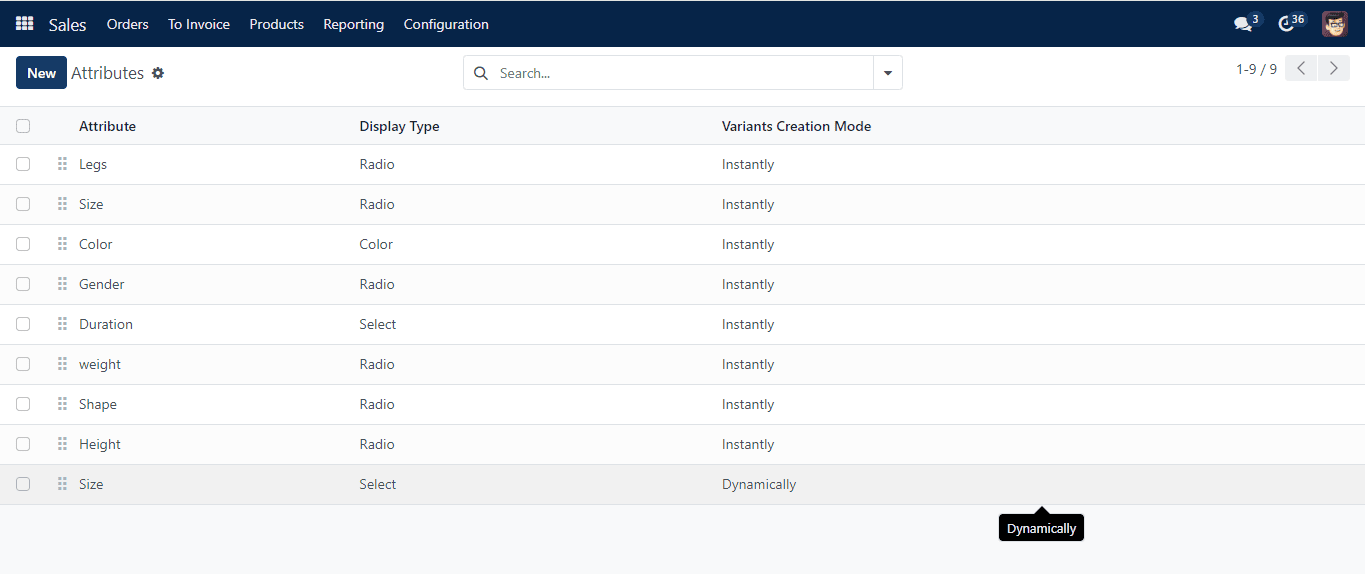
Using the Create button, you may add a new attribute.
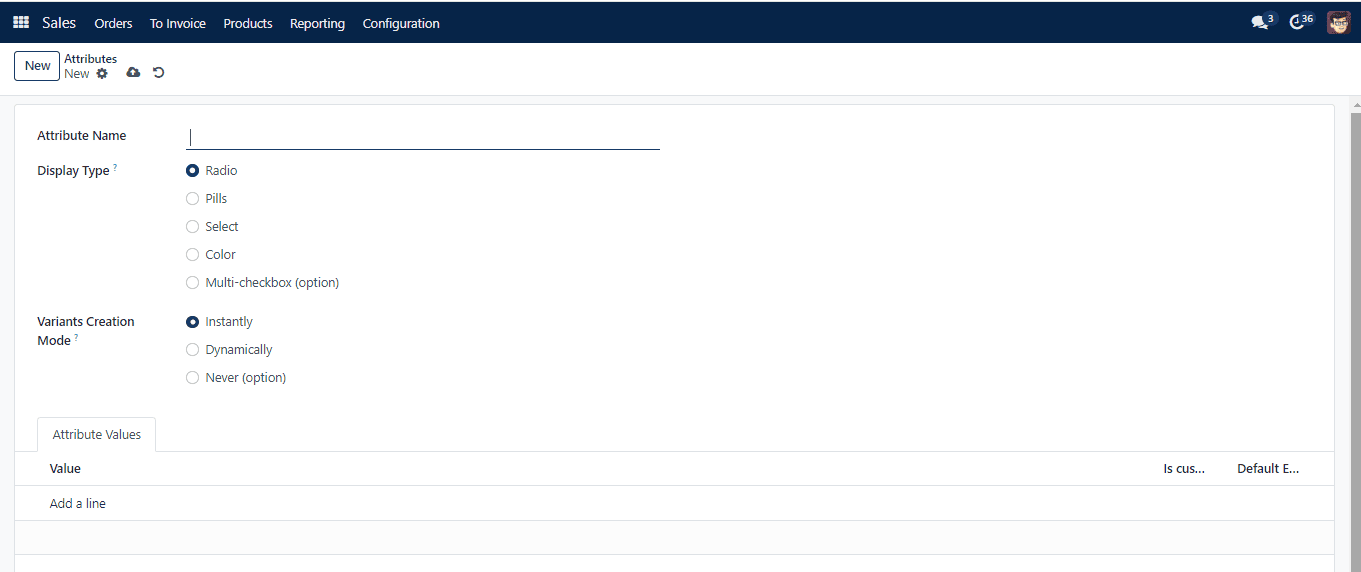
Mention the attribute name and choose the DisplayType that is being used. Choose from Radio, Pills, Colour, Select, or Multi-check box options. Below is a list of the available variant creation modes.
Images can be added within the attribute Values tab if Colour is selected as the Display Type.
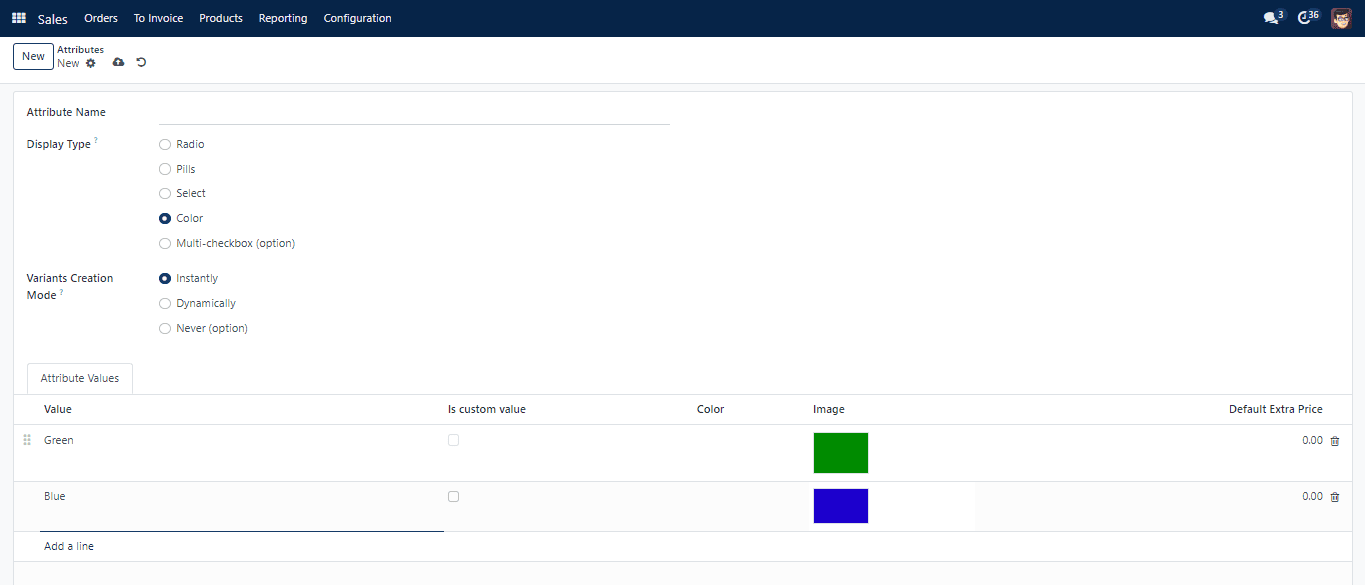
| Fields | Descriptions |
|---|---|
| Instantly | As soon as an attribute and its values are introduced to a product, all potential versions are |
| Dynamically | Each variant is produced only when the qualities and values associated with it are added to a sales order. |
| Never | Variants for the attribute are never produced. |
Once the attributes have been used on at least one product, the variation creation mode cannot be modified. The Add a Line button allows you to add values under the Attribute Values section. The smart button Related goods that are included in the form view may be used to view the goods that have this attribute.
After entering the attributes, a Configure button appears inside the Attributes & Variants tab. To add further configuration to the product variant, click the Configure button.
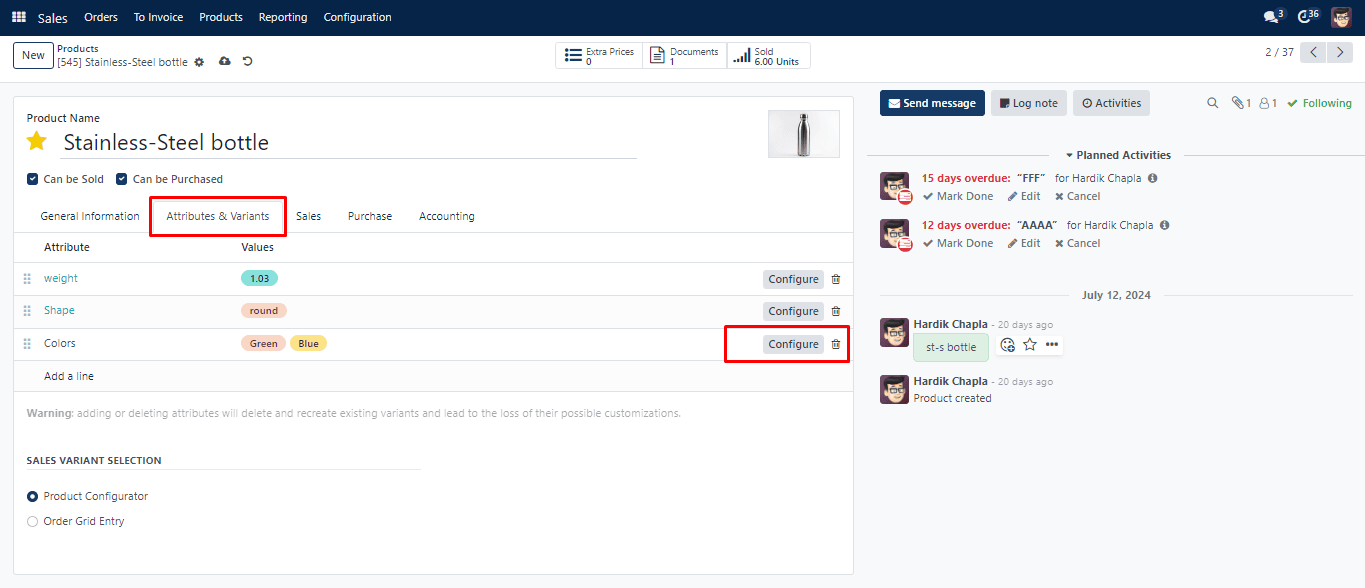
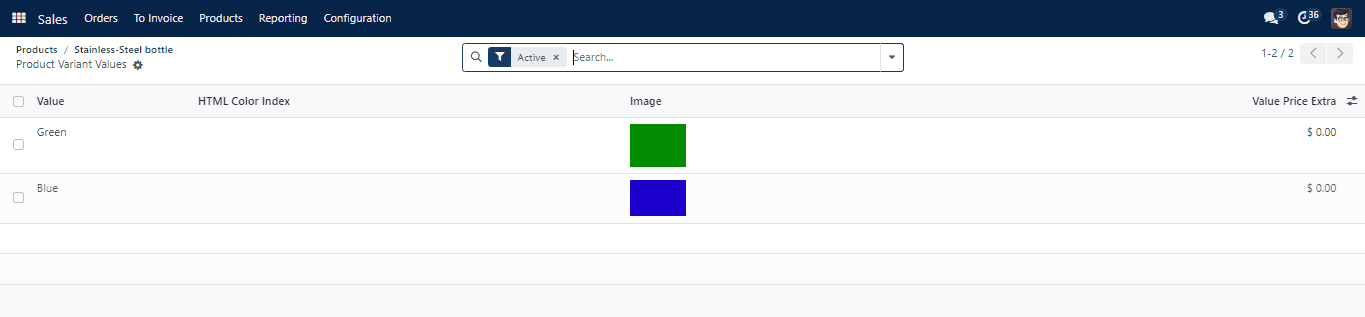
Next, the extra price, image, and attribute value are displayed inside the list. In order to add extra configuration, click on the attribute.
Add the additional cost for the version with this attribute value to the sales price inside the Value Price Extra. Indicate the values to exclude from the list in the Exclude for box, and indicate which attribute value of the optional and accessory products is incompatible with other product values.
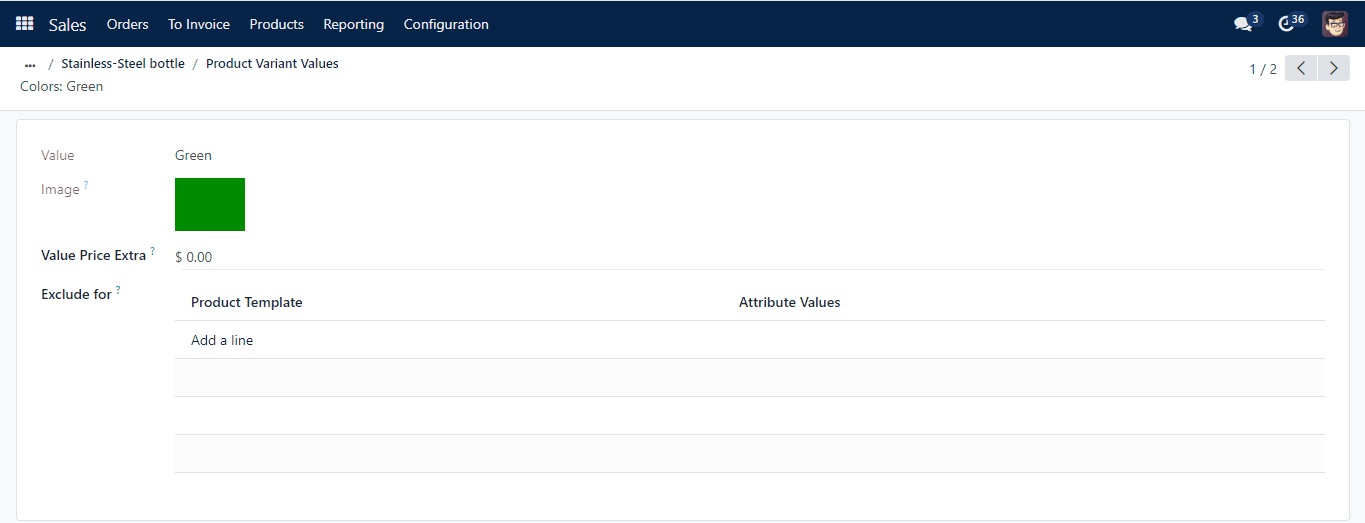
The option to add images was included.