 Sales
SalesHow to Use Pricelists Effectively in Sales Module
The Sales module may help you define your company’s pricing strategy. This module contains a feature called Price Lists that will assist you in setting up appropriate prices for your clients. You may use this tool to customize price lists based on your relationship with clients. You may enable the Price Lists feature from the Pricing tab by selecting the Settings menu, as seen below.
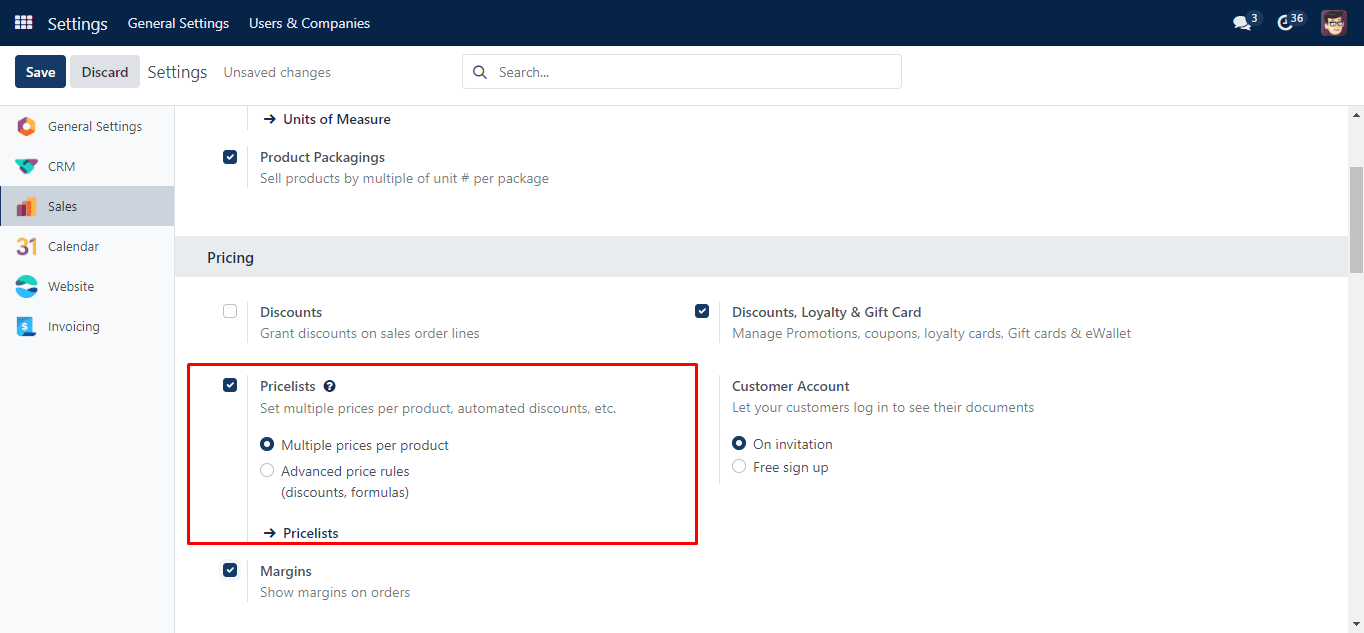
There are two sorts of pricelists available here: Multiple Prices per Product and Advanced Price Rules. We will go through each of these possibilities in depth. After activating the pricelist and selecting the appropriate kind, you can create a new pricelist using the external link provided in the Pricing tab. If not, you can choose the Pricelist option from the Products menu.
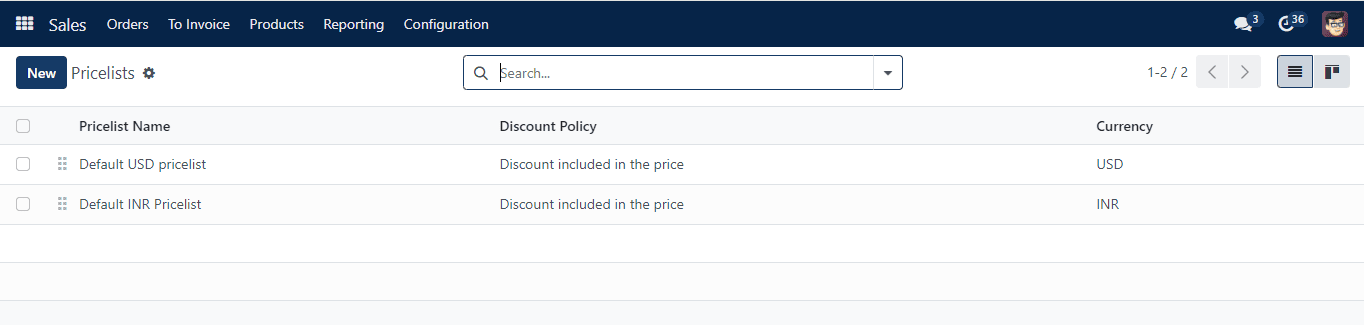
The list view will display the Pricelist Name, Discount Policy, and Currency. The Create button allows you to start a new pricelist.
Advanced Price Rules
Selecting the Advanced Price Rules option from the Settings menu while enabling the Pricelist function will assist you in creating an advanced price list for items. When you click the Create button, you’ll be sent to the form page displayed below. You may indicate the name of the pricelist in the provided space.
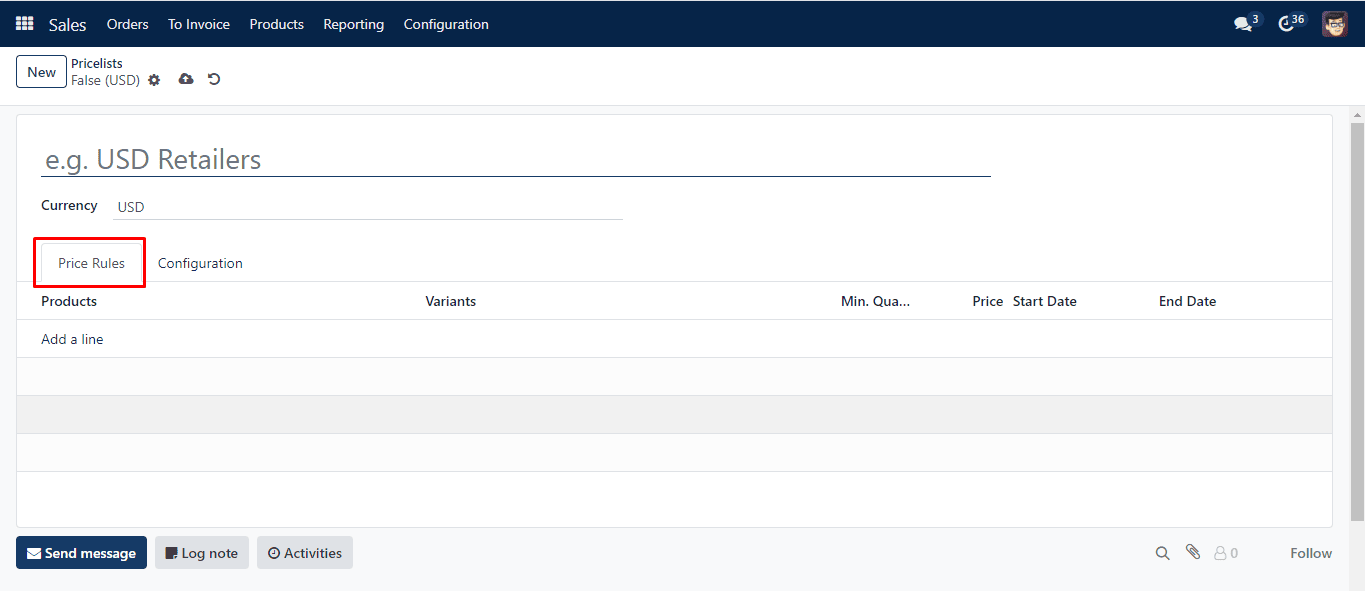
Set an appropriate currency for this pricelist. Now, by utilizing the Add a Line option, you may define Price Rules for individual goods. As seen below, clicking this button will cause a new pop-up to appear.
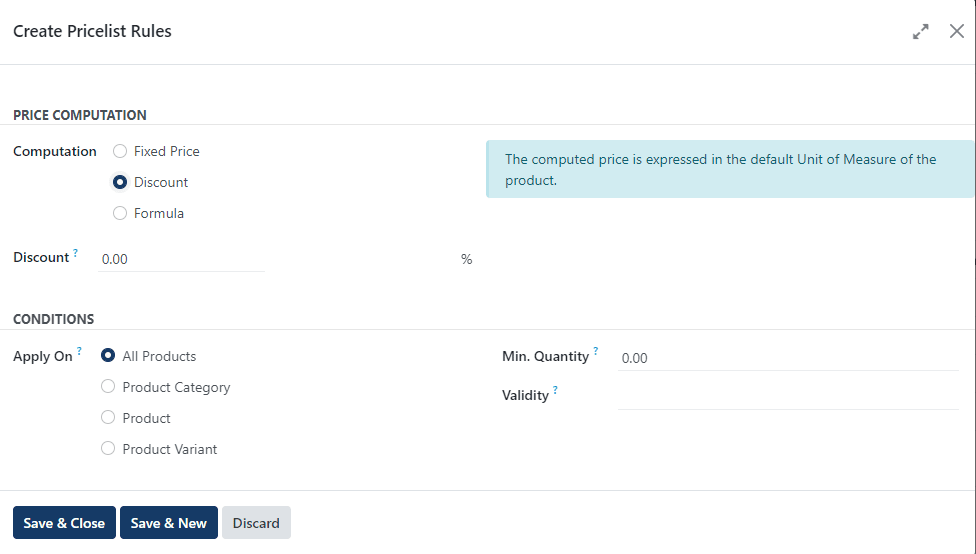
This window may be used to establish pricelist rules. In the Computation field, you provide the technique for calculating prices. It can be calculated using a formula, discount, or set price. You will be given appropriate fields to indicate the specific computation based on the choice you choose. For instance, using the Discount option during computation will result in the creation of a field where the discount permitted on this pricelist may be mentioned. You may now choose where to use this rule. This rule is applicable to All Products, Product Variants, Product Categories, and Products. You must also provide the Minimum Quantity of the product necessary to apply this rule as well as the Validity Period of this price rule. Once you complete all fields, you can click the Save button
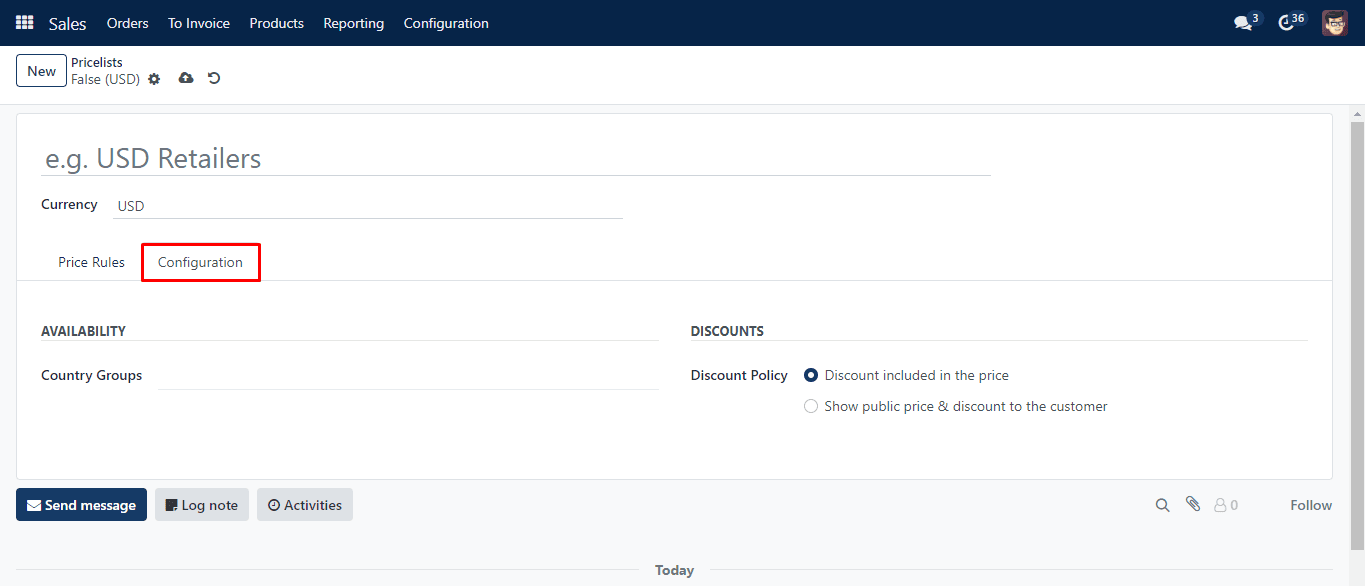
Under the Configuration page, you can choose which Country Groups will be allowed to utilize this price rule. The Discount Policy may be configured to either show the public price and discount to the customer or to incorporate the discount in the pricing. We develop an advanced pricing rule in this manner.
Multiple Prices per Product
When the Pricelist function is activated, you may create numerous prices for a product by choosing the relevant option from the Settings menu. You may build many price lists for a single product by using this functionality. The configuration of the Multiple Prices per Product is the same as that of the advanced pricing rule described above.
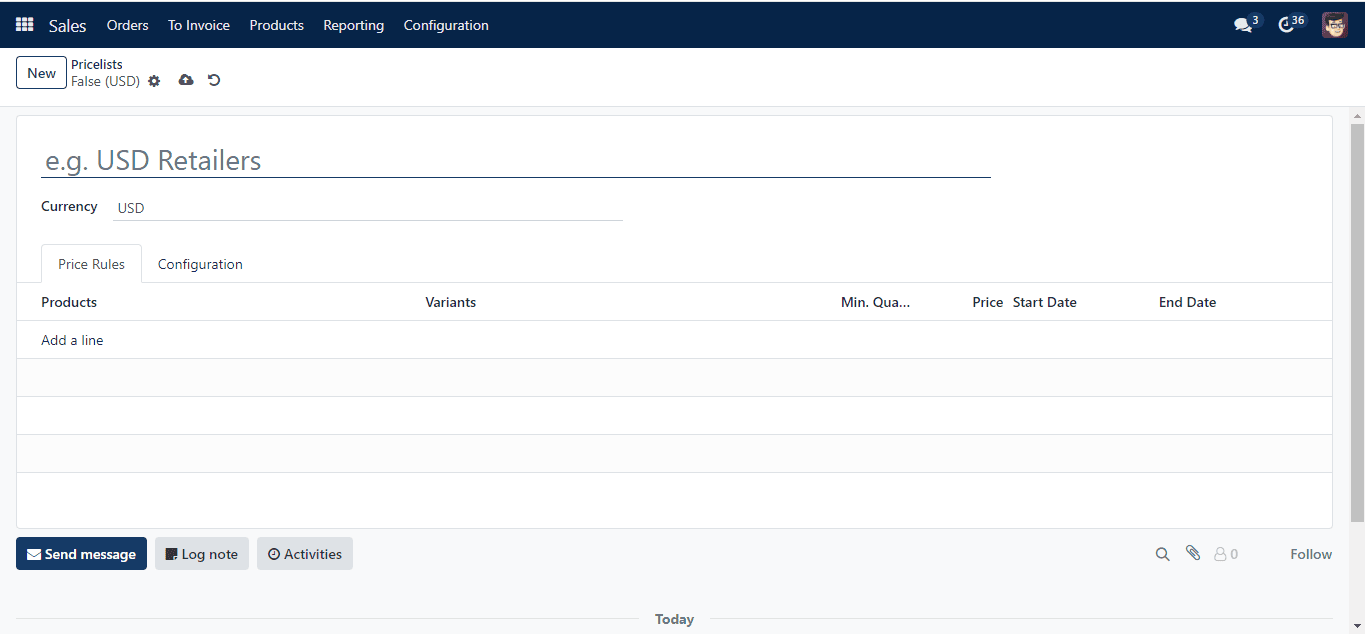
The only difference is that you may add other goods to this price list by clicking on the Add a Line button beneath the Price Rule tab. The Product, Variants, Minimum Quantity, Price, Start Date, and End Date can all be mentioned here.