
 Sales
SalesHow to Manage Sales Team
To oversee all sales-related operations inside a business, a specialized staff is required. To handle and keep an eye on all sales-related operations, a corporation might assemble a team of salespeople. You may designate this sales team to oversee all activities when you get a new sales order or quotation. You may set up these kinds of sales teams in the Sales module based on the needs of your business. The Configuration menu of the module has the opportunity to setup the sales team. As seen below, the platform will display sales teams that are already set up.
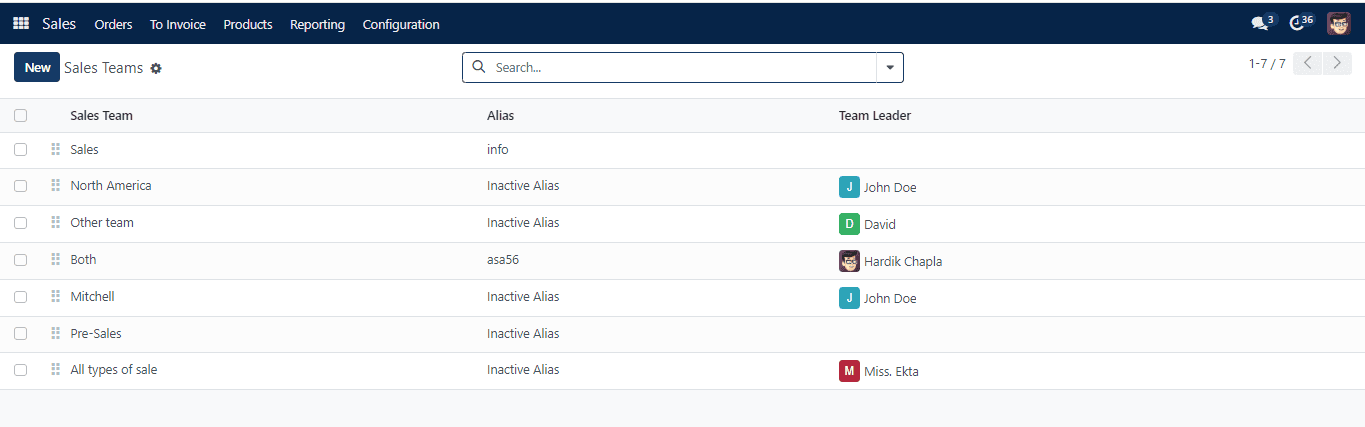
Using the Group By option, you may organize the sales team according to the Team Leader. Click the “Create” button now. In order to build the new sales team, a new window will open.
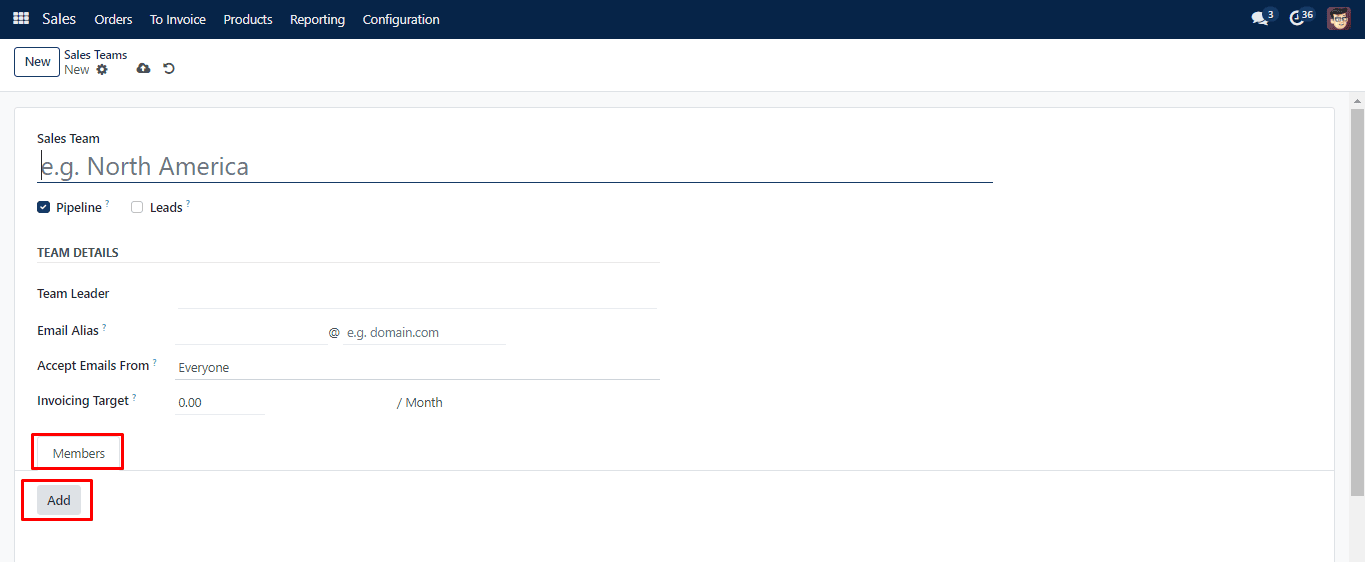
In the provided field, provide a name for the sales team. By enabling the Quotation and Pipeline options, the new sales staff will be able to oversee these processes in reporting. You may choose a Team Leader for this sales team under the Team Details column. In the corresponding boxes, set the Email Alias and Policy to publish messages on the documents via the mail gateway. In the Invoicing Target section, a monthly revenue can be entered. You may now include Members in these sales team using the Add button available under the Members tab.
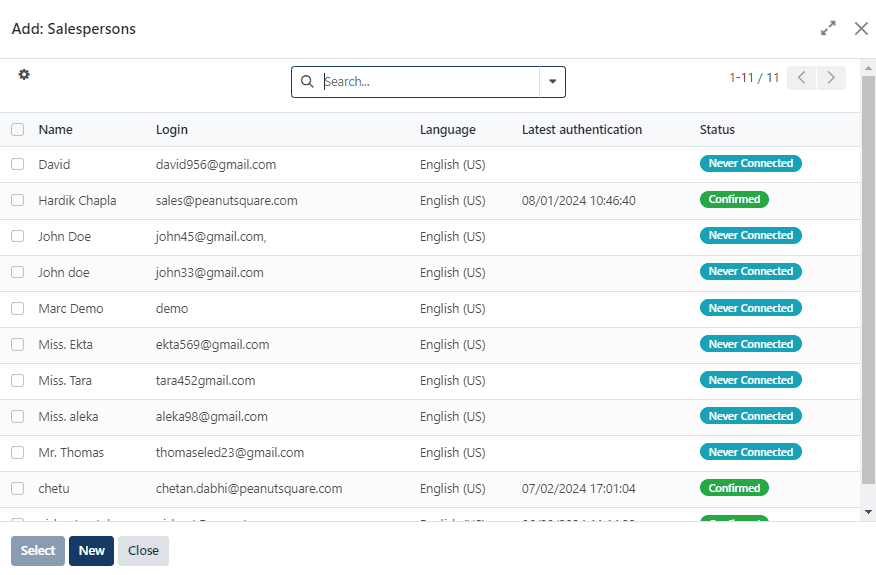
You will be prompted to select team members in a pop-up window. Name, Login, Language, Most Recent Authentication, and Status will all be displayed in the list. The sales team is prepared to begin work after choosing qualified team members.
Under the Orders menu, you’ll see a Kanban view of the whole configured sales team, as shown below. Each team’s sales information will be arranged in an orderly manner on this specific platform.
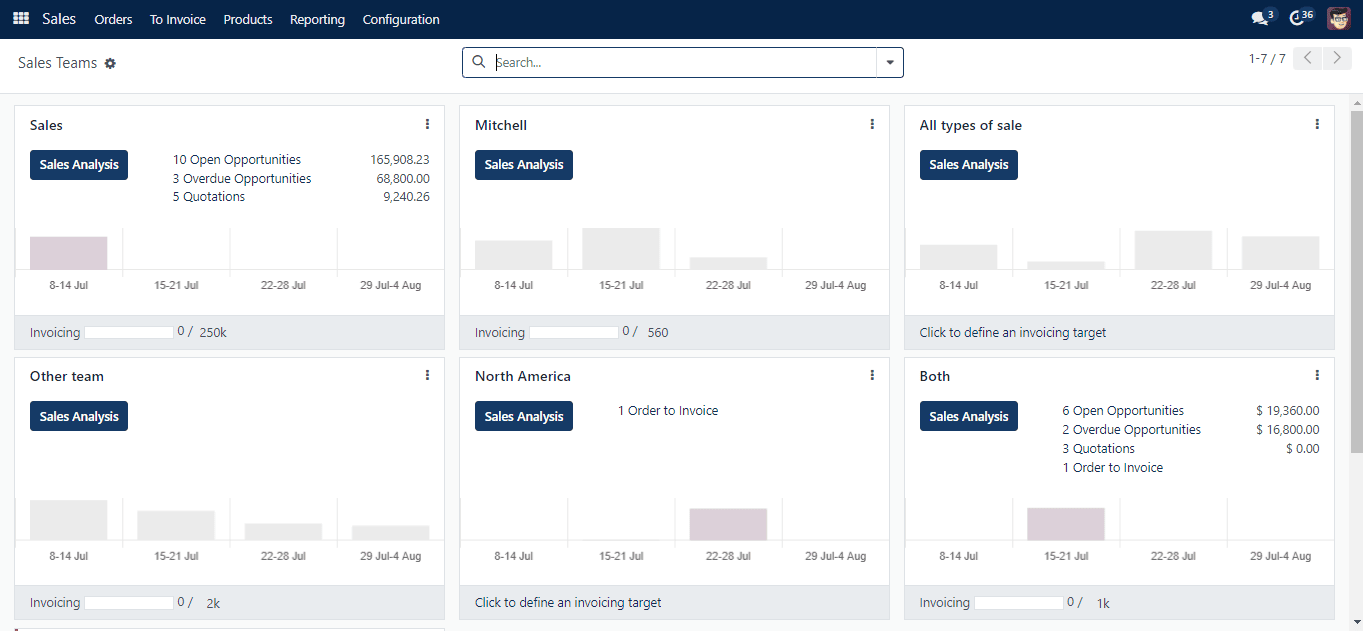
Each sales team tab displays information about open opportunities, late quotes, quotations, orders to invoice, and unassigned leads. You may conduct the corresponding sales team’s sales analysis by clicking the Sales Analysis button. Additionally, each sales team’s goal invoice amount will be displayed. As seen in the picture below, each sales team has three little vertical dots that may be used to access additional tools for operations.
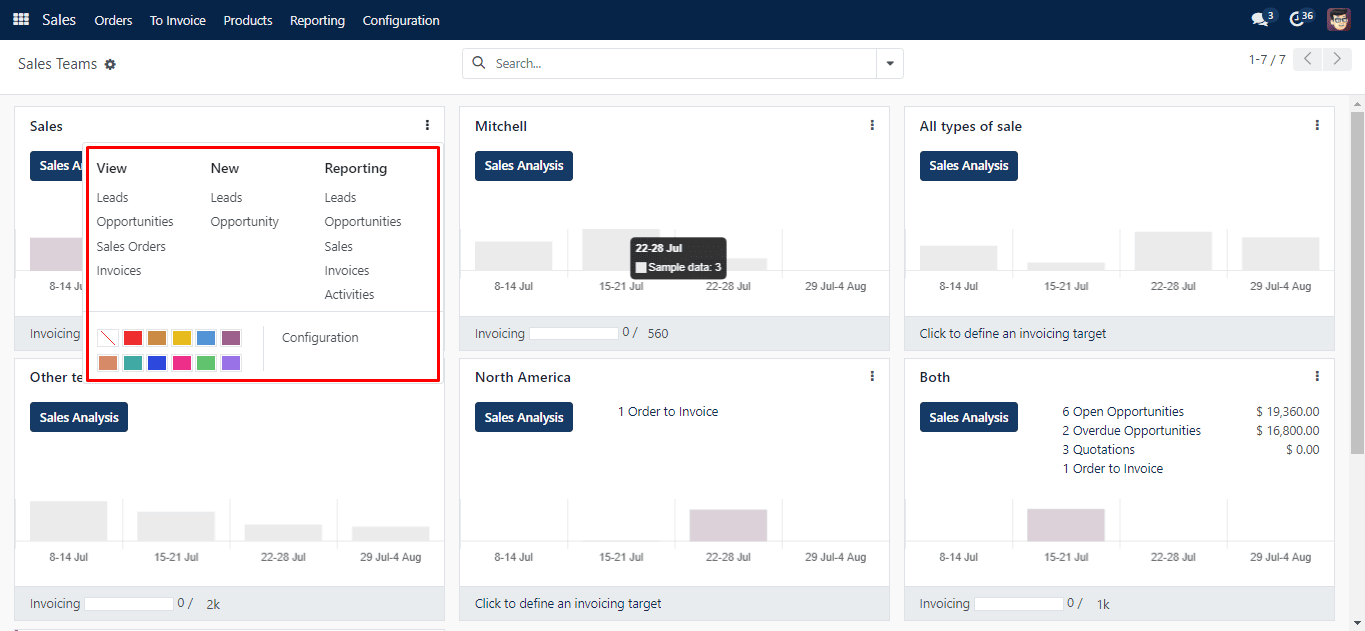
You may view Leads, Opportunities, Quotations, Sales Orders, and Invoices by clicking the button. This also covers the ability to generate new quotes and prospects under the appropriate sales team. Leads, Opportunities, Quotations, Sales, Invoices, and Activities are the accessible reporting choices. You may utilize a sales team once you’ve finished configuring them to create a new sales order or quotation.