
 Sales
SalesHow to Add and Manage Customer Records
Having a dedicated platform for tracking all of your consumers can help you improve your sales. It provides a centralized mechanism for collecting client data. It makes it possible for you to quickly obtain the information you need about your consumers at any time. This platform is located in the Sales module’s Orders menu. Below is a screenshot of the platform’s Kanban view.
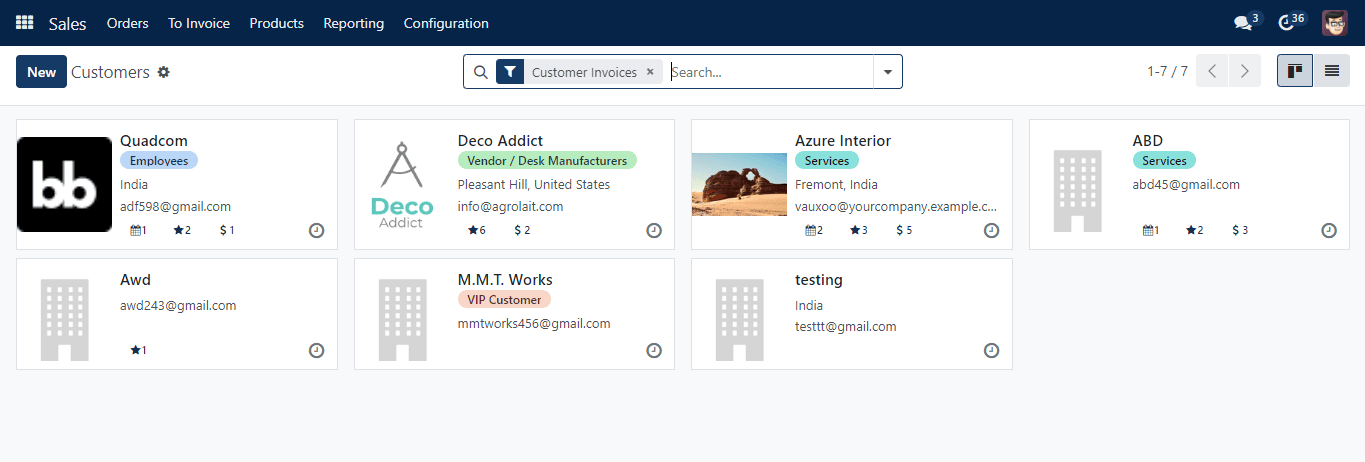
The window displays customer photos and personal information. You may arrange sales-related activities with them by using the little clock icon. They may be filtered by Individual, Companies, Archived, Vendor Bills, Customer Invoices, and Subcontractors. Company, Country, and Salesperson are available under the Group By option. To add a new customer to the Sales module, click the Create button now.
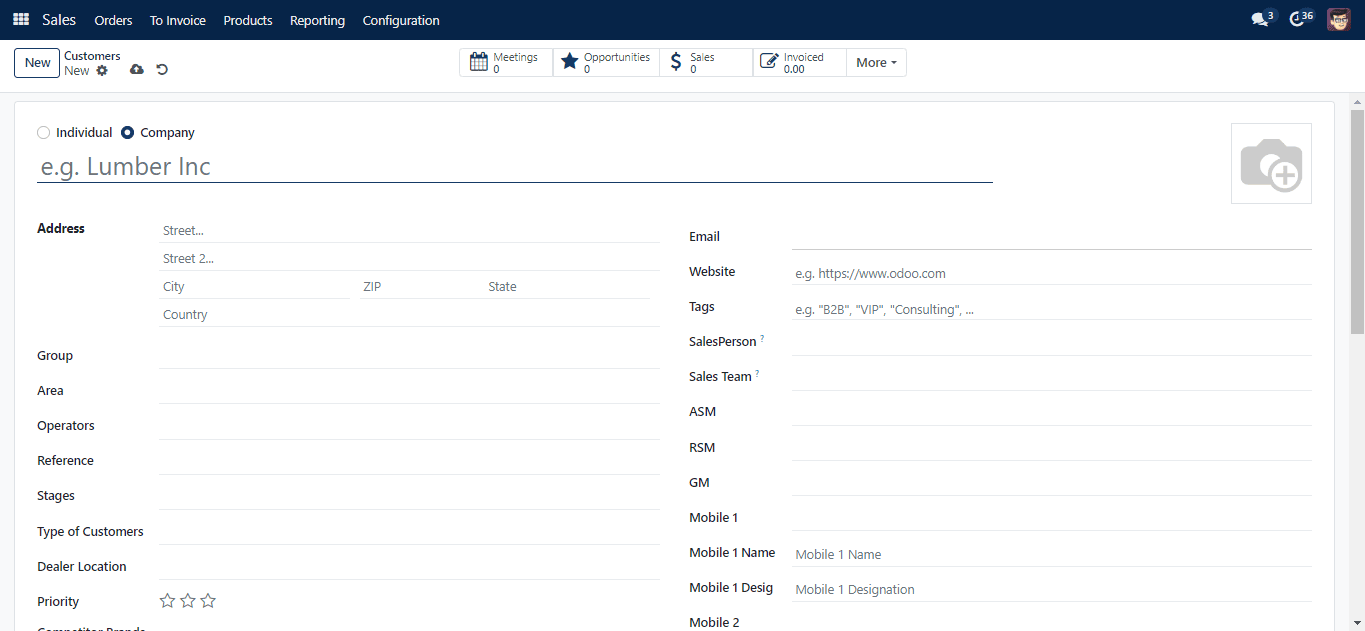
You can create a client record as an Individual or a Company. You can enter the customer’s Name, Address, Phone, Email, Website, Language, and Tags in the corresponding areas. Using the Add button, you can add the customer’s various addresses and contact information under the Contacts & Addresses page.
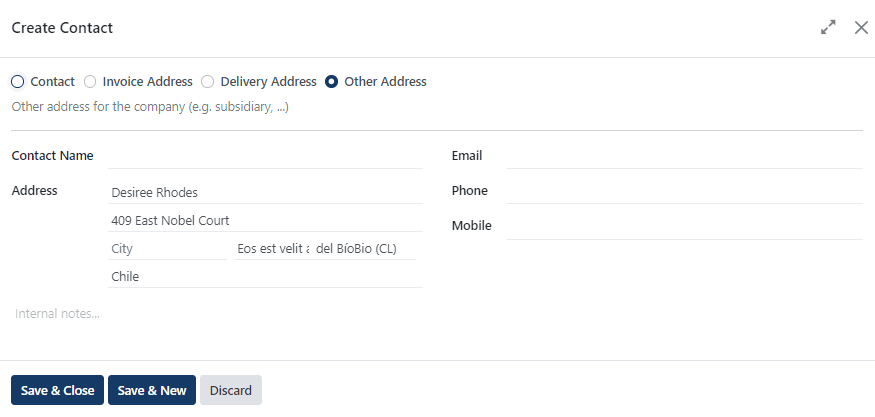
The address might be Contact, Invoice, Delivery, or Other Address. In the pop-up window, you may provide the Contact Name, Address, Email, Phone, and Mobile Number.
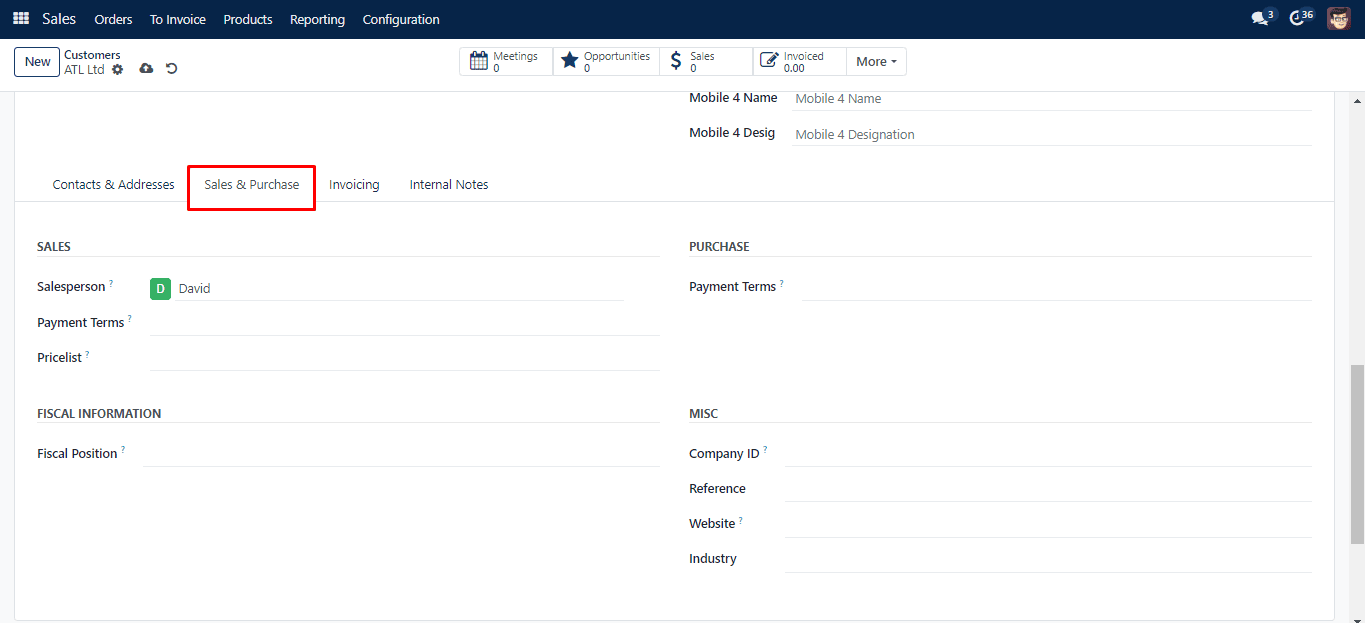
The relevant tab contains the information about Sales and purchases. You can designate a Salesperson and Sales Team for the customer to manage sales activities. It will utilize the specified Pricelist and Payment Terms for client invoices and sales orders rather than the default one when they are stated.
Under the Purchase section, you can mention Payment Terms which will be used instead of the default one in the purchase orders and vendor bills.The Miscellaneous area is where you may enter the Company ID, Reference, Company, Website, Website Tags, and Industry.To ascertain the taxes or accounts utilized for this contact, mention the Fiscal Position in the Fiscal Information area.
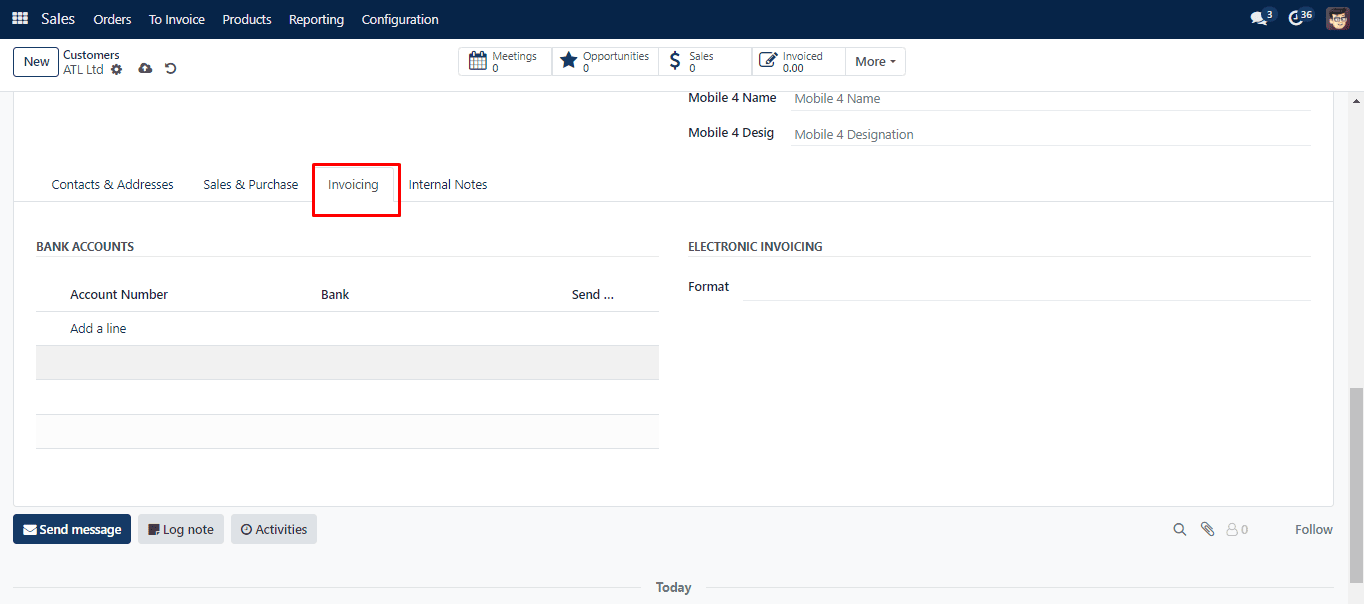
Using the Add a Line button, you can add the bank account details under the Invoicing tab. It includes the details of the Bank, Account Number, and Send Money. The send money toggle allows one to mark whether it is a trusted account or not. In the respective fields, you can select the format of electronic invoicing.
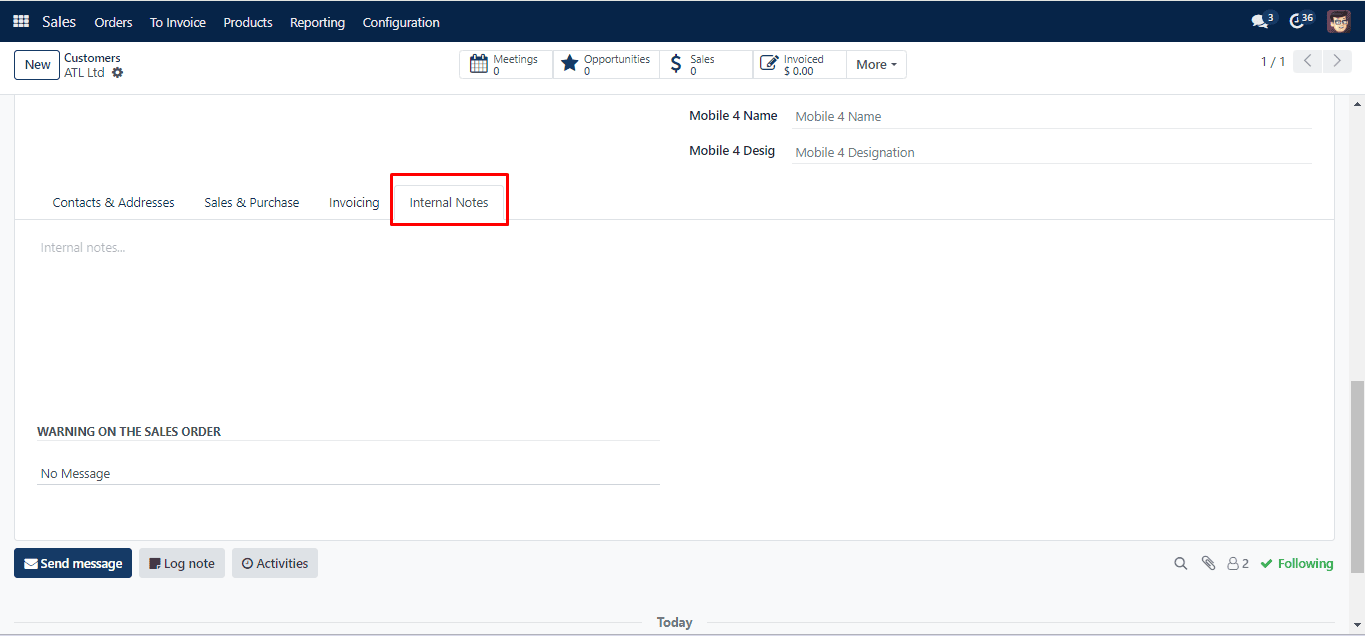
Under the Internal Notes tab, you may enter any internal notes about sales. Every time you make a sales order with this contact, you may put a Warning on the Sales Order after activating the Sales Waring option from the Settings menu.
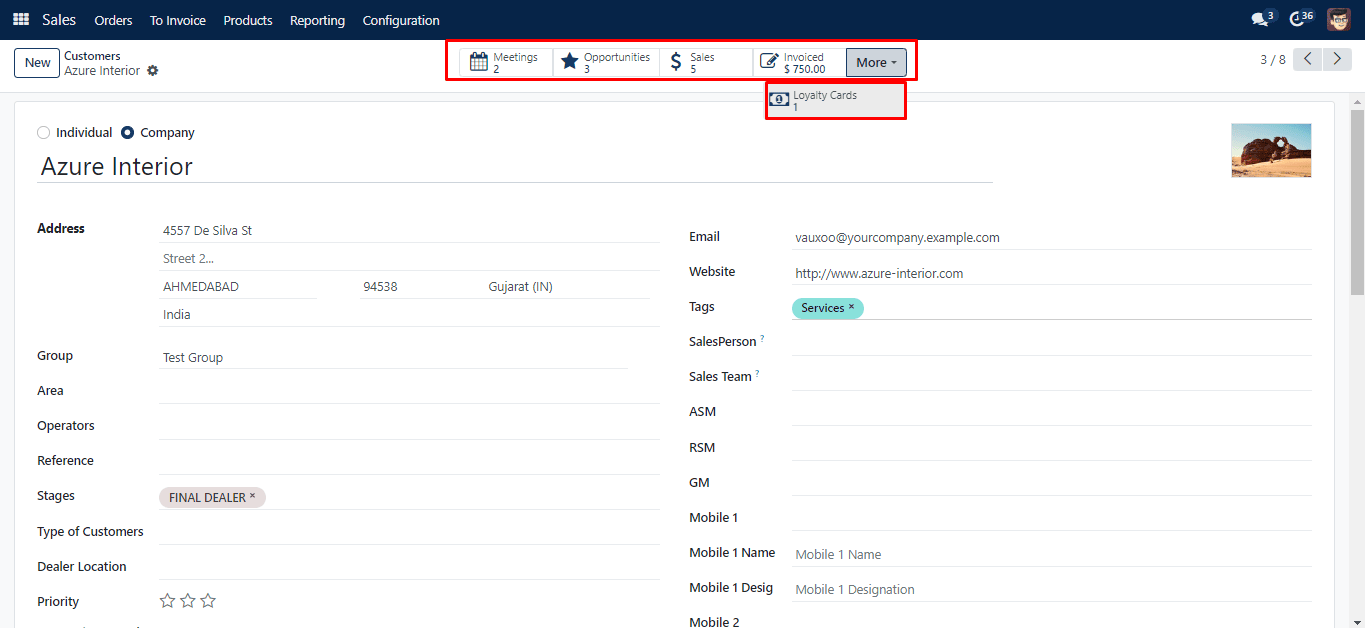
To further monitor the activities with this contact, you will also receive some sophisticated smart buttons. It features buttons to manage sales, meetings, opportunities, and Invoiced.