
Peanut Square SAS Logo
Free ToolsPricingAbout UsContact
+91 94296 94521Schedule Demo
SASKnowledgeCRMHow to Use Rule-Based Assignment
Documentation
•Hub
Reporting
  • How to Manage Reporting in CRM
CRM Configuration
  • How to Set Up Predictive Lead Scoring
  • How to Use Rule-Based Assignment
  • How to Manage Multi Teams in CRM
  • How to Add a New Lost Reasons
  • How to Create Tags
  • How to Set Up Recurring plans
  • How to Manage Customer Records
  • How to Add and Manage Sales Team in CRM
Lead Management
  • How to customize Visits to Leads settings for better conversion
  • How to Create a Quotation in CRM
  • How to Create a New Opportunity from a Lead
  • What is Lead Management
Activity Management
  • How to Set Activity Types
  • How to organize and schedule activities
  • How to Manage and Monitor Activities
Manage CRM
  • How to Manage CRM
CRMCRM
CRM Configuration
2 min read

How to Use Rule-Based Assignment

With a Rule-based assignment, you may assign leads to salespeople regularly according to predetermined guidelines. Turn this feature on in the Settings menu, as indicated below.
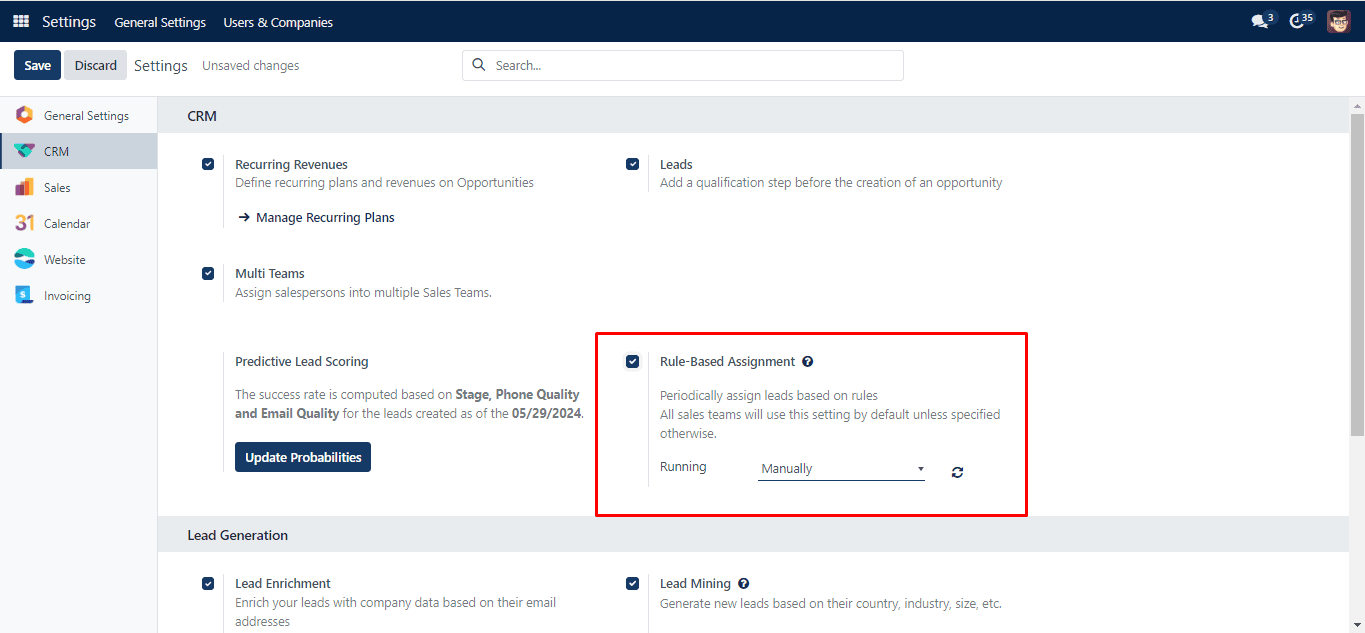
Rule Based Assignment

There are two choices under the “Running” selection list: Manually and Repeatedly. With the former, you may use an action button from the Sales Teams form view to assign leads. You can adjust the time between subsequent cron runs by choosing “Repeatedly.”
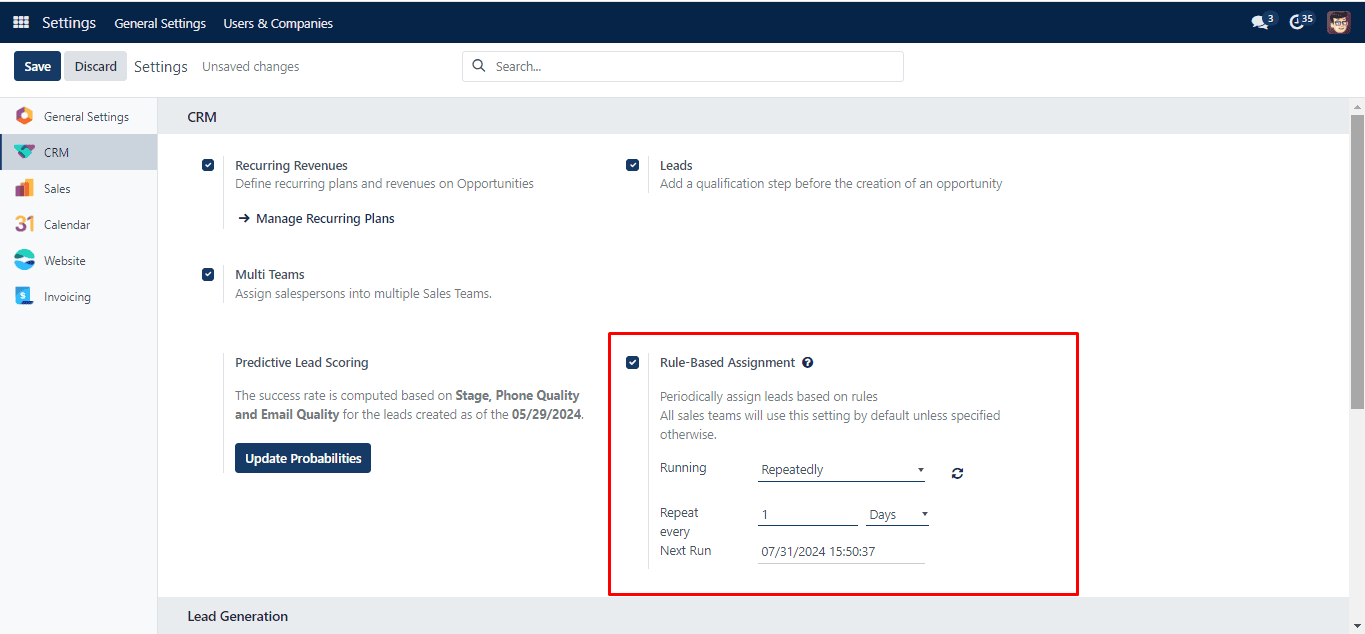
Rule Based Assignment Case

The gap is set to “1 Day” in this case. Up to the cron run, the system allows the following day.

In the Sales Teams form view, a new area named ‘Assignment Rules’ may be seen.
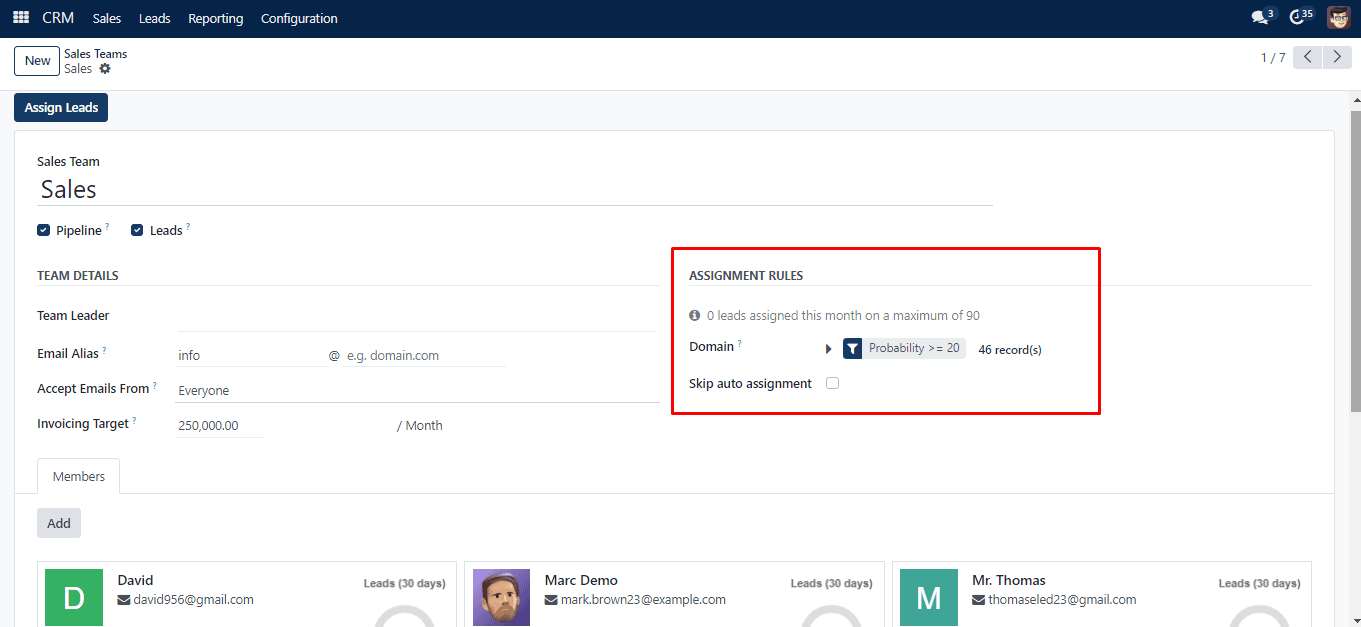
Assignment Rule

To specify the rules for the assignment, click “Edit Domain.” As seen below, a pop-up window will appear.
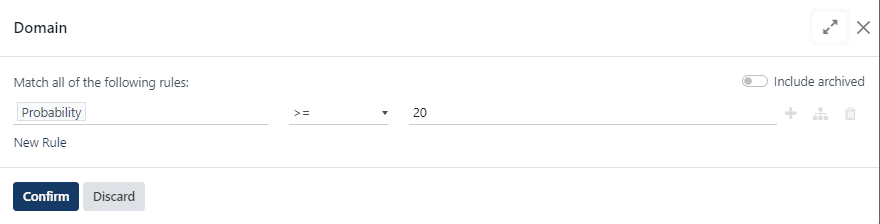
Domain

This window allows you to apply your condition. The criteria applied in this case is “Country contains US.” This filter will match this sales team with US leads.

It also allows you to provide a different domain to each salesperson. When you click “Add” on the Members tab, a pop-up box will open where you may specify it.
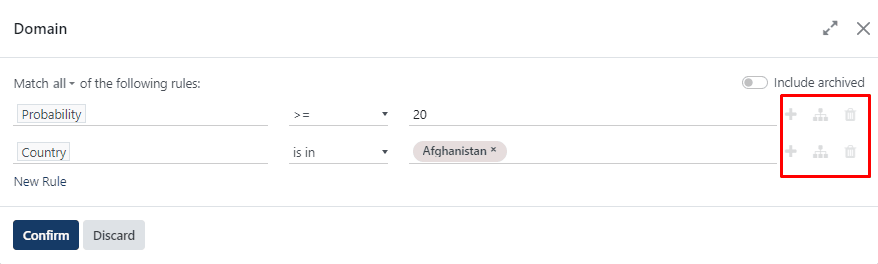
Domain Filter

To add filters to the domain, click “Add Filter.” In this manner, based on the domain selected, any member of the same team may receive a distinct lead.
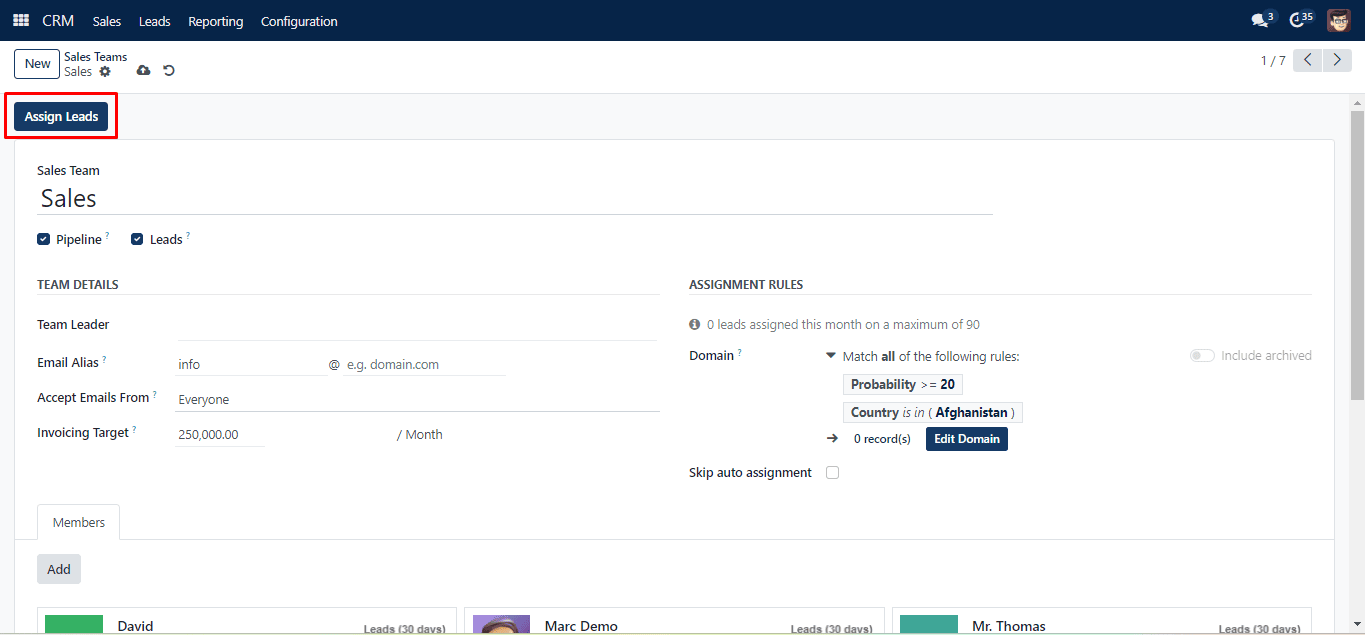
Assign Leads

To assign leads to the team, click the Assign Leads button.

Was this guide helpful?
Your feedback helps us continuously improve our SAS playbooks.
Previous Article
How to Set Up Predictive Lead Scoring
Next Article
How to Manage Multi Teams in CRM

Need help configuring your SAS modules?

Speak with a Peanut Square SAS solution architect to assist with custom onboarding and team trainings.

Schedule ConsultationKnowledge Hub
Peanut Square SAS Logo

Join us at Peanut Square LLP and watch your business soaring to new heights with our state-of-the-art technology based IT solutions.

Certified ISO 9001:2015 Company
Certified ISO 27001:2022 Company

Need Help ?

  • Apps
  • Industries
  • Resources
  • Free Tools
  • About Us
  • Contact
  • Privacy Policy
  • Terms and Conditions
  • Cancellation and Refund Policy

Partners

  • viaSocket

Contact Information

C-306 Signature-2, Nr. Sarkhej-Sanand Cross Road, Sarkhej, Ahmedabad, Gujarat-382210
sas.sales@peanutsquare.com

© 2026 Peanut Square LLP. All Rights Reserved.