
Peanut Square SAS Logo
PricingAbout UsContact
+91 94296 94521Schedule Demo
SASKnowledgeCRMHow to Set Activity Types
Documentation
•Hub
Reporting
  • How to Manage Reporting in CRM
CRM Configuration
  • How to Set Up Predictive Lead Scoring
  • How to Use Rule-Based Assignment
  • How to Manage Multi Teams in CRM
  • How to Add a New Lost Reasons
  • How to Create Tags
  • How to Set Up Recurring plans
  • How to Manage Customer Records
  • How to Add and Manage Sales Team in CRM
Lead Management
  • How to customize Visits to Leads settings for better conversion
  • How to Create a Quotation in CRM
  • How to Create a New Opportunity from a Lead
  • What is Lead Management
Activity Management
  • How to Set Activity Types
  • How to organize and schedule activities
  • How to Manage and Monitor Activities
Manage CRM
  • How to Manage CRM
CRMCRM
Activity Management
2 min read

How to Set Activity Types

There are several sorts of activities in the dropdown list of the Activity Type field that was described in the previous section. These may be set up under the Activity Types pane.

Go to Configuration → Activity Types.
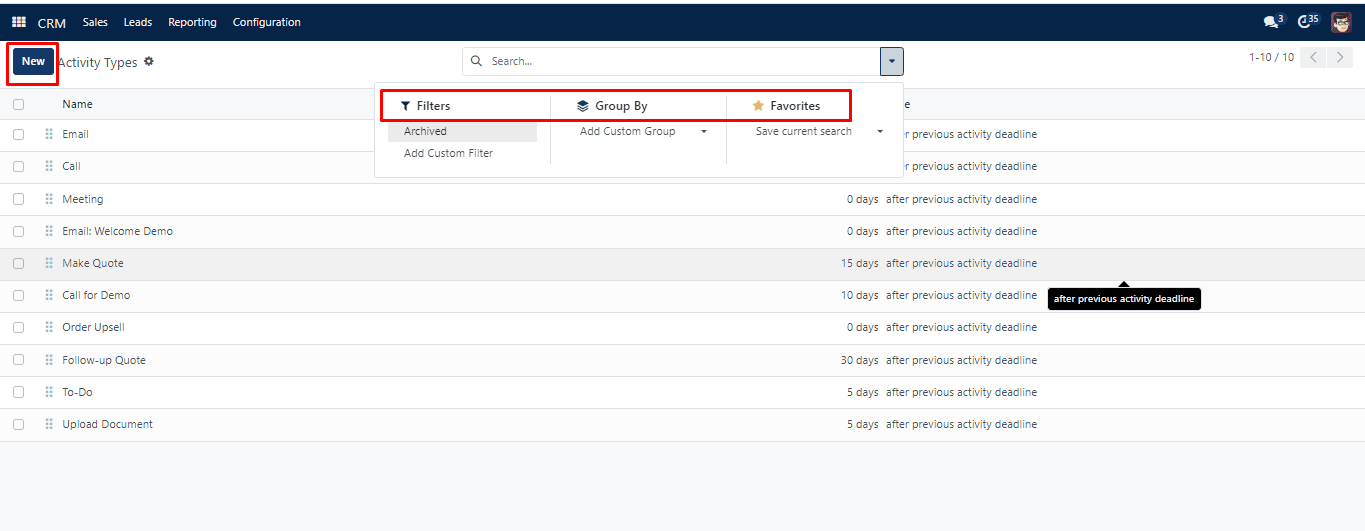
Previously Activity

This window displays all of the previously generated activity kinds in the system. You may view information such as the Name, Default Summary, Planned in, Type (of delay), Model (of the activity), and Icon. Locate the necessary data by using the Filters and Group By options. You can easily retrieve your recent or significant filters by saving them with the Favourites option.

You may see the content of individual records in detail by clicking on them. Additionally, you may modify these details immediately in this box by clicking in the corresponding areas.

To add a new activity type to the list, use the Create button.

Previously Activity

In the Name area, give your activity a name. Define fields such as Action, Default User, Model, Default Summary, Icon, Decoration Type, and Default Note under the ‘Activity Settings’ section. In the Chaining Type field, you have the option of selecting “Suggest Next Activity” or “Trigger Next Activity.” The next action can be started by you with the former, whereas it is triggered automatically with the latter. Complete the Email and Suggest template boxes. “Schedule” may be used to set the duration after the prior activity deadline or the completion date.

Was this guide helpful?
Your feedback helps us continuously improve our SAS playbooks.
Previous Article
How to customize Visits to Leads settings for better conversion
Next Article
How to organize and schedule activities

Need help configuring your SAS modules?

Speak with a Peanut Square SAS solution architect to assist with custom onboarding and team trainings.

Schedule ConsultationKnowledge Hub
Peanut Square SAS Logo

Join us at Peanut Square LLP and watch your business soaring to new heights with our state-of-the-art technology based IT solutions.

Certified ISO 9001:2015 Company
Certified ISO 27001:2022 Company

Need Help ?

  • Apps
  • Industries
  • Resources
  • About Us
  • Contact
  • Privacy Policy
  • Terms and Conditions
  • Cancellation and Refund Policy

Partners

  • viaSocket

Contact Information

C-306 Signature-2, Nr. Sarkhej-Sanand Cross Road, Sarkhej, Ahmedabad, Gujarat-382210
sas.sales@peanutsquare.com

© 2026 Peanut Square LLP. All Rights Reserved.