
 CRM
How to Add and Manage Sales Team in CRM
A company’s sales teams are often appointed to oversee the sales-related operations of its products/services. To keep an eye on this function, select “Sales Teams” from the Configuration menu.
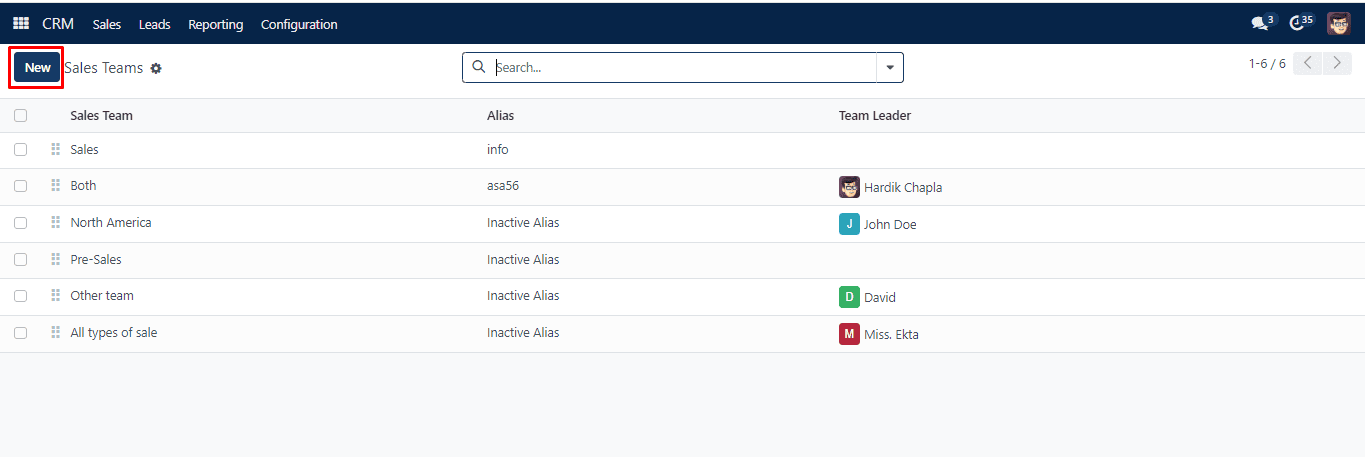
You can view all of the sales teams that are ready to be allocated to various activities here. To make changes, click on each individual record. You may add new sales teams to this list by configuring them using the Create button.
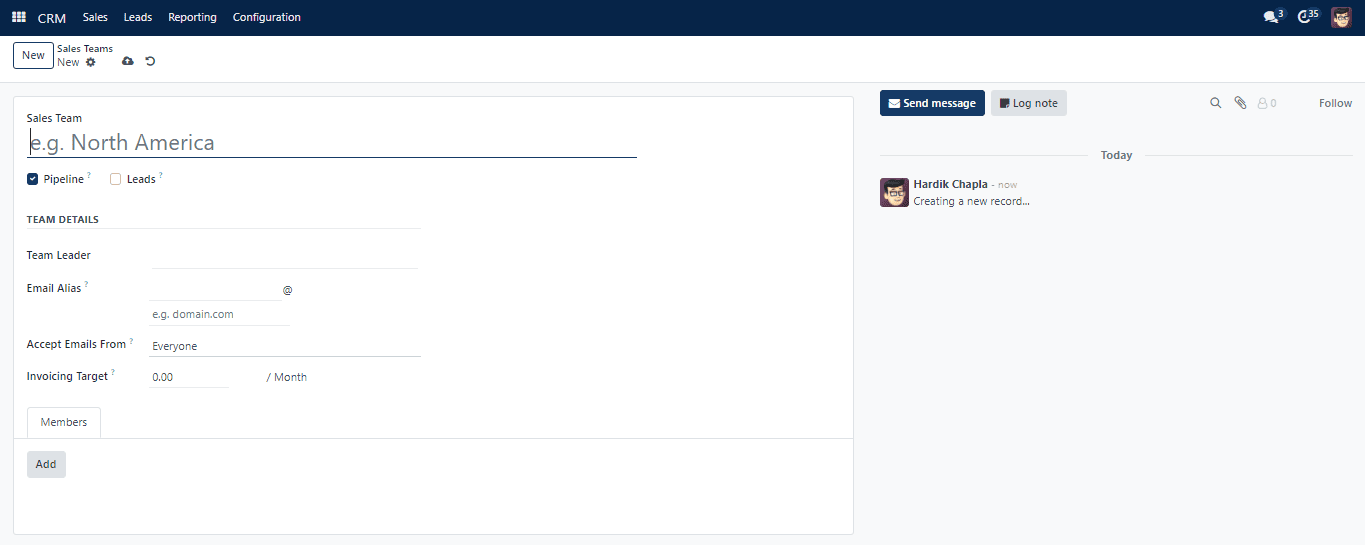
In the “Sales Team” section, provide the team name. Three boxes—Quotations, Pipeline, and Leads—are shown beneath this section. If you would rather provide quotes to clients rather than immediately confirm sales orders, turn on “Quotations.” Include information such as the email alias, team leader, and invoice target. Select from the following options in the “Accept Emails From” dropdown list: Everyone, Authenticated Partners, Followers Only, and Authenticated Employees.
To add new salespeople to the team, go to the Members page and click the ‘Add’ button.
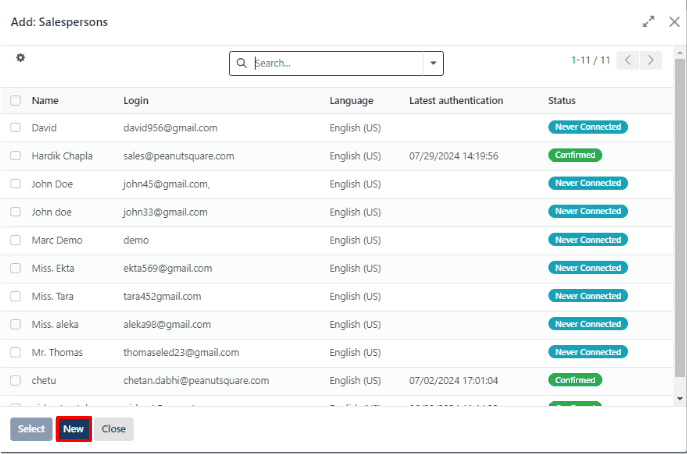
The pop-up window displays a list of all available salespeople on this platform. Adding new members is possible by utilizing the Create button.
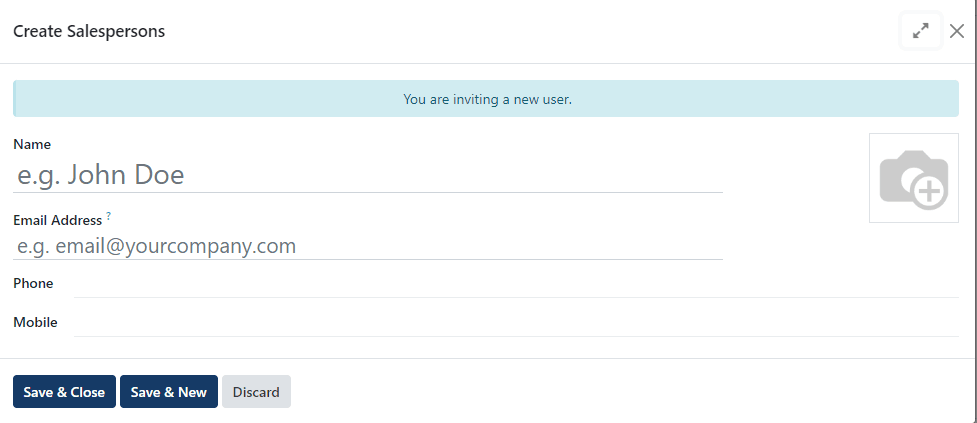
Enter information such as your name, email address, phone number, and mobile phone number. Once this information has been added, select “Save and Close” or “Save and New.”
To view the sales team dashboard, select ‘Teams’ from the dropdown list in the Sales menu. This is where you can keep a close eye on the sales team pipeline dynamics.
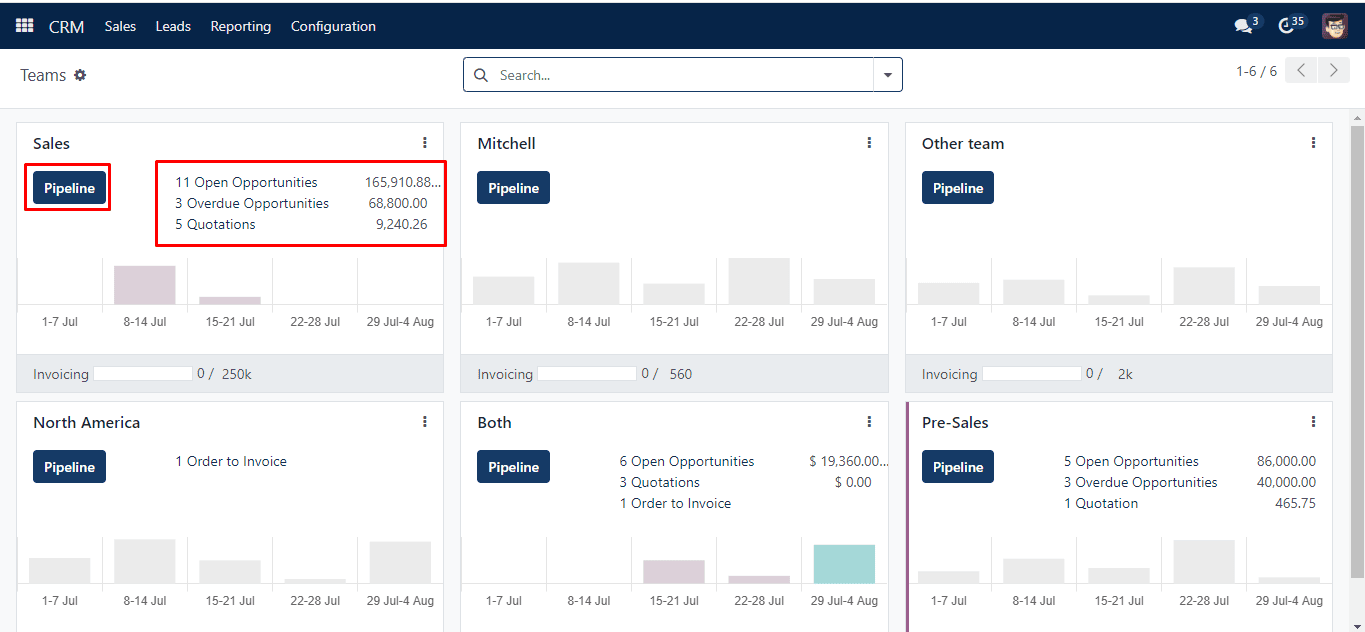
The window provides a thorough overview of sales-related information, including the quantity of leads, orders to invoice, quotations, and opportunities. Under each part is a clear graphical depiction of fresh opportunities over the designated timeframes. Select the three-dot button located in the upper right corner of every preview to examine the categories, which include New, examine, and Reporting.
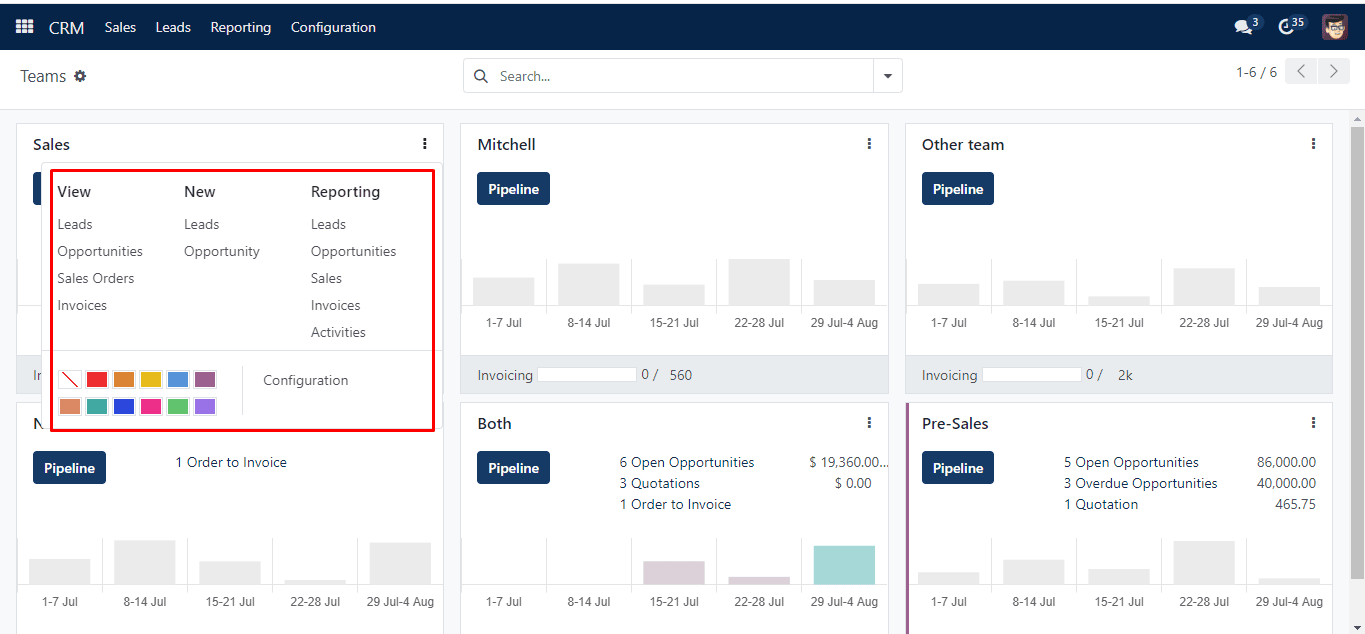
Click on any title to examine or edit its content.
Click on ‘Pipeline’ to open the Pipeline window for that specific group. By just clicking on them, you may also interact with certain areas such as “Open Opportunities,” “Quotations,” and so on. Additionally, opportunities and quotes may be created straight from these distinct windows using the features included in the CRM.