
Peanut Square SAS Logo
PricingAbout UsContact
+91 94296 94521Schedule Demo
SASKnowledgeActivityHow to See Activities (All Activity / My Activity) or How to Add an Activity Tag
Documentation
•Hub
Manage Activity
  • Activity History
  • Reporting
  • How to See Activities (All Activity / My Activity) or How to Add an Activity Tag
  • How to Assign Activity to a Dealer
Activity Dashboard
  • Activity Type
  • Cancelled Activities
  • Overdue Activities
  • Today's Activities
  • Completed Activities
  • Planned Activities
  • All Activities
  • How to See Activity Dashboard
ActivityActivity
Manage Activity
2 min read

How to See Activities (All Activity / My Activity) or How to Add an Activity Tag

Follow these steps to see ‘All Activity / My Activity‘ by clicking on the Activity option.

1.Click on Activity, then you can see three options (All Activity, My Activity, and Activity Tag) under Activity, which has been created from the dealer page.
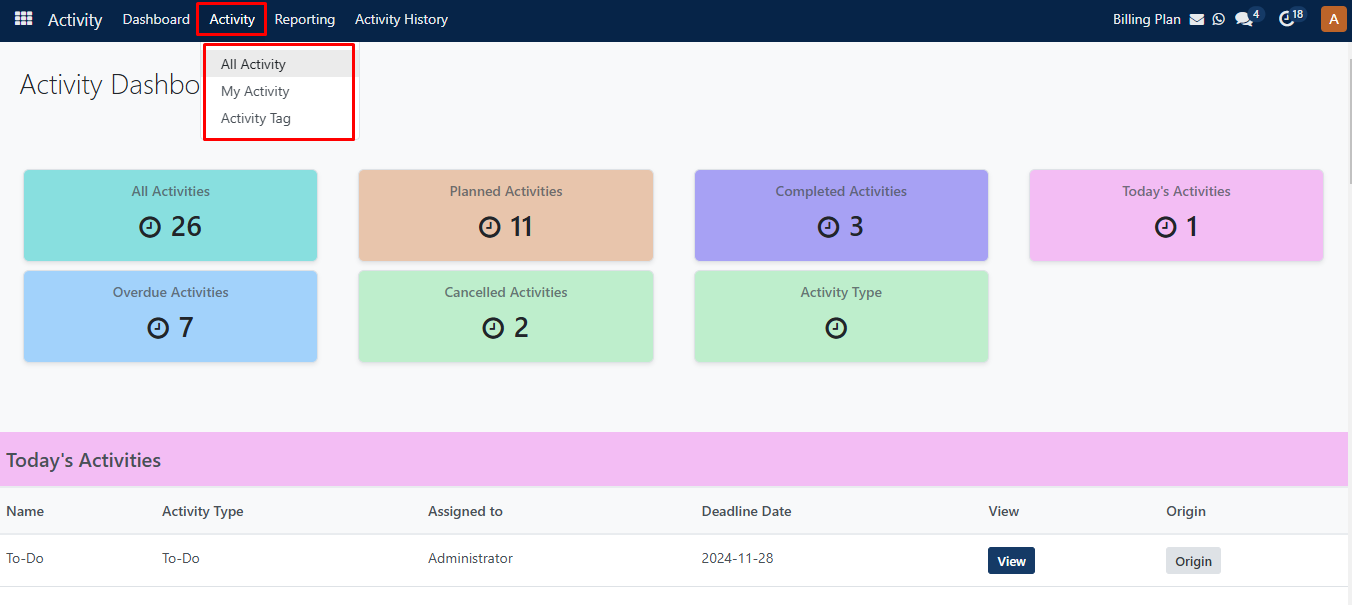
My Activity

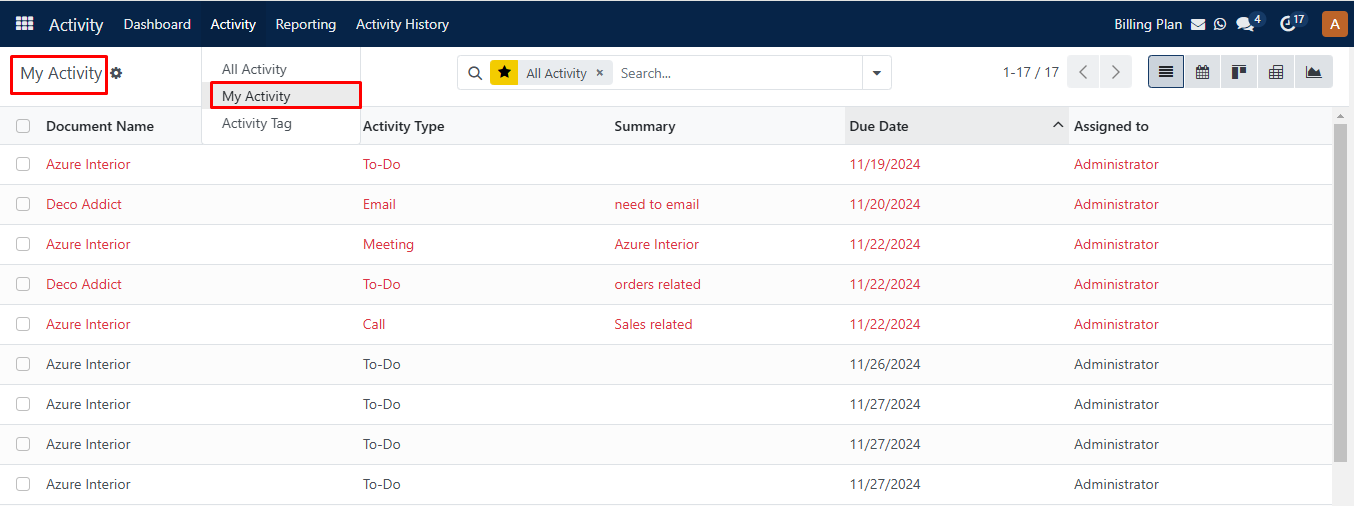
2.Click on the All Activity option if you want to see all activities, or you can click on the My Activity option if you want to see only My Activities.
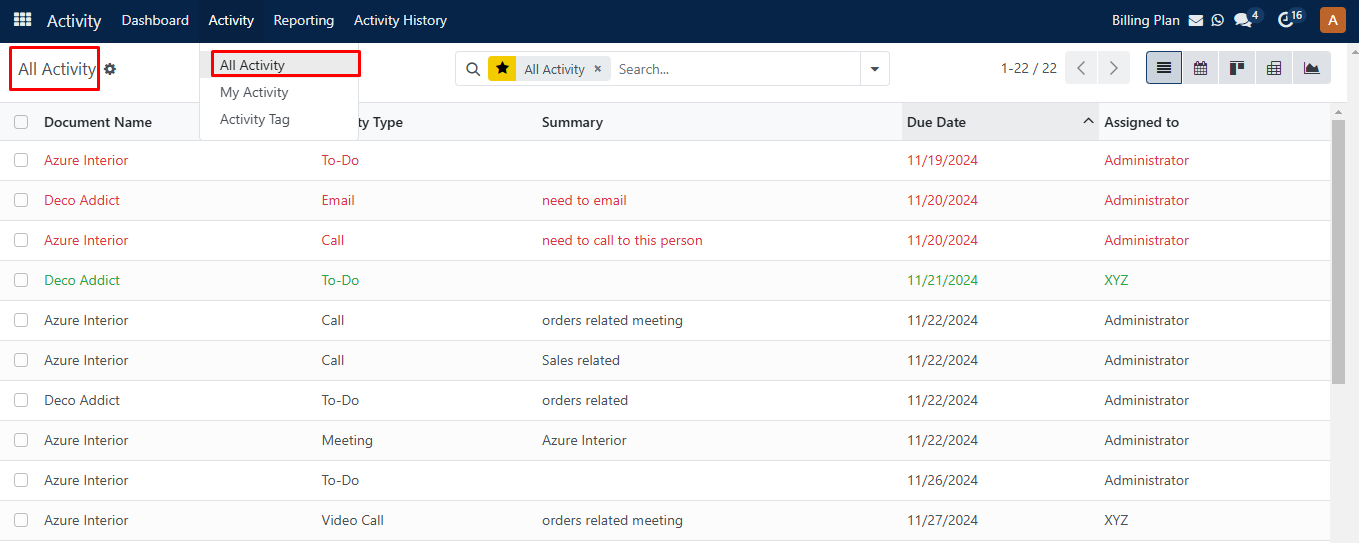
All Activity form

My Activity Form

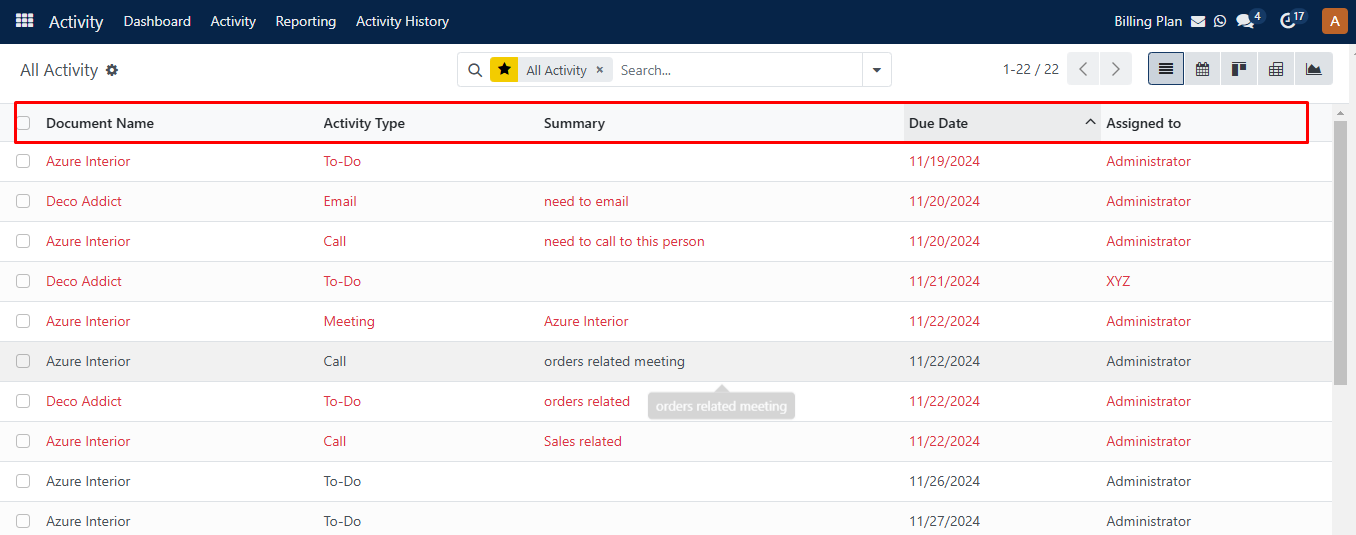
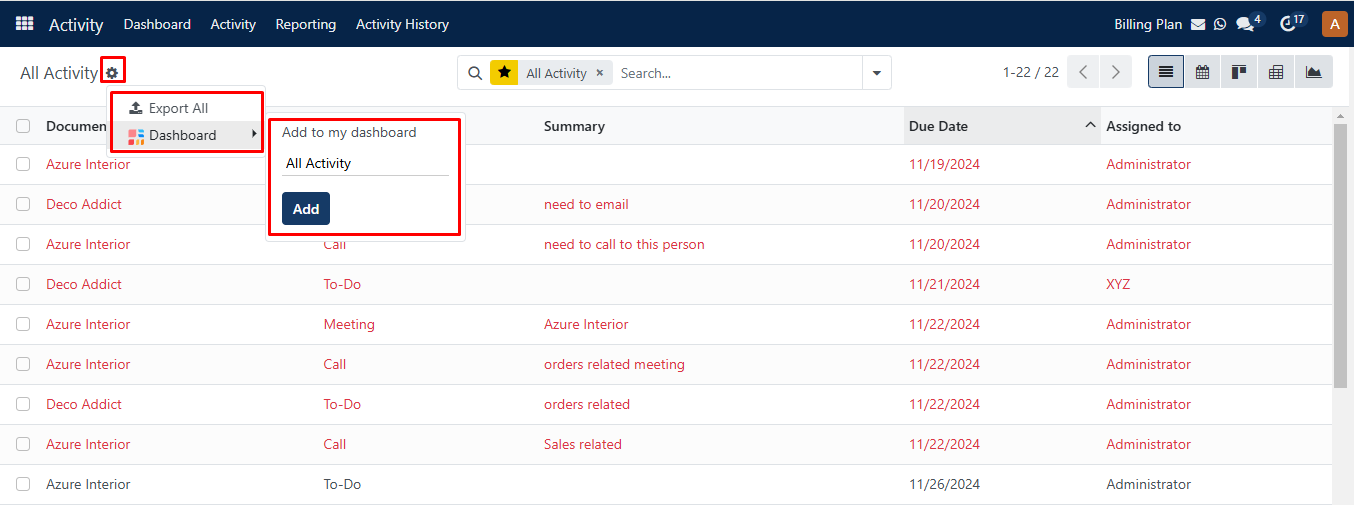
3.Here, you can see Document Name, Activity Type, Summary, Due Date, and Assigned to columns on All Activity / My Activity Page.
Activity Dashboard

4.Clicking on the setting icon, you can see the Export All and Dashboard options where you can export your record file and you can add activity to the dashboard.
Activity Filters Grou

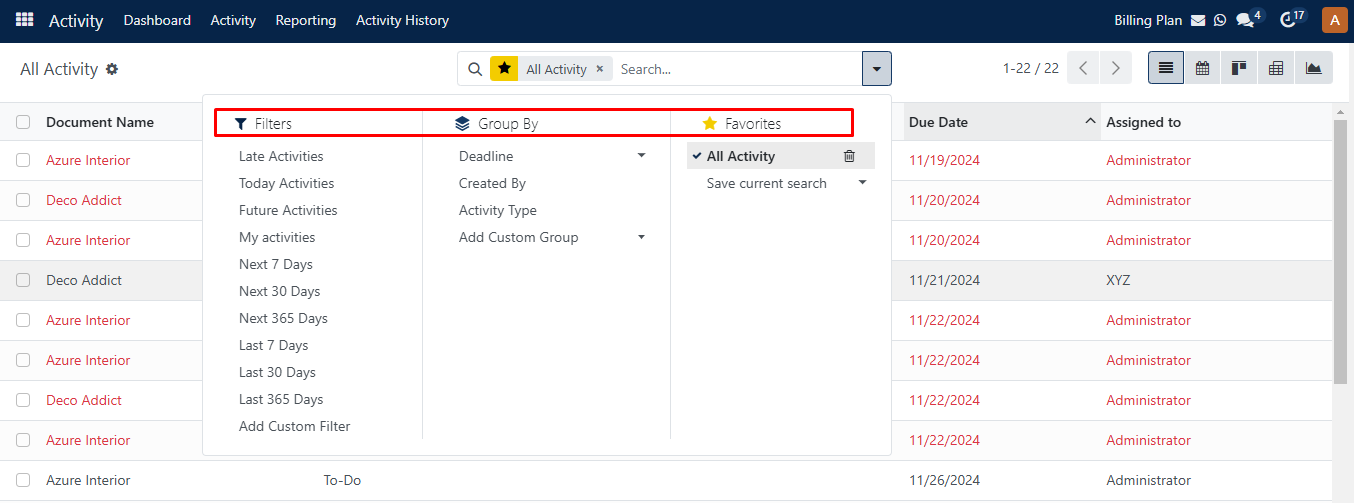
5.The Filters, Group By, and Favorites options include a number of sorting options to quickly and simply access the needed data.
Activity Filters

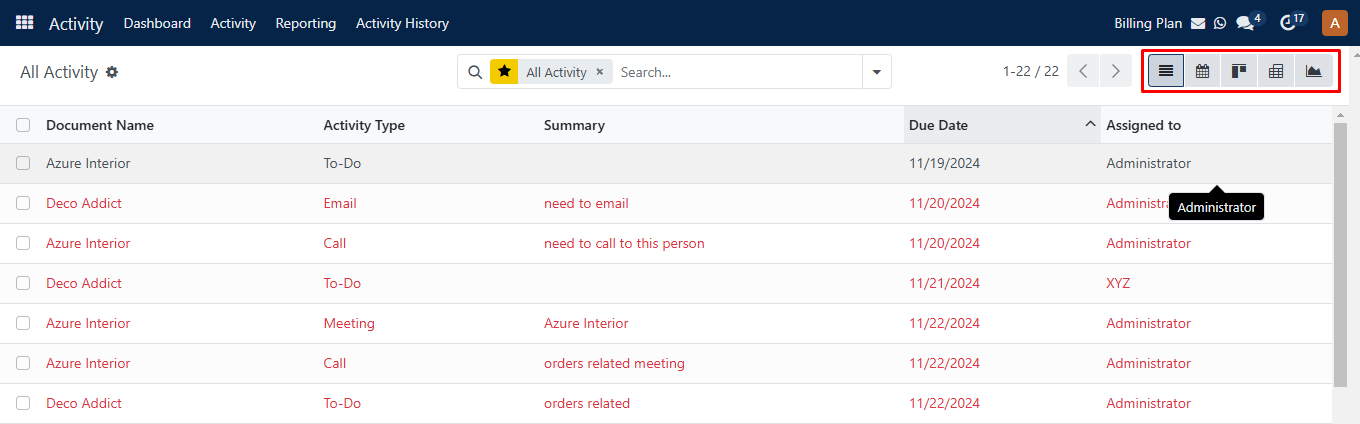
6.You can change the platform’s display into a Kanban, List, Calendar, Pivot, Graph, and Map.
Activity Calendar

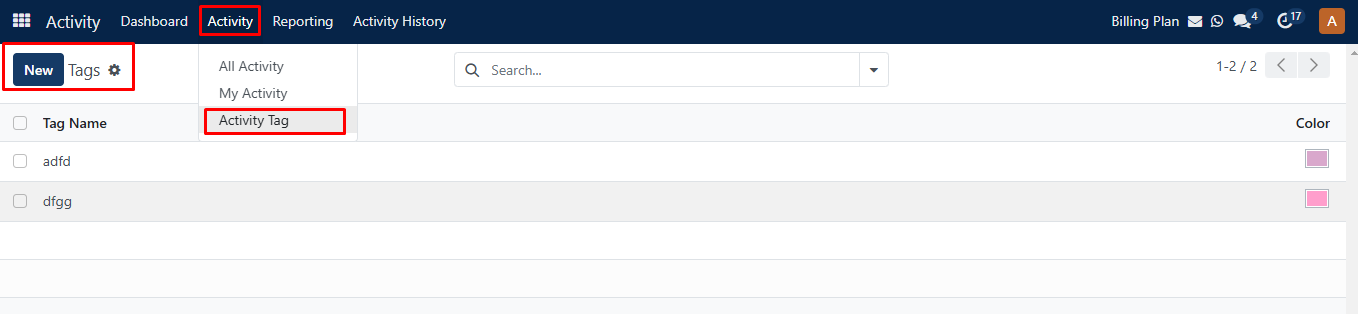
Now we see how to add an ‘Activity Tag‘ by clicking on the Activity option.

The Activity tag menu makes it simple to set tags for Activities. Here, you can view the tags that have previously been set up for Activities. The Tag Name and Color will be displayed.
Activity Tag

To make a new tag, click the New button. Enter Tag Name and Choose a tag color for quick identification, then press the Save button.
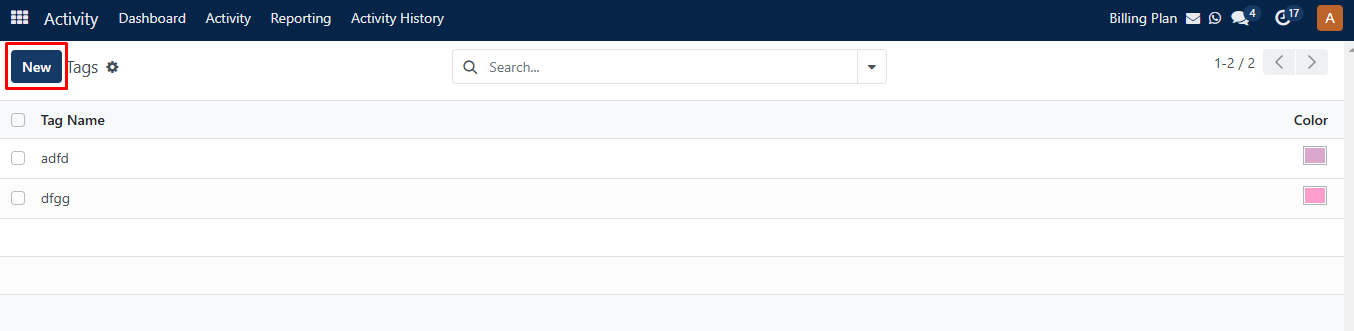
Activity New Tag

Was this guide helpful?
Your feedback helps us continuously improve our SAS playbooks.
Previous Article
Reporting
Next Article
Activity Type

Need help configuring your SAS modules?

Speak with a Peanut Square SAS solution architect to assist with custom onboarding and team trainings.

Schedule ConsultationKnowledge Hub
Peanut Square SAS Logo

Join us at Peanut Square LLP and watch your business soaring to new heights with our state-of-the-art technology based IT solutions.

Certified ISO 9001:2015 Company
Certified ISO 27001:2022 Company

Need Help ?

  • Apps
  • Industries
  • Resources
  • About Us
  • Contact
  • Privacy Policy
  • Terms and Conditions
  • Cancellation and Refund Policy

Partners

  • viaSocket

Contact Information

C-306 Signature-2, Nr. Sarkhej-Sanand Cross Road, Sarkhej, Ahmedabad, Gujarat-382210
sas.sales@peanutsquare.com

© 2026 Peanut Square LLP. All Rights Reserved.