
 Inventory
How to Manage Product Variants for Better Sales: 5 Smart Features
Product Variants & Attributes
Learn How to Manage Product Variants for Better Sales in the SAS Inventory module, including 5 key configuration steps to optimize eCommerce performance and boost sales. Managing product variants effectively is essential for businesses offering multiple versions of the same product. In the SAS Inventory module, you can configure and manage product variants to streamline operations and increase sales. This guide explains how to enable and set up product variants with clarity and precision.
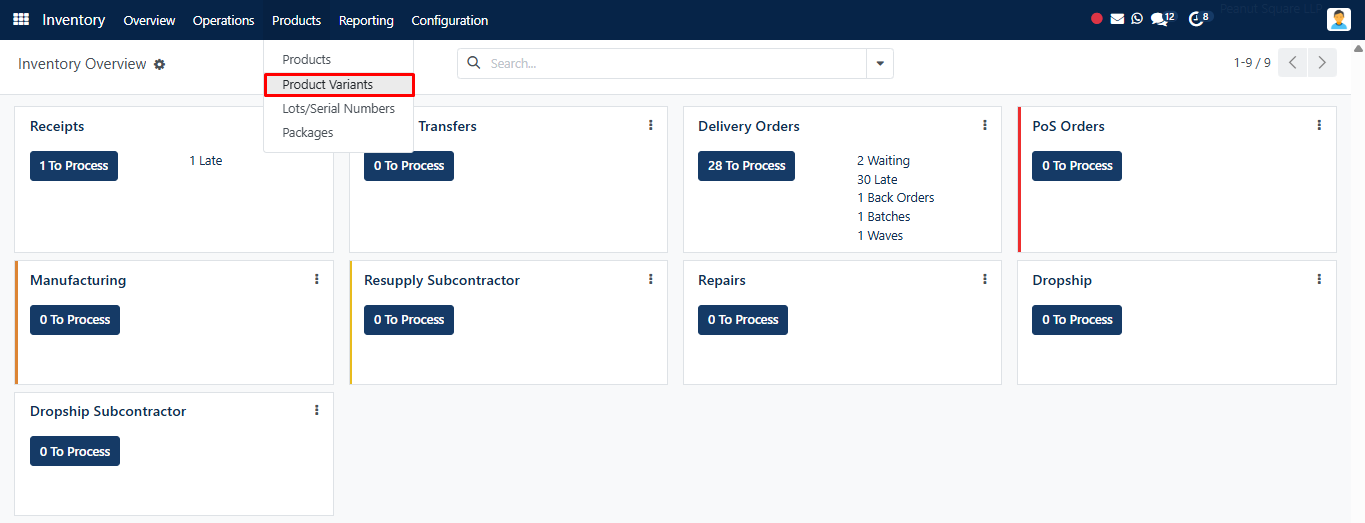
STEP 01Enable Product Variants in SAS Inventory
To manage product variants effectively in SAS Inventory, enabling variant settings is the first step. Navigate to the Settings menu within the Inventory module. Under the Products section, locate and activate the Variants checkbox. This step is essential to unlock the product variants functionality across the system.
After enabling the option, click Save to confirm the changes. Once activated, the Product Variants option will appear under the Products menu, allowing you to manage and configure multiple variations of a single product—such as color, size, material, or finish. This setup supports businesses in offering customizable products without duplicating items.
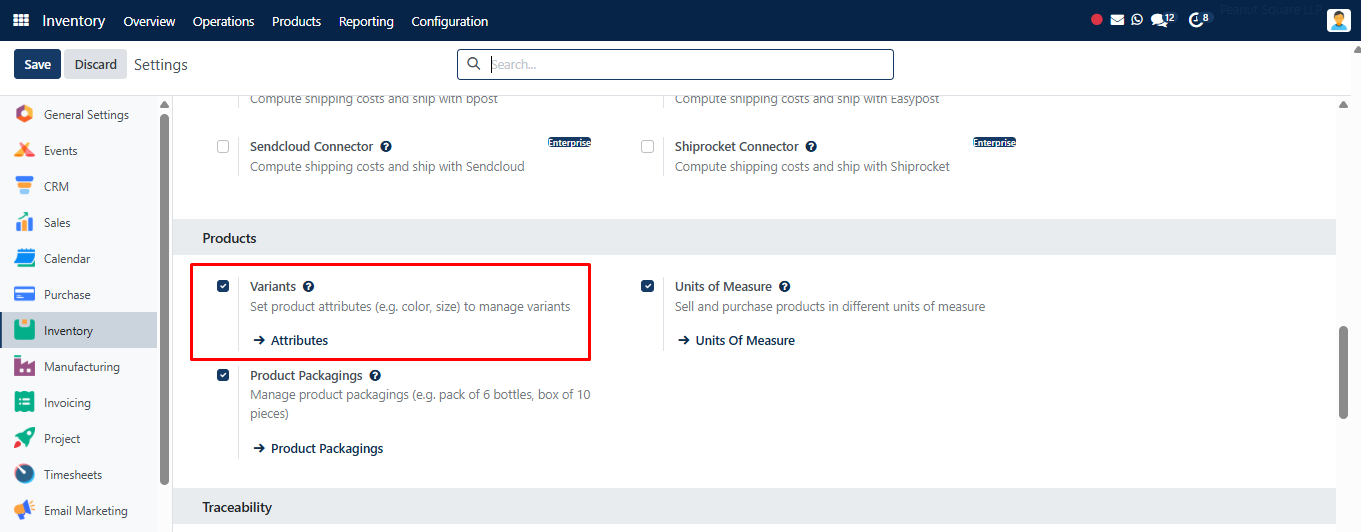
STEP 02Access and View Product Variants
To better manage product variants, configure attributes before assigning them. You can manage product variants under the Products menu. With the variant feature enabled, go to Products > Product Variants. This section displays a detailed list of existing product variants. Each variant includes its unique Variant Value, making it easy to identify and manage versions of the same product.
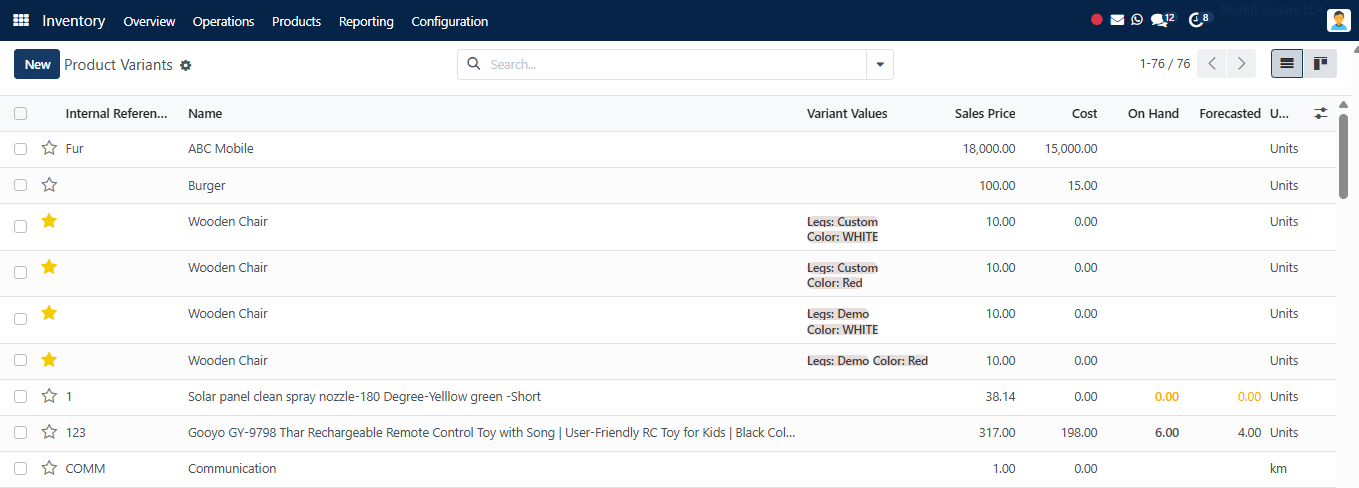
- Click the New button
- Enter basic product details such as product name, internal reference, and pricing
- Navigate to the Attributes & Variants tab within the form view
- Select or create the necessary attribute values (e.g., Blue, Medium)
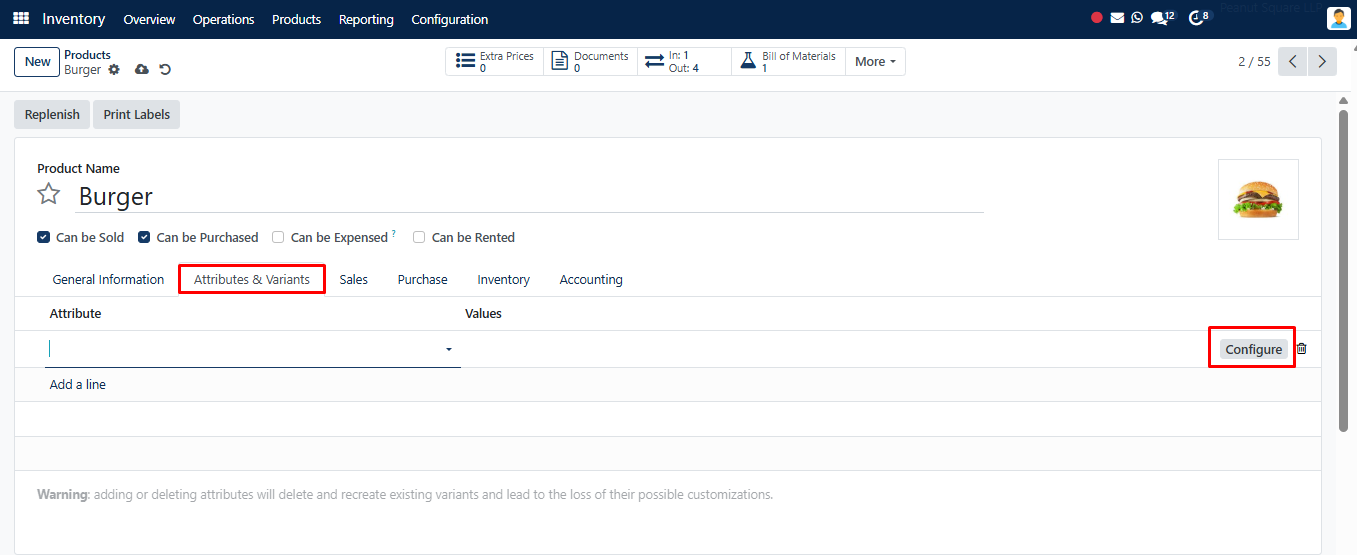
Creating variants helps reduce inventory clutter and supports more accurate reporting, stock control, and forecasting.
STEP 03Configure Product Attributes
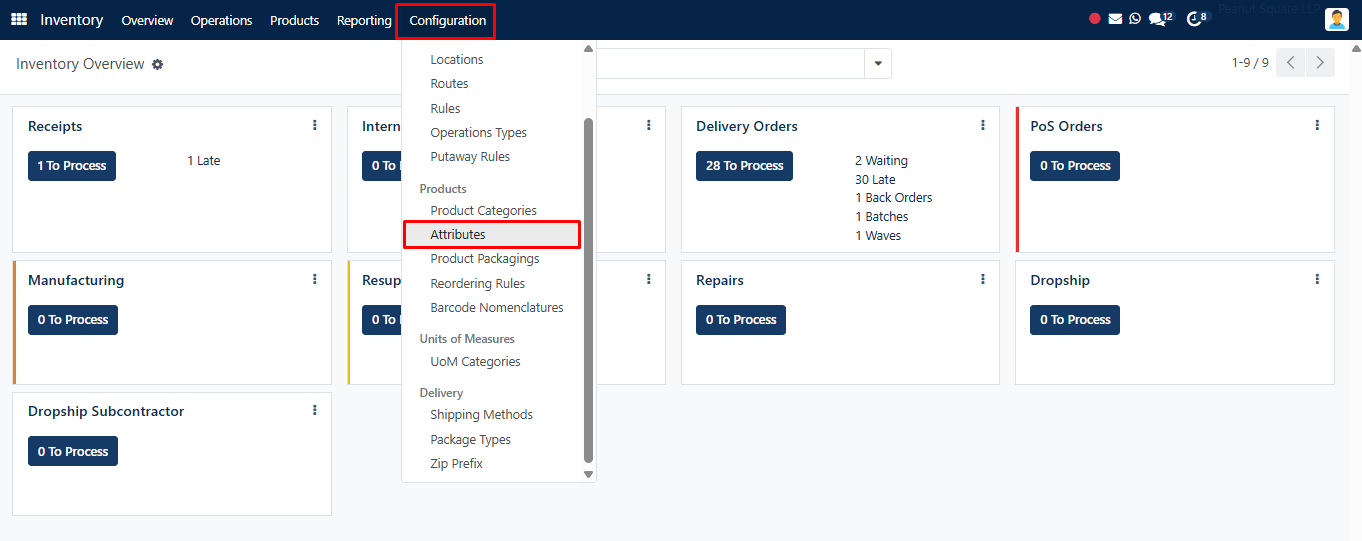
To define characteristics that distinguish product variants, go to Configuration > Product Attributes. This area lets you create attributes such as Size, Color, Material, and more. SAS makes it simple to manage product variants dynamically or instantly, depending on your needs.
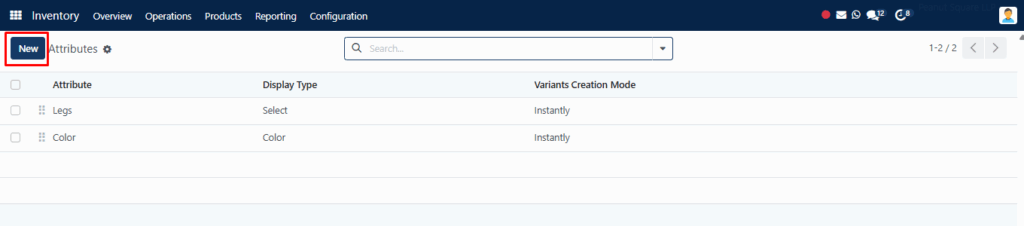
Each attribute has several configuration fields:
- Attribute Name: A meaningful title like “Size” or “Fabric Type”
- Display Type: Choose how the attribute appears in the product configurator—Radio buttons, Pills, Dropdown, Colors, or Multi-checkbox
- Variants Creation Mode:
- Instantly: All possible combinations are created automatically upon setup
- Dynamically: Variants are generated as needed during sales processes
- Never: No variants are created—suitable for non-variable attributes
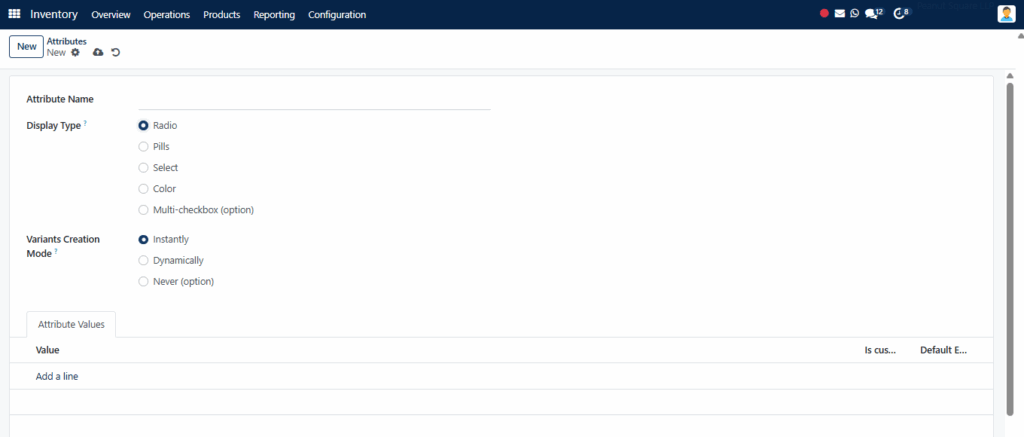
Under the Attribute Values tab, click Add a Line to enter values like “Red,” “Large,” or “Cotton.” These values form the building blocks of your product variants.
STEP 04Assign Attributes to Products
Once attributes are created, open the Product form for which you want to add variants. Go to the Attributes & Variants tab and select the relevant attributes and values.
For example, a T-shirt product might include:
- Attribute: Color → Values: Red, Blue, Black
- Attribute: Size → Values: S, M, L
As soon as you save the form, variant combinations will be generated automatically based on your selected creation mode. This structured setup allows better inventory tracking, streamlined ordering, and enhanced product management in both backend and customer-facing systems.
STEP 05Use Smart Buttons for Navigation
After the product and its variants are configured, use the Related Products smart button to quickly view all linked variants. This feature simplifies navigating between product records and helps track attributes used in other items.
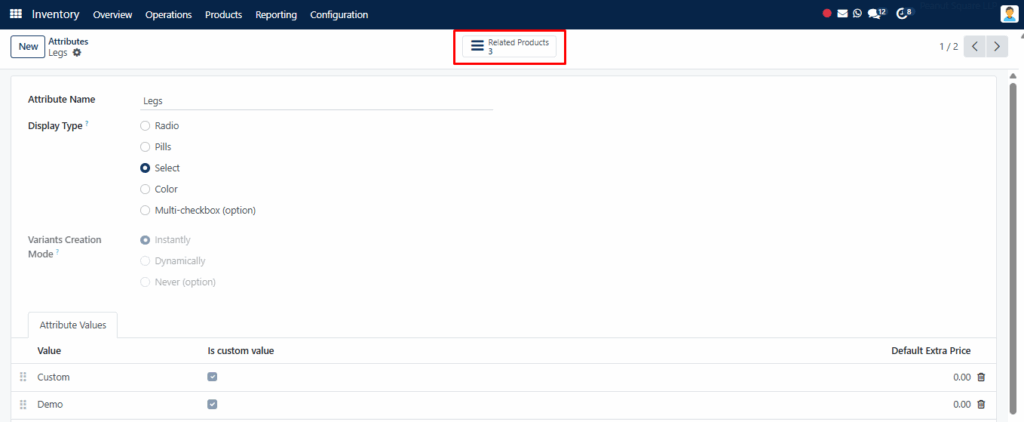
Smart buttons boost efficiency for inventory managers and sales teams, allowing them to switch between versions without manually searching for each entry.