
Peanut Square SAS Logo
PricingAbout UsContact
+91 94296 94521Schedule Demo
SASKnowledgeInventoryHow to Successfully Manage Replenishment in 4 Easy Steps
Documentation
•Hub
Manage Products in Inventory
  • Ultimate Guide to Smart Product Packaging in SAS Inventory(2025)
  • How to Track Lot & Serial Numbers Accurately(7 Ultimate Guide)
  • How to Manage Product Variants for Better Sales: 5 Smart Features
  • How to Manage Products Effortlessly: 3 Must-Know Tricks in SAS
Inventory Operations
  • Easy Ways to Manage Run Scheduler Efficiently
  • How to Successfully Manage Replenishment in 4 Easy Steps
  • Effectively and Quickly Manage Inventory Adjustments from the Operations Menu
  • How to Manage Transfers from the Operations Menu
Inventory Overview Dashboard
  • How to Use the Inventory Overview for Daily Operations
InventoryInventory
Inventory Operations
2 min read

How to Successfully Manage Replenishment in 4 Easy Steps

Here, you can Manage and track inventory restocking efficiently using the Replenishment tool from Operations Menu. You can replenish your depleted stock from their vendors and route with the Replenishment option. Upon restocking, you have to set up that specific vendor’s stock. Choose “Replenishment” from the Operation menu to make use of this capability. The replenishment orders that were placed in this module can be examined and managed in-depth here.
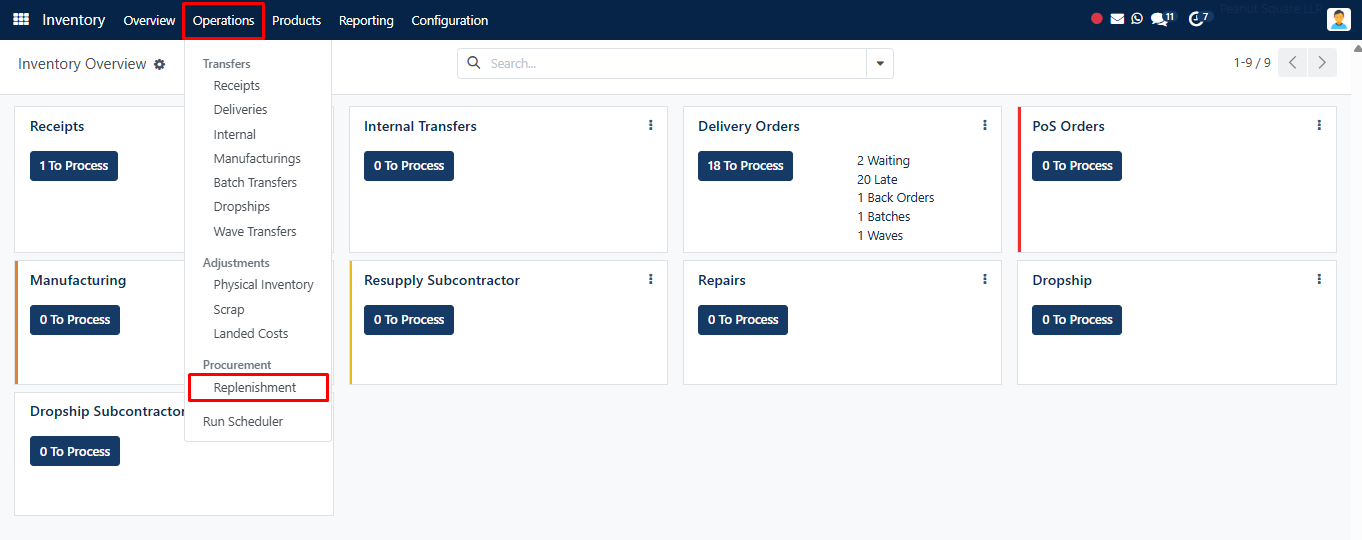
Replenishment

As the image above illustrates, the window’s left side has a filter called “Trigger.” A new feature of the SAS Inventory module is this filter area. Filtering replenishment triggers into ‘All’ (manual and automatic), ‘Auto,’ and ‘Manual’, it has three categories.

New Replenishment Order

In order to create a new replenishment order, click the New button.
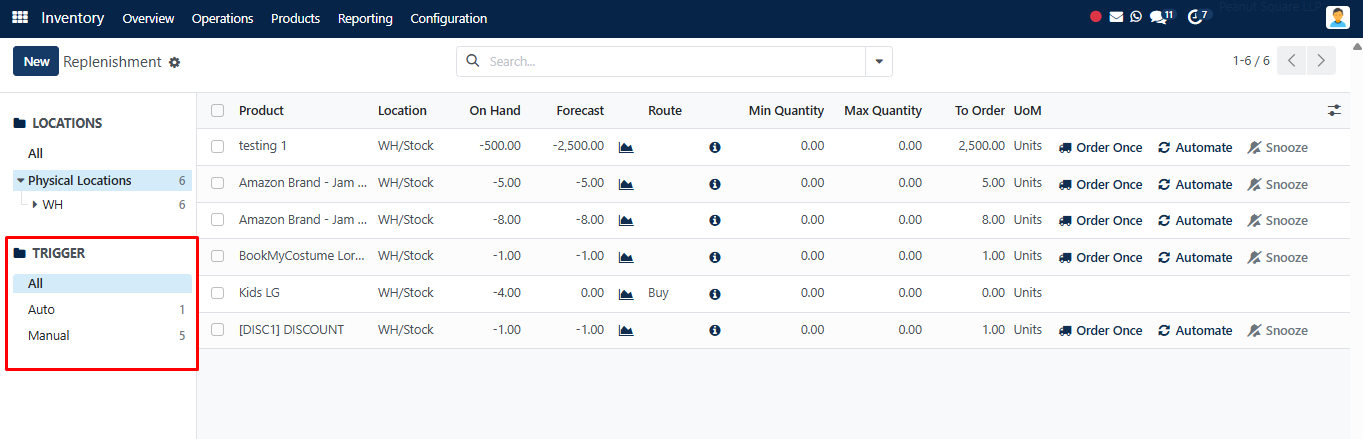
Trigger Filter

Below the current list, a new line will appear for you to input the product name, preferred route, vendor, minimum and maximum quantities, and to order. Depending on the product chosen, the fields like “On Hand,” “Forecast,” and “UoM” will automatically change.
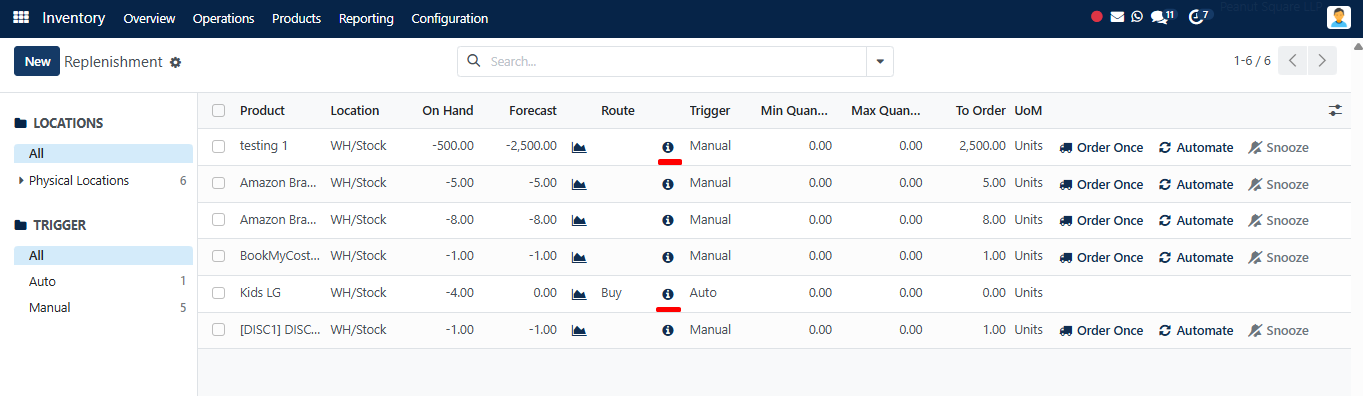
Replenishment List

Snooze

The details of replenishment are displayed by the underlined “i” icon below. To view the Replenishment details for a product, click the ‘i’ icon next to it. To easily place a replenishment order, use the Order Once icon. Using this button will manually restock the appropriate product. The restocking procedure will become automatic when you click the Automate Orders button. To turn off notifications for a predetermined amount of time, use “Snooze.” Pressing the Snooze button will bring up the window shown below.
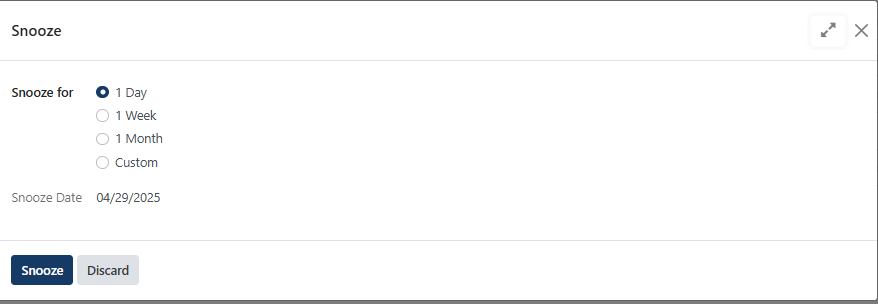
Snooze

After selecting the time and day for your nap, click “Snooze.”


Was this guide helpful?
Your feedback helps us continuously improve our SAS playbooks.
Previous Article
Easy Ways to Manage Run Scheduler Efficiently
Next Article
Effectively and Quickly Manage Inventory Adjustments from the Operations Menu

Need help configuring your SAS modules?

Speak with a Peanut Square SAS solution architect to assist with custom onboarding and team trainings.

Schedule ConsultationKnowledge Hub
Peanut Square SAS Logo

Join us at Peanut Square LLP and watch your business soaring to new heights with our state-of-the-art technology based IT solutions.

Certified ISO 9001:2015 Company
Certified ISO 27001:2022 Company

Need Help ?

  • Apps
  • Industries
  • Resources
  • About Us
  • Contact
  • Privacy Policy
  • Terms and Conditions
  • Cancellation and Refund Policy

Partners

  • viaSocket

Contact Information

C-306 Signature-2, Nr. Sarkhej-Sanand Cross Road, Sarkhej, Ahmedabad, Gujarat-382210
sas.sales@peanutsquare.com

© 2026 Peanut Square LLP. All Rights Reserved.