
 Inventory
How to Use the Inventory Overview for Daily Operations
Inventory
The SAS Inventory module lets you organize and control the inventory-related tasks performed by your business. It manages and tracks product inventory in addition to performing various inventory functions. Additionally, you can simply manage the quantity of your goods and keep track of all orders with this module. Through its integration with several other modules, like Sales, Point of Sale, Purchase, Accounting, Manufacturing, Repairing, etc., the Inventory module can positively impact your company’s profit margin. The first step is to configure each product in the module. Let’s examine the Inventory module’s product configuration, cataloging, and management.
Inventory Operations
The finest solution for the efficient management of all forms of inventory activities is the SAS Inventory module. For a business to run smoothly, inventory management needs to have the appropriate support. You will be interested in the features SAS has to offer when we discuss it as the ideal inventory management solution. This section will go into detail about how SAS dedicated Inventory module manages inventory operations. The Inventory module’s Overview window provides a clear understanding of all the processes that the module may manage.
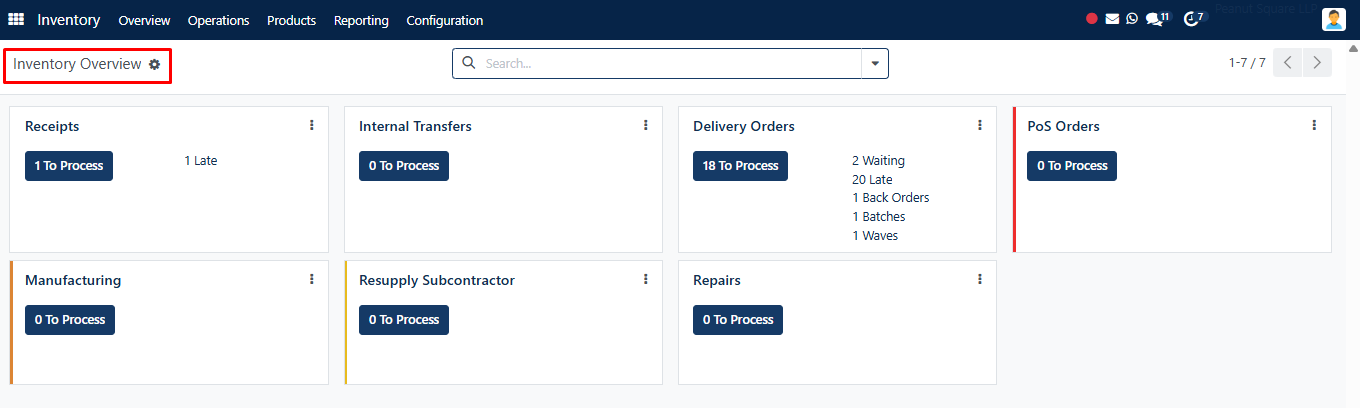
Based on the activities set up in the module, you can handle receipts, internal transfers, delivery orders, returns, manufacturing, resupply subcontractor, POS orders, dropship, dropship subcontractor, and a lot more from the Kanban view of the Inventory Overview window.
You will have unique choices to control each of these actions separately in the Inventory module’s menu bar. However, this platform will enable you to quickly see a summary of all processes. You may access more options to handle each of these processes by clicking the three vertical dots in the top right corner of each operation tab.
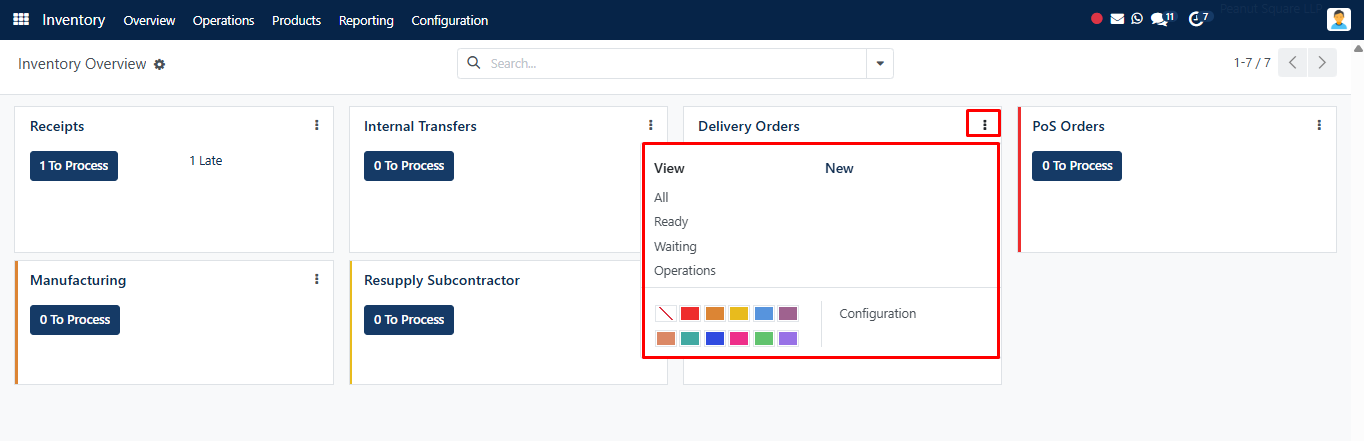
The inventory operations of all the firms set up in your system will be included in the overview if the database is operating in a multi-company environment.
Creating new operation types
With the aid of the specialized tools included in the module, you can easily develop new operation types in the SAS Inventory module. As seen below, the Configuration menu leads to the Operation Types menu.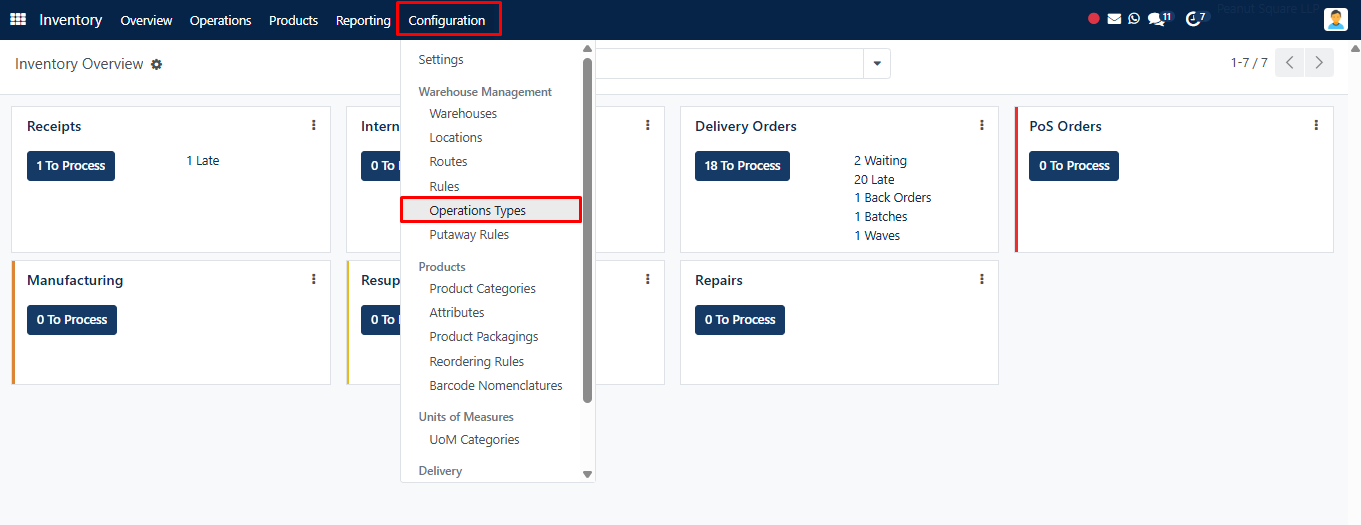
When this option is selected, a new window containing information about the currently set-up operation is displayed. By choosing them from the provided list, you can alter the operation kinds that are available. Here, we’ll make a brand-new Operation Type. Therefore, press the New button.
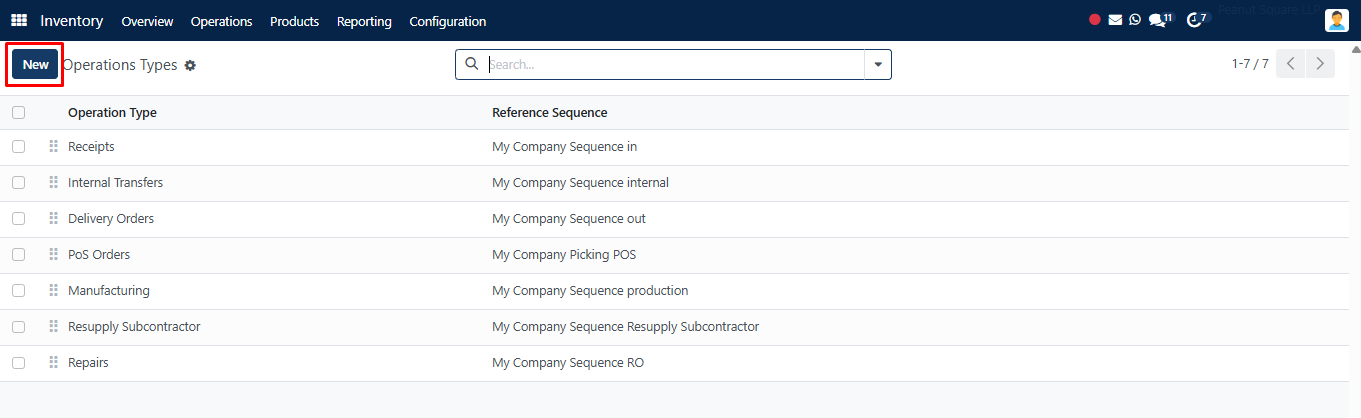
In this window, you can create a new operation type. In the relevant field, you can describe the operation type. In the appropriate field, include the Reference Sequence.
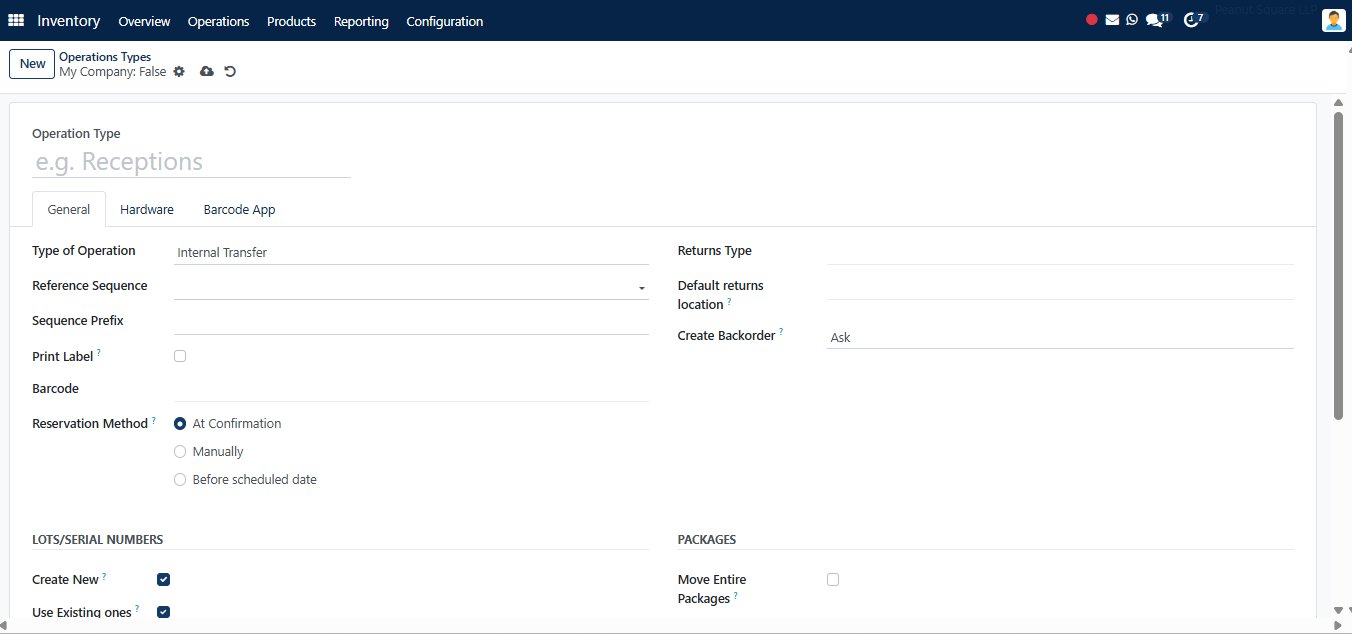
The Reservation Method will determine how the goods in transfers of this operation type should be preserved. It may be done manually, at confirmation, or prior to the scheduled date. By choosing the option ‘Ask’ in the Create Backorder field while validating a transfer, you can prompt your customers to decide whether they wish to place a backorder for the unsold items. SAS will automatically establish a backorder for the remaining products if the ‘Always’ option is used. The remaining products will be canceled if the ‘Never’ option is chosen. Check the Show Detailed Operation option if you wish to display a thorough stock operation in the picking lines.
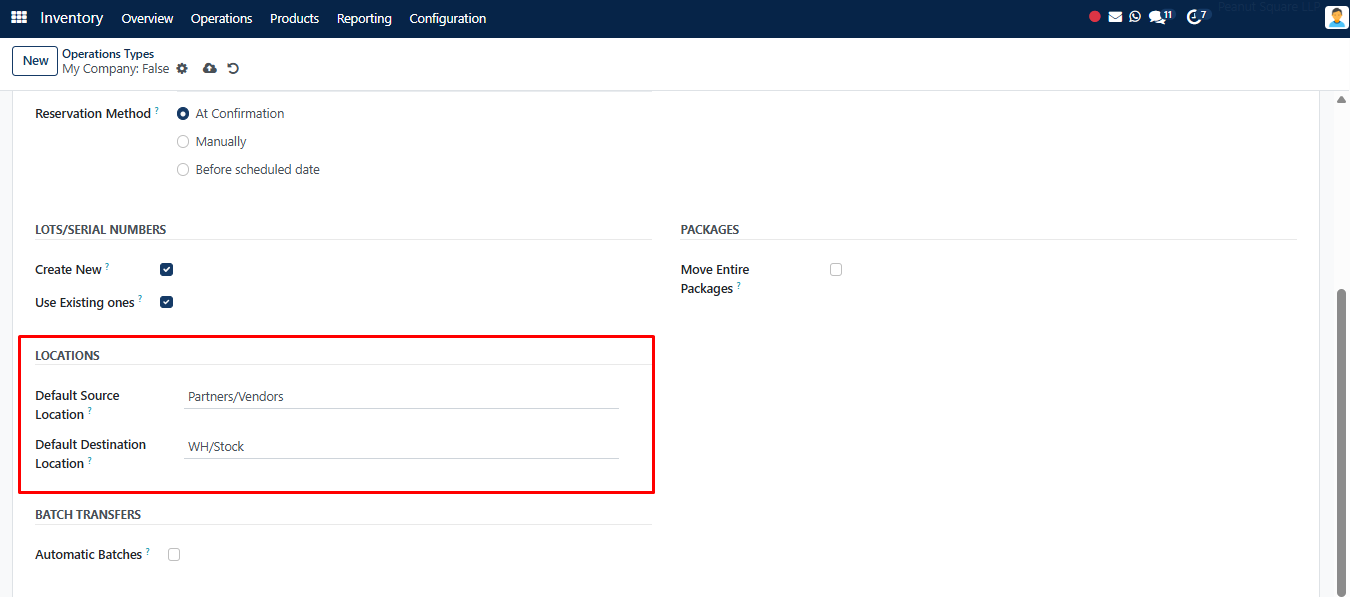
The corresponding fields under the Locations tab allow you to specify the Default Source Location and Default Destination Location of the transfers of this operation type.
The type of operation can be internal transfer, manufacturing, delivery, or receipt. The remaining fields will only slightly alter depending on the Type of Operation you choose. There are various setup choices for each Type of Operation. The additional fields that display on the screen, for instance, if you choose receipt as the kind of operation, are noted below.
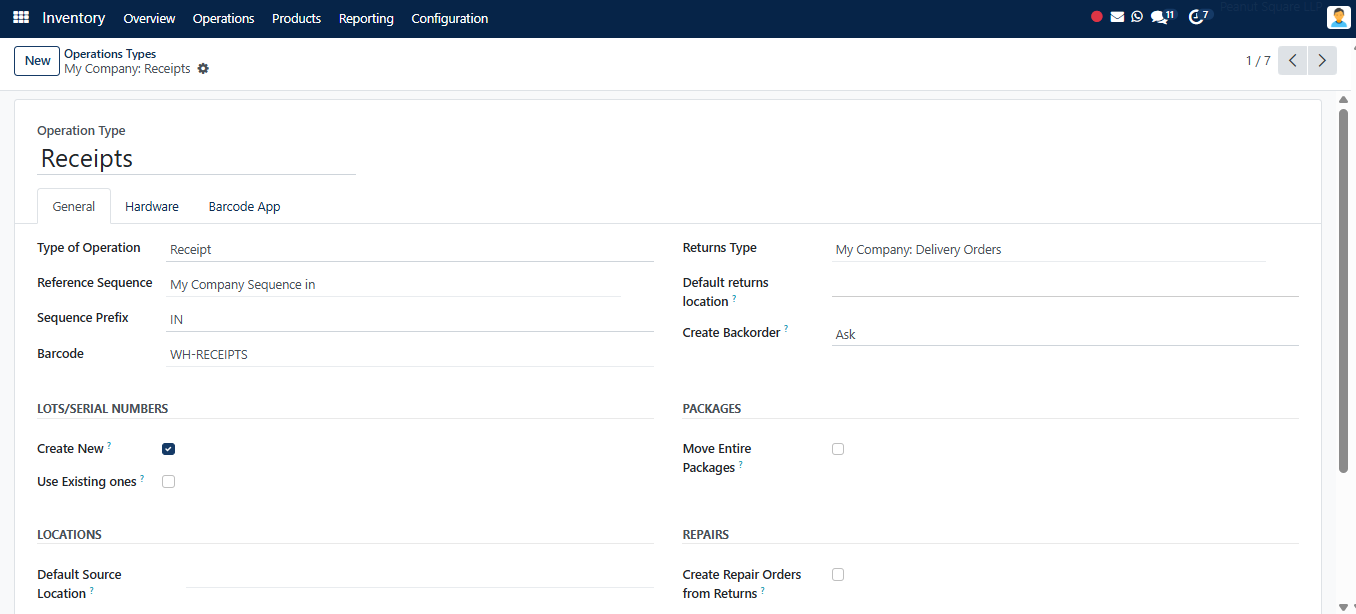
Suppose you want to receive an automatic reception report at the moment of validation in the event of a receipt. In that case, you can activate the Show Reception Report at the Validation function. Only the reception report will appear after the receipt has been validated, if Show Reception Report at the Validation is enabled.
You can choose the operation type that is best for product returns by entering it in the Operation Type for Returns area. SAS will automatically fill in the relevant goods, locations, and lot/serial numbers in the detailed operations.
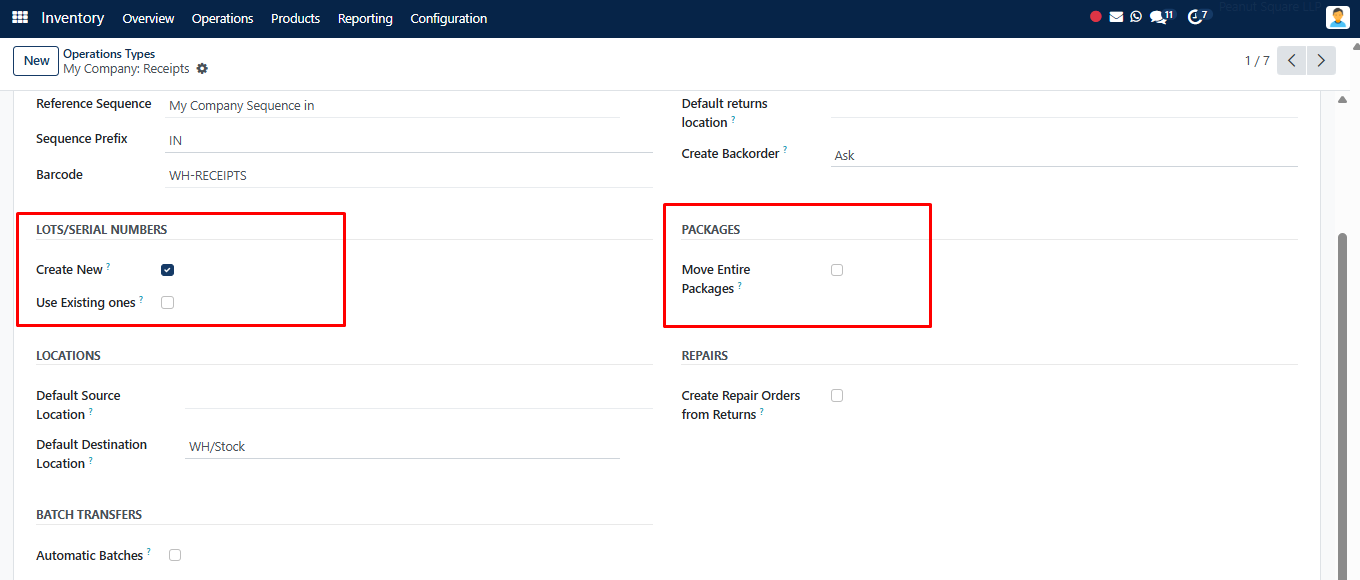
You can produce new lots/serial numbers for the products in the transfers of this operation type by turning on the produce New Lots/Serial Numbers option from the Traceability tab in SAS. By selecting the Use Existing Lots/Serial Numbers option, you can also use the current lots/serial numbers for product transfers. You can choose which full packages to relocate by ticking the relocate full Packages box on the Packages tab.
SAS product traceability functionality makes it possible to trace and track any individual product component. To bring all activities under control, a product must be tracked at every stage of stock movement.