 Purchase
How to View Purchase Reports
You can create reports on the processes associated with your purchases by selecting the Reports tab. By enhancing your company’s purchase-related performance, you can improve overall productivity by analyzing these reports. Click the Purchase menu from the Reports tab to see the Purchase Analysis window.
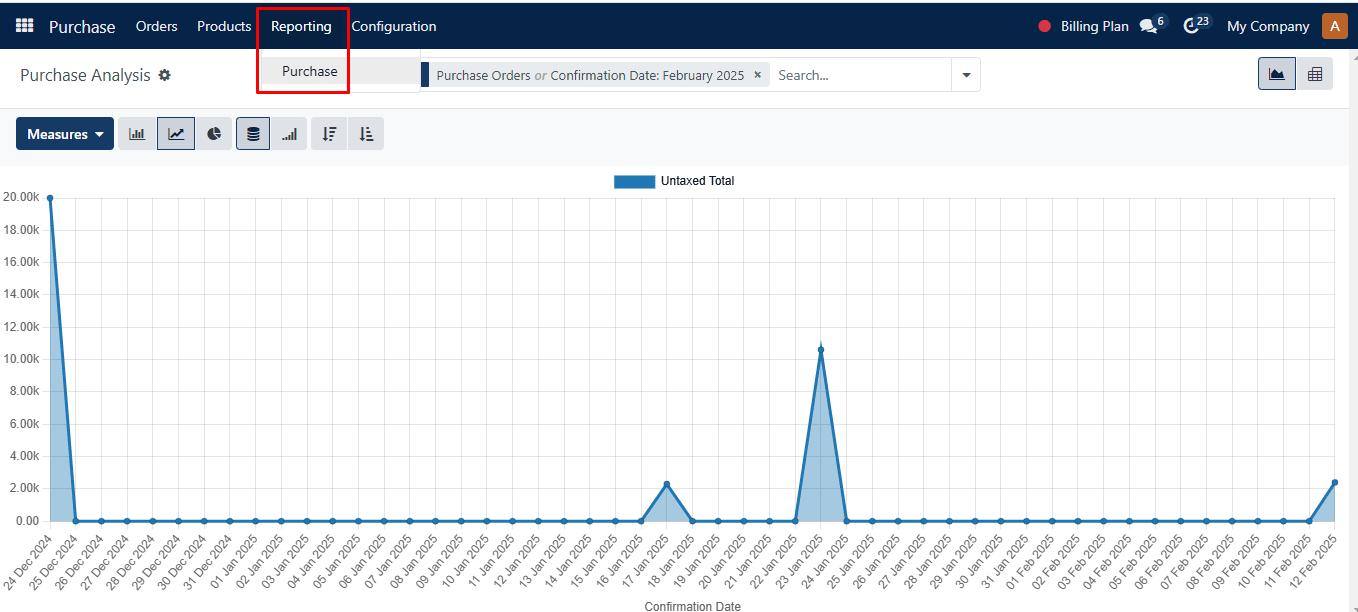
The Bar Graph, Line Graph, and Pie Chart icons are located in the upper left section of the window. Select the view based on your personal taste. You can also see the icons for stacked, cumulative, descending, and ascending next to these options. Depending on how you want your graph to be arranged, choose any option. The two icons for Graph view and Pivot view are located in the upper right corner, from which you can select the desired option.
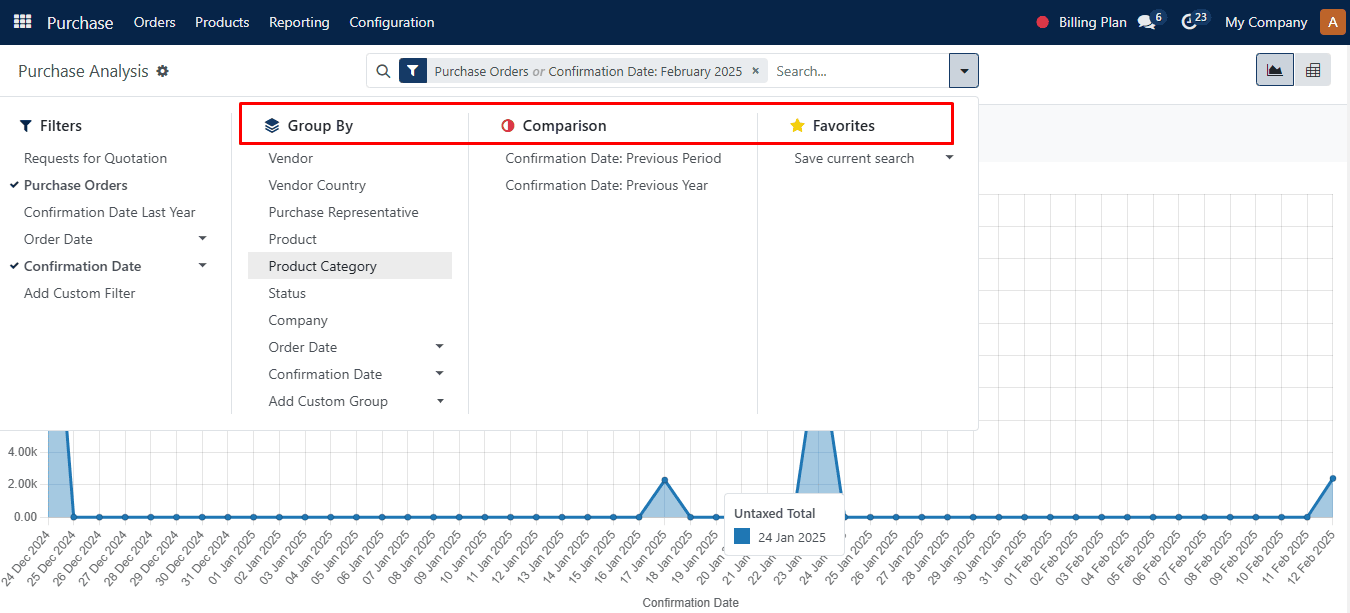
To find and examine particular records, use the Filters and Group By options. A drop-down list of options, including Requests for Quotation, Purchase Orders, Confirmation Date Last Year, Order Date, Confirmation Date, and Add Custom Filter, appears when you click on “Filters.” Decide whatever criteria you wish to use to separate your records. Vendor, Vendor Country, Purchase Representative, Product, Product Category, Status, Company, Order Date, Confirmation Date, and Add Custom Group are among the options available in the Group By area. They provide options for organizing your data according to the parameters of your choosing.
The Purchase analysis’s pivot view is shown below.
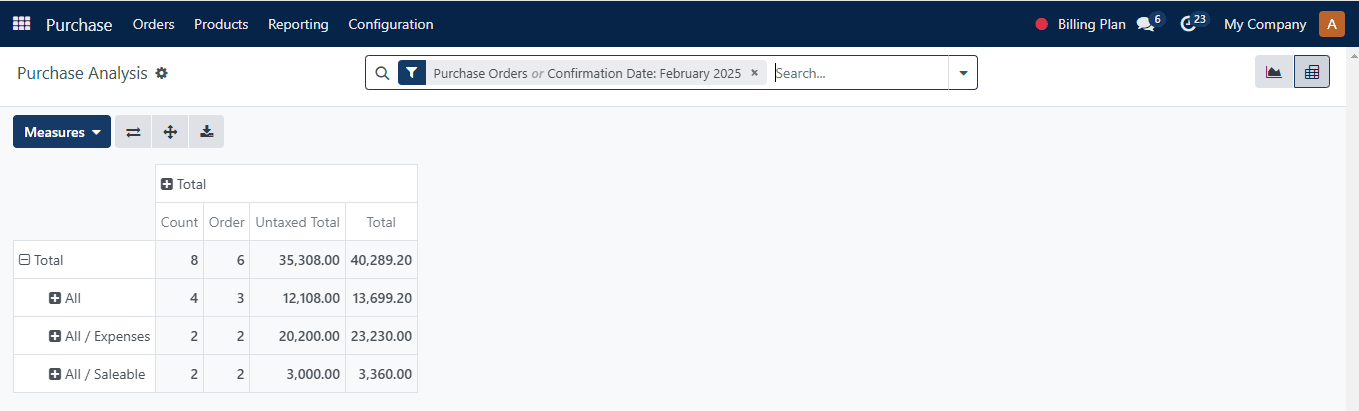
Average Cost, Days to Confirm, Days to Receive, Gross Weight, Order, Quantity Billed, Ordered, Received, Quantity to be Billed, Total, Untaxed Total, Volume, and Count are among the accessible metrics for the analysis. The capabilities of the most recent iteration of the SAS Purchase module can be utilized to improve the way your company handles purchase-related procedures.
To sum up, the SAS Purchase module is a strong option for companies, providing an integrated platform that streamlines vendor collaboration, improves procurement workflows, and offers insightful data for well-informed decision-making, all of which lead to more efficient operations and economical supply chain management. Its feature-rich capabilities and intuitive UI make it an invaluable tool for businesses looking to streamline and open up their procurement procedures.