
Peanut Square SAS Logo
Free ToolsPricingAbout UsContact
+91 94296 94521Schedule Demo
SASKnowledgePurchaseHow to Manage Drop Shipping
Documentation
•Hub
Vendor Price List Setup
  • How to Apply Vendor Price Lists in Purchases
Reporting- Purchase Analysis
  • How to View Purchase Reports
Product Management
  • How to Manage Products in SAS
Orders Menu Management
  • How to Manage Drop Shipping
  • How to Manage Vendors Effectively
  • Purchase-Agreement (Blanket Orders & Call for Tenders)
  • Top 10 Best Practices to Create and Manage Requests for Quotation Successfully
  • How to Successfully Create and Track Purchase Orders: 3 Must-Know Tips
PurchasePurchase
Orders Menu Management
2 min read

How to Manage Drop Shipping

Drop shipping is one of the most sensible shipping choices for vendors who do not intend to have goods on hand. With this method, items can be shipped directly from the vendor to the buyer. It will be more beneficial for merchants because there is no need to maintain warehouses and deliveries are made straight from suppliers to clients. Drop shipping allows you to ship goods directly to customers from suppliers or manufacturers, doing away with the requirement for inventory control.

To activate Drop shipping in SAS, navigate to the Settings menu in the Purchase module. As seen in the graphic below, the option will be found under the Logistics tab.
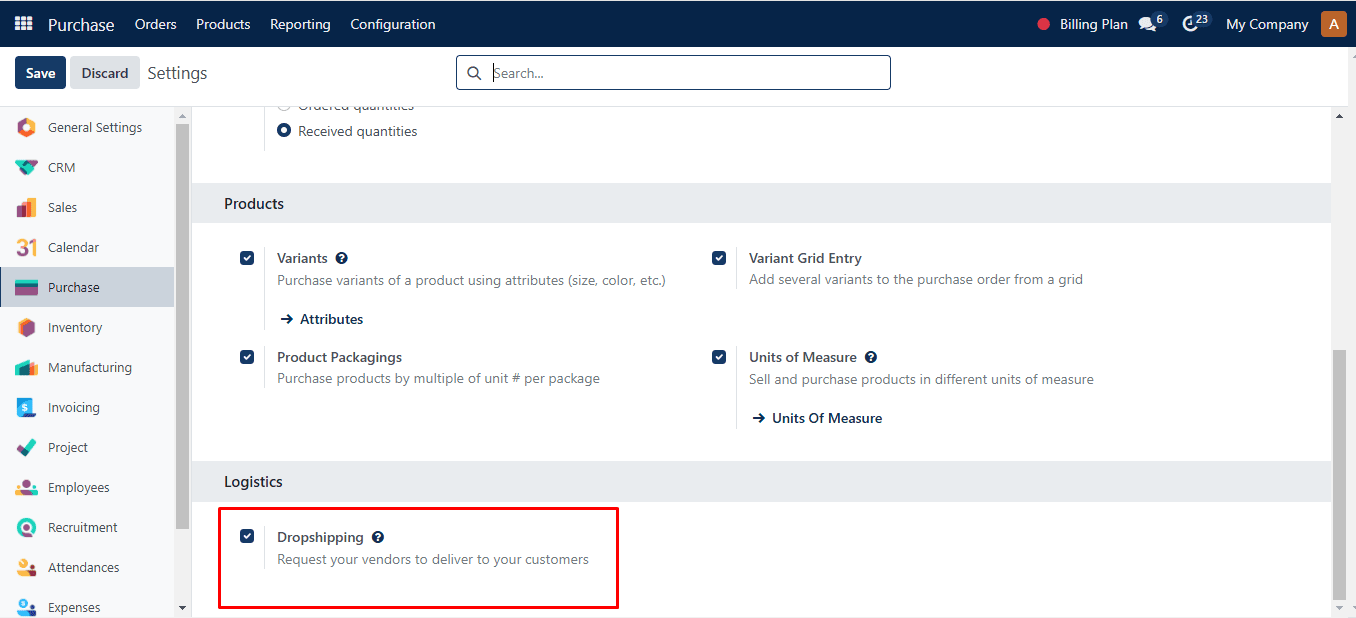
To activate Drop shipping in SAS

As seen in the screenshot below, you can now customize the product you wish to dropship and set the routes of operation to dropship. The product detail form’s Inventory tab displays the choice.
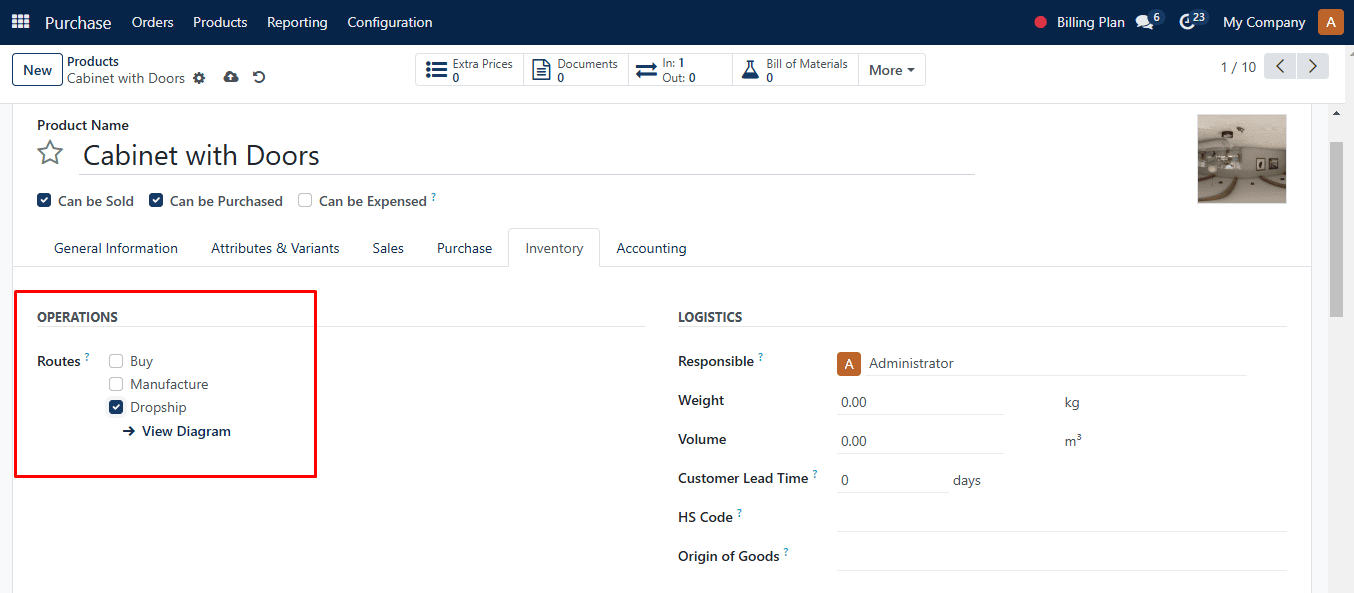
Dropship and set the routes of operation to dropship

The Inventory module can aid you in managing a product’s routes of operation.

For this product, you may now use the Sales module to create a sales order. You can include the customer’s details in the appropriate field. The moment you click the Confirm button to confirm the sales order, an order will be produced immediately to buy this product from the relevant vendor.
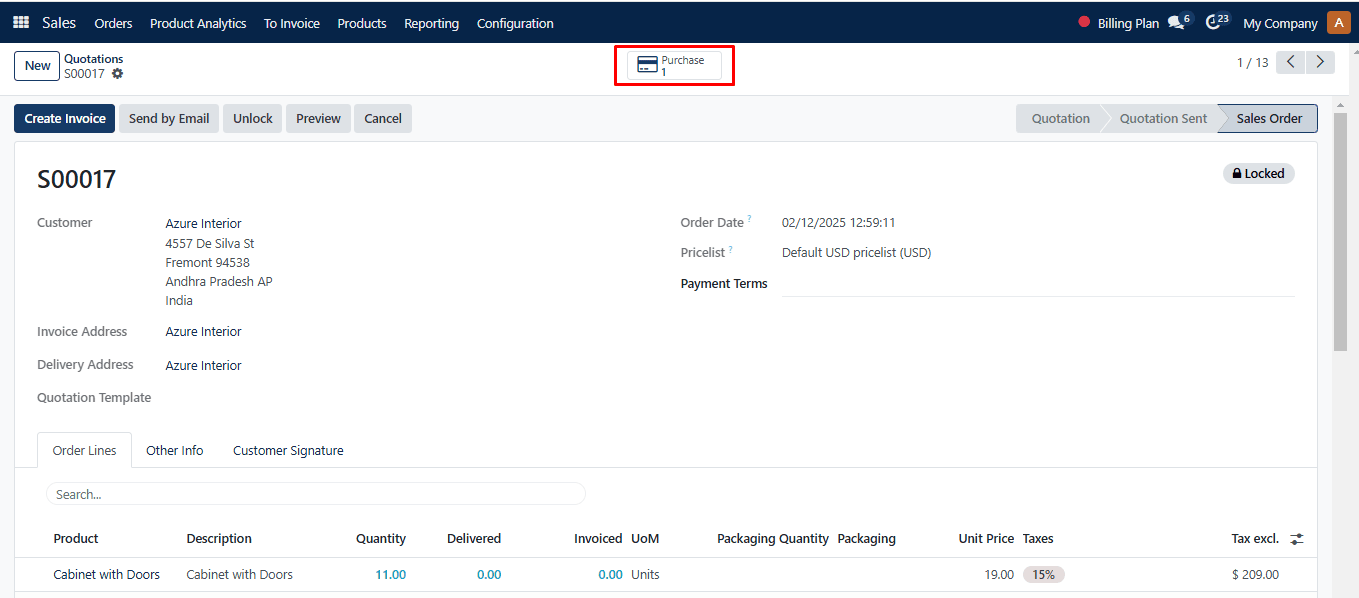
Confirm the sales order

Using the window’s smart button, you can view the just-created purchase order.
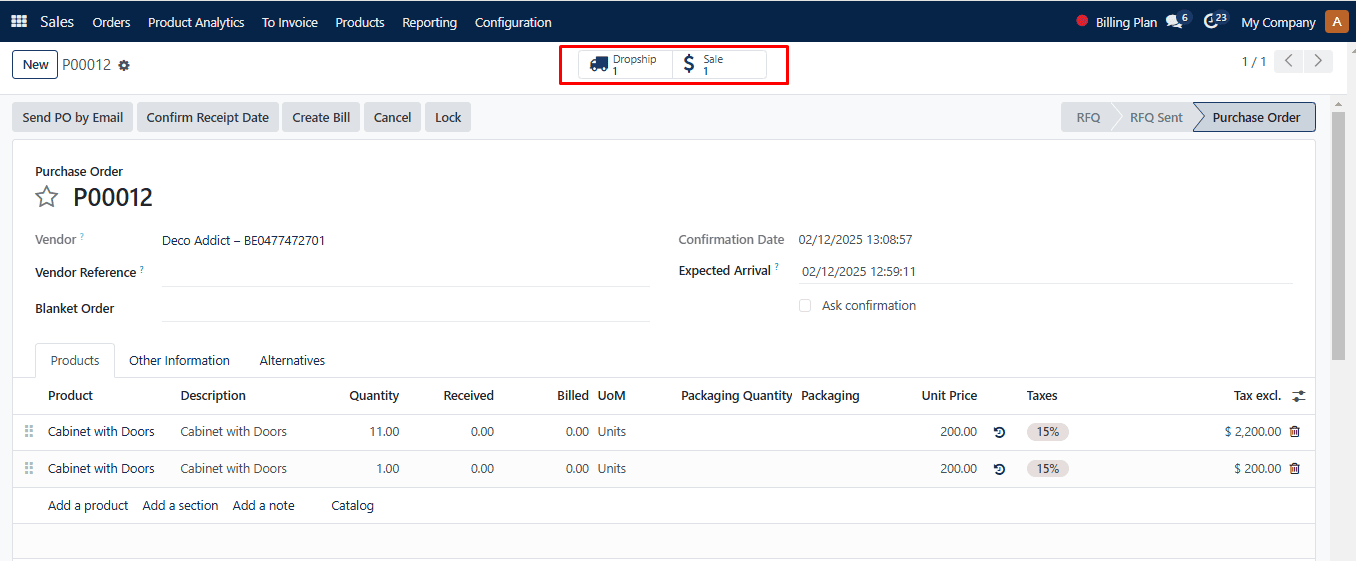
View the just-created purchase order

This is where you will find the Dropship Address and the operation type of the inbound package. The product will be shipped straight from the relevant vendor to the consumer as soon as you approve the purchase order. In the case of the dropship, you are not required to maintain an inventory for this product.

When you click the Dropship smart button, a new window containing the Dropship Validation will open.
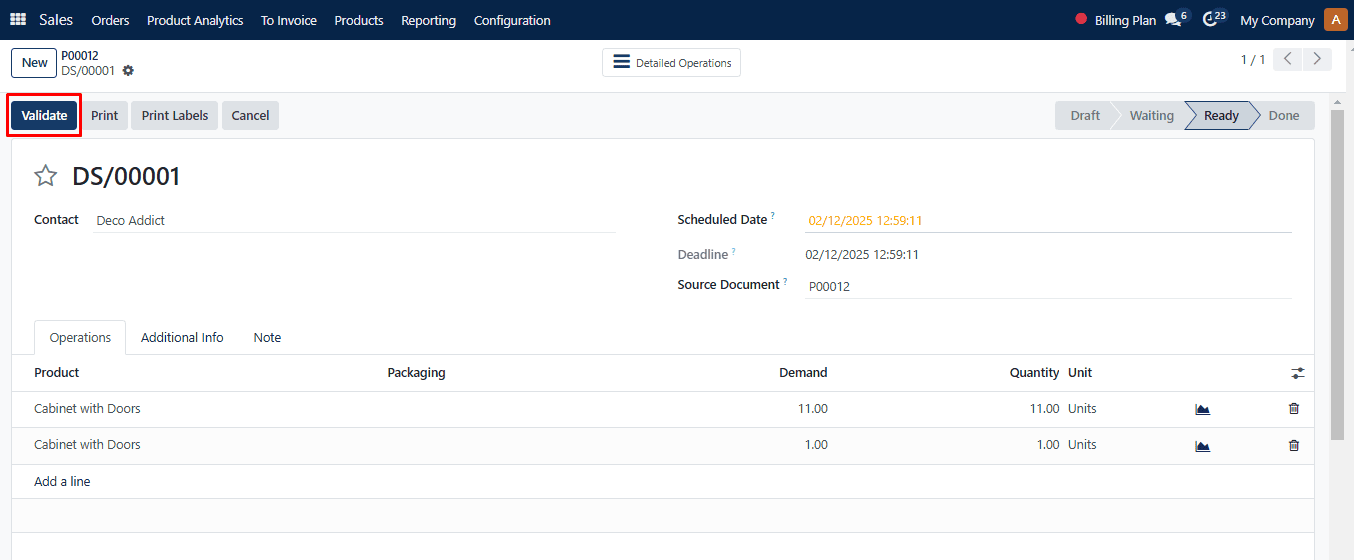
Dropship Validation

This is how drop ships are handled by SAS.

Was this guide helpful?
Your feedback helps us continuously improve our SAS playbooks.
Previous Article
How to Manage Products in SAS
Next Article
How to Manage Vendors Effectively

Need help configuring your SAS modules?

Speak with a Peanut Square SAS solution architect to assist with custom onboarding and team trainings.

Schedule ConsultationKnowledge Hub
Peanut Square SAS Logo

Join us at Peanut Square LLP and watch your business soaring to new heights with our state-of-the-art technology based IT solutions.

Certified ISO 9001:2015 Company
Certified ISO 27001:2022 Company

Need Help ?

  • Apps
  • Industries
  • Resources
  • Free Tools
  • About Us
  • Contact
  • Privacy Policy
  • Terms and Conditions
  • Cancellation and Refund Policy

Partners

  • viaSocket

Contact Information

C-306 Signature-2, Nr. Sarkhej-Sanand Cross Road, Sarkhej, Ahmedabad, Gujarat-382210
sas.sales@peanutsquare.com

© 2026 Peanut Square LLP. All Rights Reserved.