
 Purchase
How to Manage Vendors Effectively
A commercial organization handles many kinds of retail or wholesale purchasing. Keeping track of and managing the information from various vendors may be necessary, depending on the goods you have bought. You can set up all the vendors associated with a specific product in SAS, which facilitates clients’ ability to purchase from the vendor of their choosing. The versatile and sophisticated user interface of SAS has made it easier to monitor the vendor directory and compile vendor attributes. Moreover, you may simply follow new purchase orders by connecting the vendor data to the relevant product.
Click the Vendors menu from the Orders tab’s dropdown list to manage the vendor details. All of the vendors who have been added to the module will be shown in detail on the Kanban view.
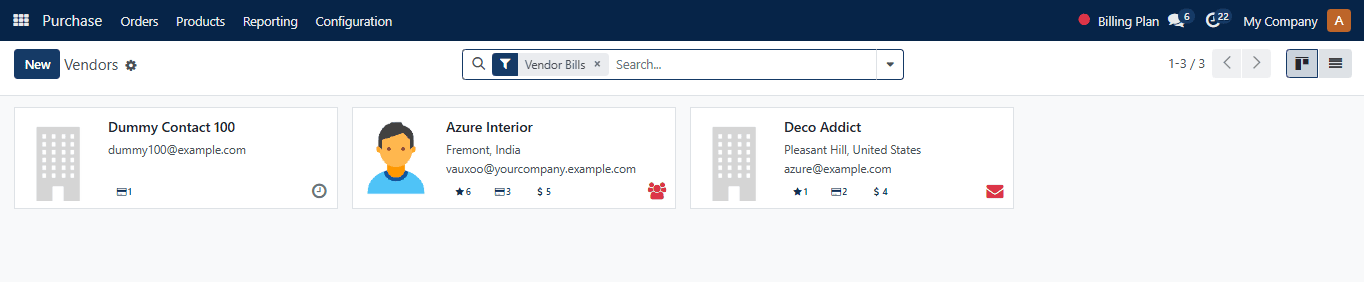
The Kanban view provides access to a vendor’s basic information. Name, tags, email address, and communication address are among the details. Icons for managing meetings, opportunities, and purchases allocated to the appropriate vendor will be provided to you.
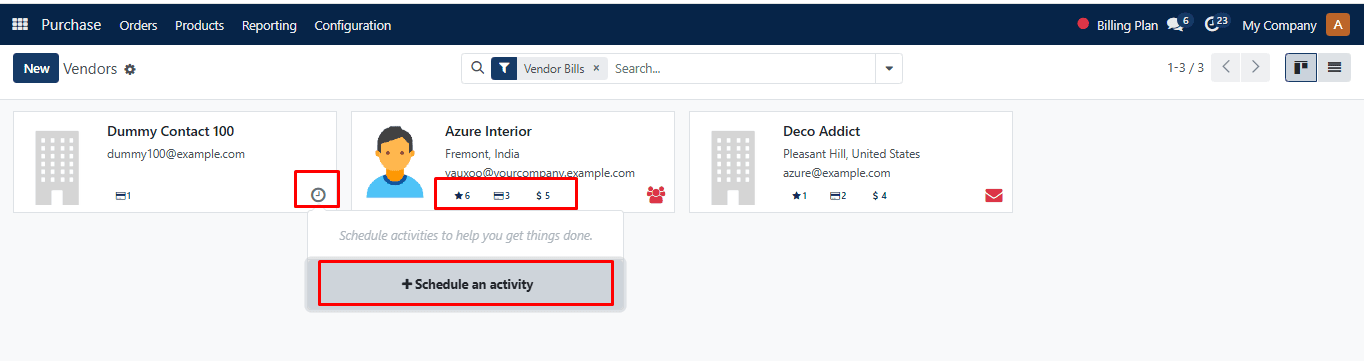
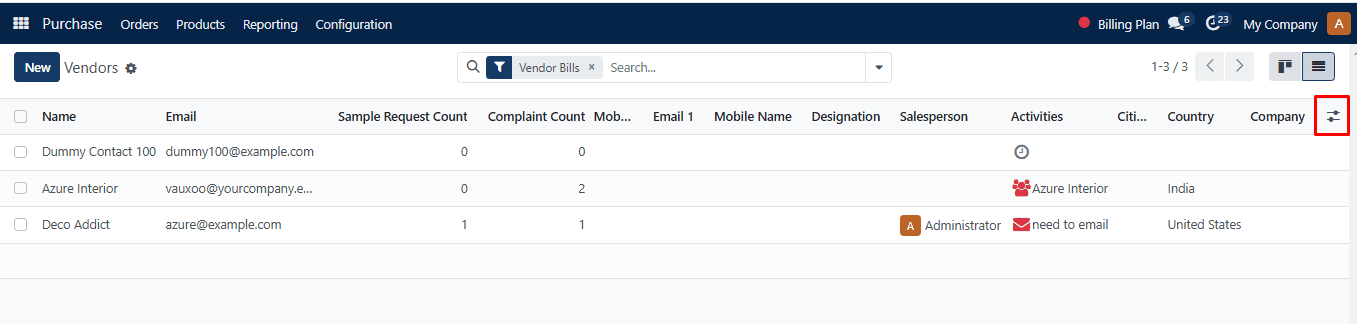
Activities with the seller can be scheduled using the little clock icon. The view can be changed to display Name, Phone, Email, Salesperson, Activities, City, Country, and Company as a list.
Enabling appropriate parameters from the advanced toolbar will enlarge the list display. State, Reference, Tags, Type of customers, and stages are all included.
When you click the New button, a new platform will open where you can adjust the vendor’s details. The vendor configuration process is identical to the customer configuration process that we covered in the Sales module. Thus, you can take the same actions here. Fill out the tabs for Contact & Addresses, Sales & Purchases, Invoicing, Internal Notes, and Complaints.
In the SAS Purchase module, you can manage the Vendor Price List after setting up Vendors.