
Peanut Square SAS Logo
Free ToolsPricingAbout UsContact
+91 94296 94521Schedule Demo
SASKnowledgeDealersHow to Add Sales & Purchase in Dealer
Documentation
•Hub
Dashboard
  • How to Manage Dealer Dashboard Page
  • How to Create a New Dealer in Ceramic SAS
Dealer Configuration
  • Dealer Configuration: Tags, Industries, Countries & Banks
How to Manage Dealer
  • How to Schedule Meetings, Managing Opportunities, and Sales
  • How to Navigate and Manage Dealer Management Options and Actions
  • How to Add Internal Notes in Dealer
  • How to Add Invoicing Information for a Dealer
  • How to Add Sales & Purchase in Dealer
  • How to Add Contacts & Addresses in Dealers
DealersDealers
How to Manage Dealer
2 min read

How to Add Sales & Purchase in Dealer

On This Page
3 Sections
01Sales section
02Purchase section
03Misc section

Click on Sales & Purchase Tab and then click on Add
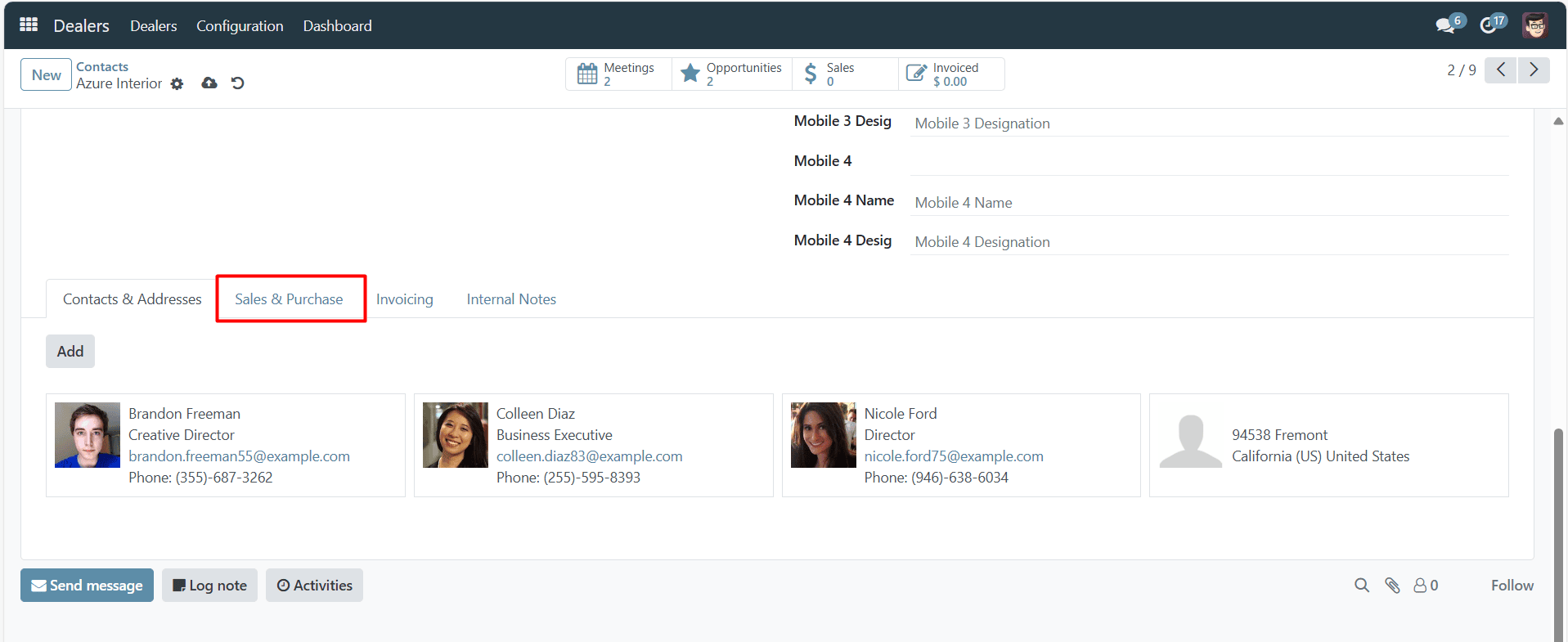
Sales & Purchase Of Dealers Lists

The Sales & Purchases tab, which only appears when the Sales, Purchase, or Point of Sale applications are installed/activated.

The Fiscal Position can be set on the Sales & Purchases tab. Select a Fiscal Position from the drop-down menu.
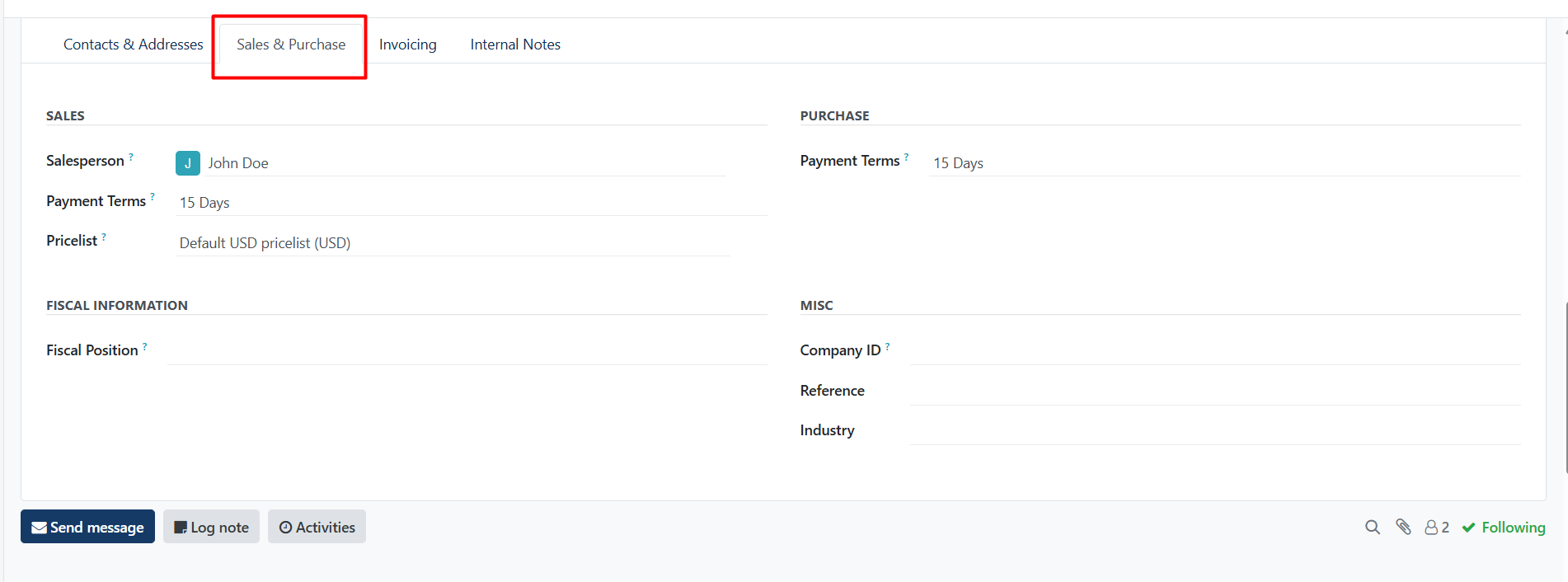
Sales & Purchase Details

Sales section:

Under the Sales heading, a specific Salesperson can be assigned to a Dealer. To do that, click the Salesperson drop-down field, and select one. Create a new Salesperson by typing the user’s name and making the appropriate selection.

Certain Payment Terms, or a certain Pricelist, can also be set, if needed. Click the drop-down menu next to Payment Terms and change it to one of the preselected Payment Terms, or Create a new one. Select the Pricelist drop-down menu to choose the appropriate Pricelist.

Click into the Delivery Method field to select an option from the drop-down menu.

Purchase section:

Specify Payment Terms and a preferred Payment Method here. A Receipt Reminder can be set here, as well.

Misc section:

Under the Misc. heading, use the Reference field to add any additional information for this dealer. If this dealer should only be accessible for one company in a multi-company database, select it from the Company field drop-down list. Select an Industry for this dealer from the drop-down menu.

Was this guide helpful?
Your feedback helps us continuously improve our SAS playbooks.
Previous Article
How to Add Invoicing Information for a Dealer
Next Article
How to Add Contacts & Addresses in Dealers

Need help configuring your SAS modules?

Speak with a Peanut Square SAS solution architect to assist with custom onboarding and team trainings.

Schedule ConsultationKnowledge Hub
Peanut Square SAS Logo

Join us at Peanut Square LLP and watch your business soaring to new heights with our state-of-the-art technology based IT solutions.

Certified ISO 9001:2015 Company
Certified ISO 27001:2022 Company

Need Help ?

  • Apps
  • Industries
  • Resources
  • Free Tools
  • About Us
  • Contact
  • Privacy Policy
  • Terms and Conditions
  • Cancellation and Refund Policy

Partners

  • viaSocket

Contact Information

C-306 Signature-2, Nr. Sarkhej-Sanand Cross Road, Sarkhej, Ahmedabad, Gujarat-382210
sas.sales@peanutsquare.com

© 2026 Peanut Square LLP. All Rights Reserved.