
 Dealers
Dealer Configuration: Tags, Industries, Countries & Banks
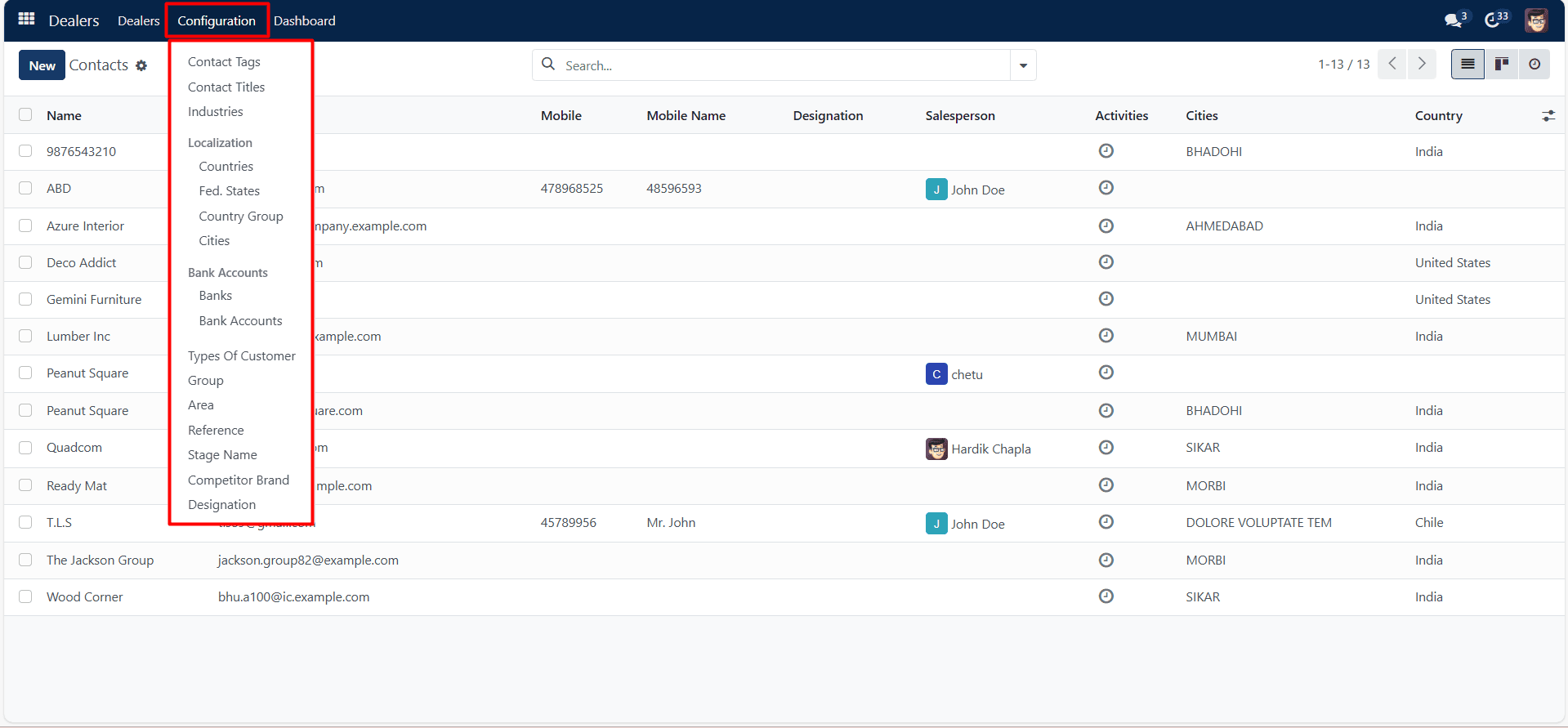
Contact Tags:
Under Contact Tags you may find many types of contact tags. It will show the contact tags as shown in the screenshot below.
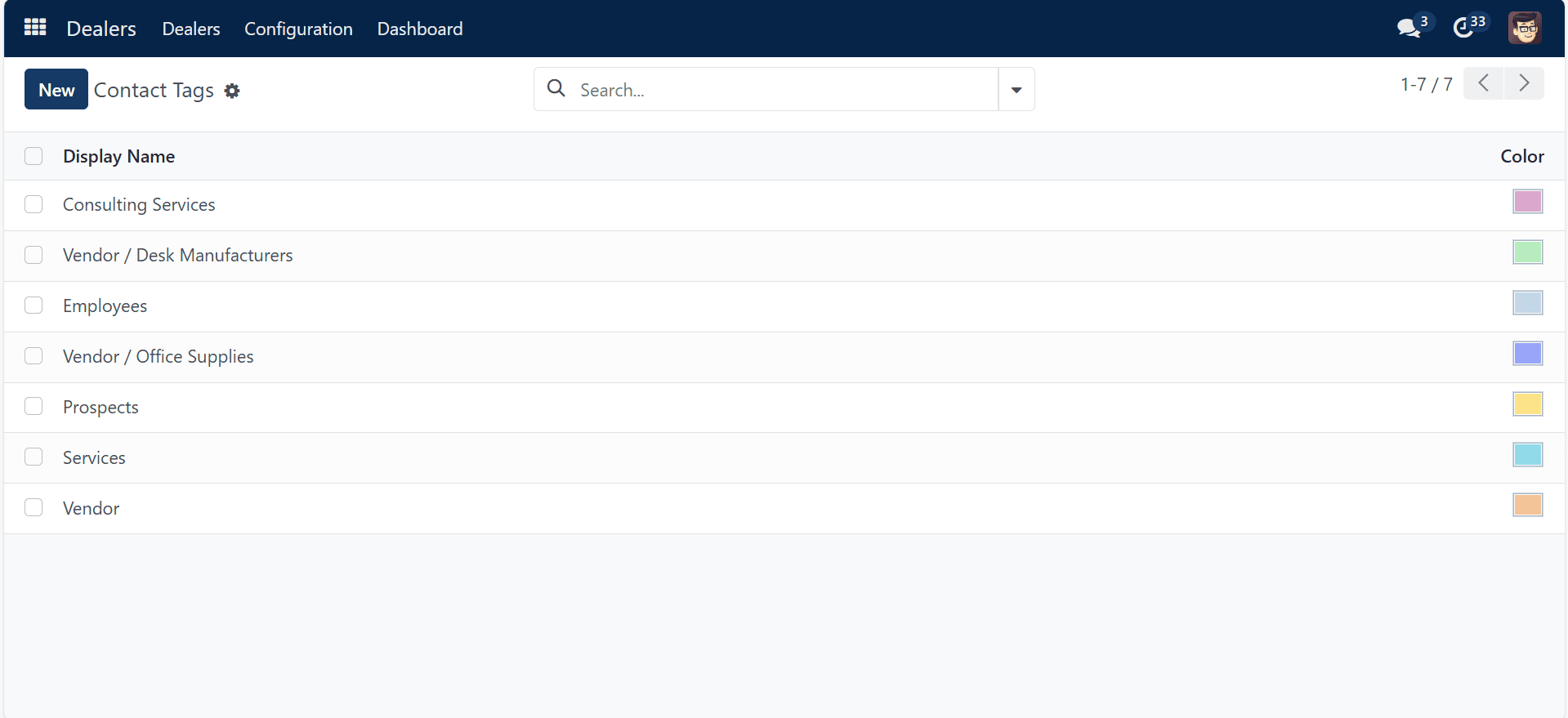
To make sorting options simpler, there are two options: “Group By” and “Filters” which you can see in Search. A list of previously created tags is available on the page. Each item’s display name and color are shown in the list. You can use the New option to create a contact tag that is similar to this one. The view of the page will be as follows.
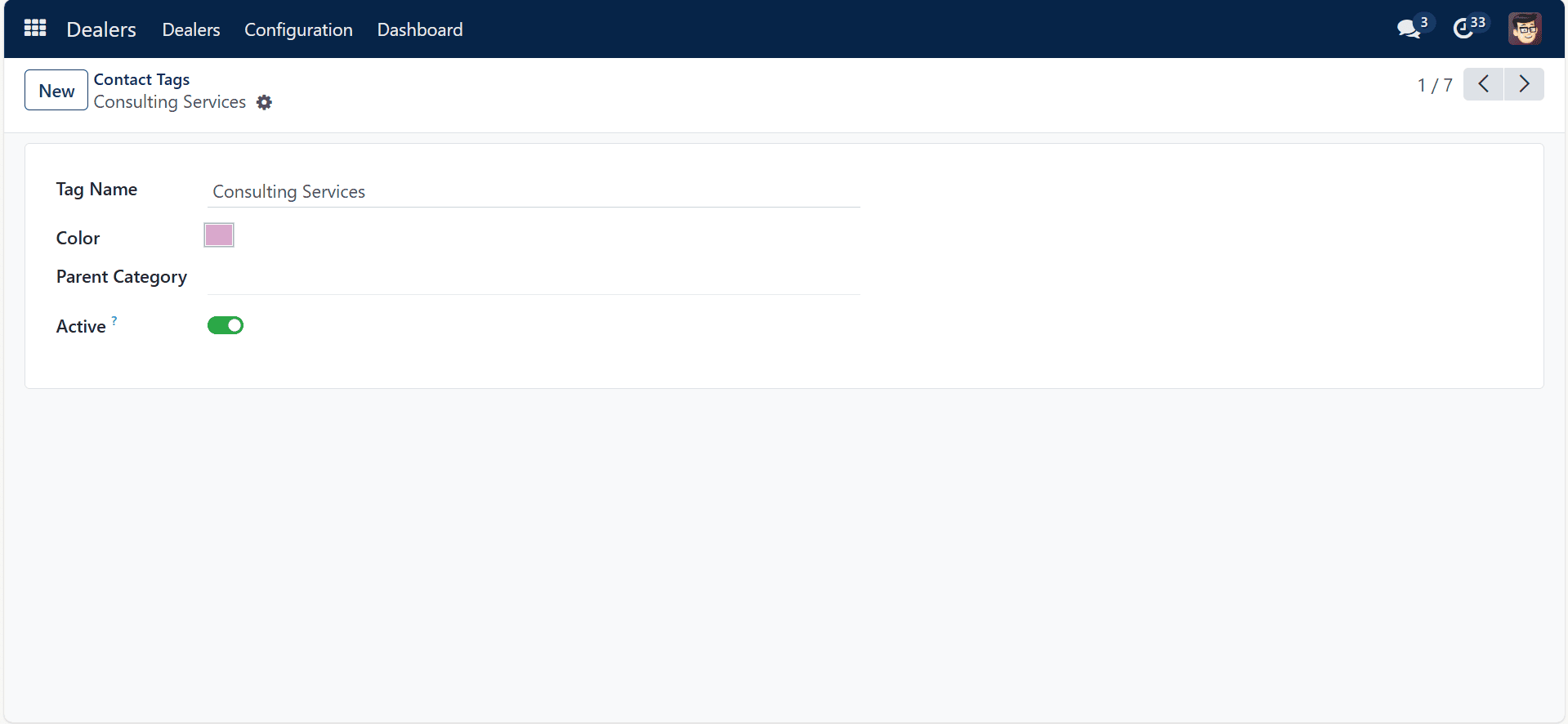
You can enter the appropriate parent category and tag name on this creation page. Additionally, you can choose the color of the specific tag. You can select Active to activate the tag.
Industries:
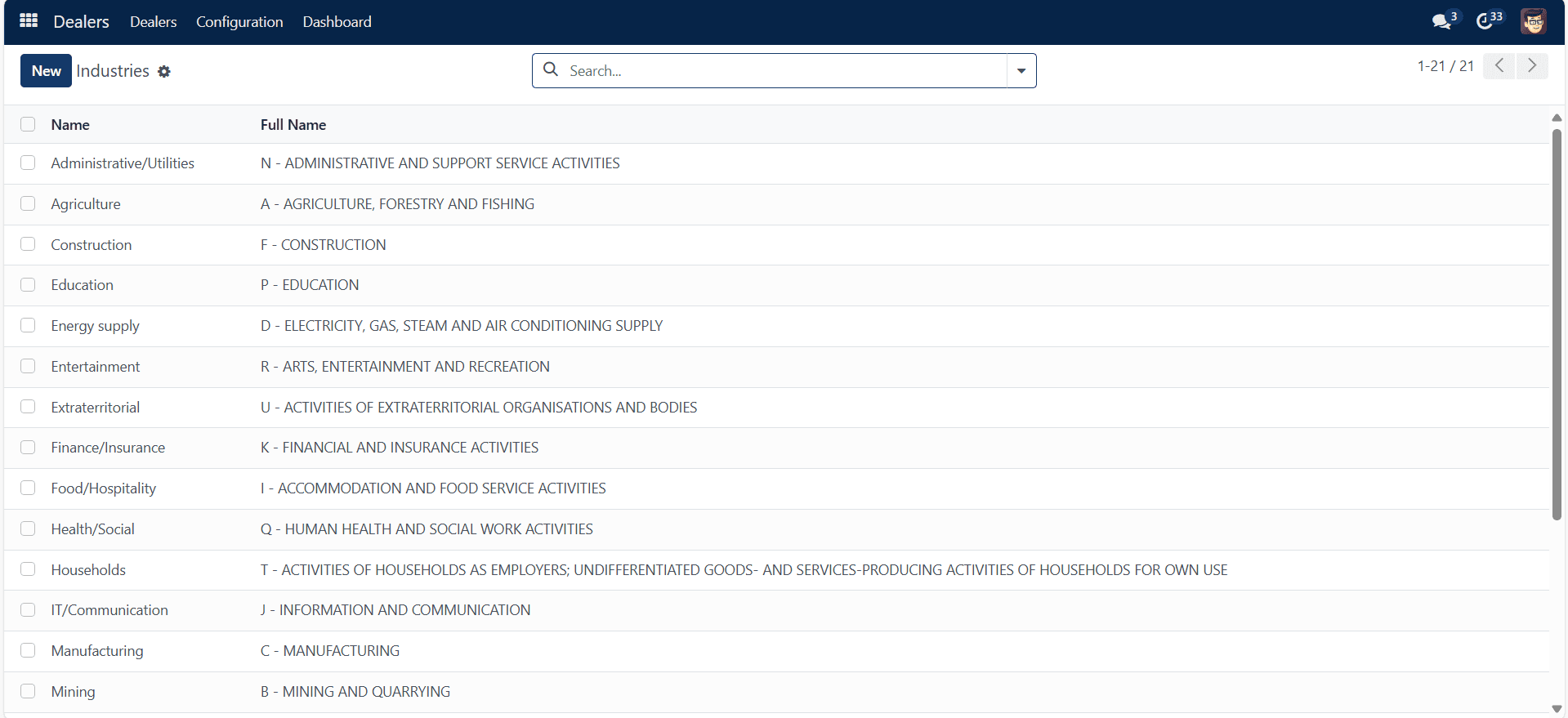
You can add and manage Industries from this page. The industry’s entire name is included. Simply select the New symbol to start a new industry of a comparable nature. It is simple to add a similar kind to the newly created line. Next, select the “Save” icon.
Countries:
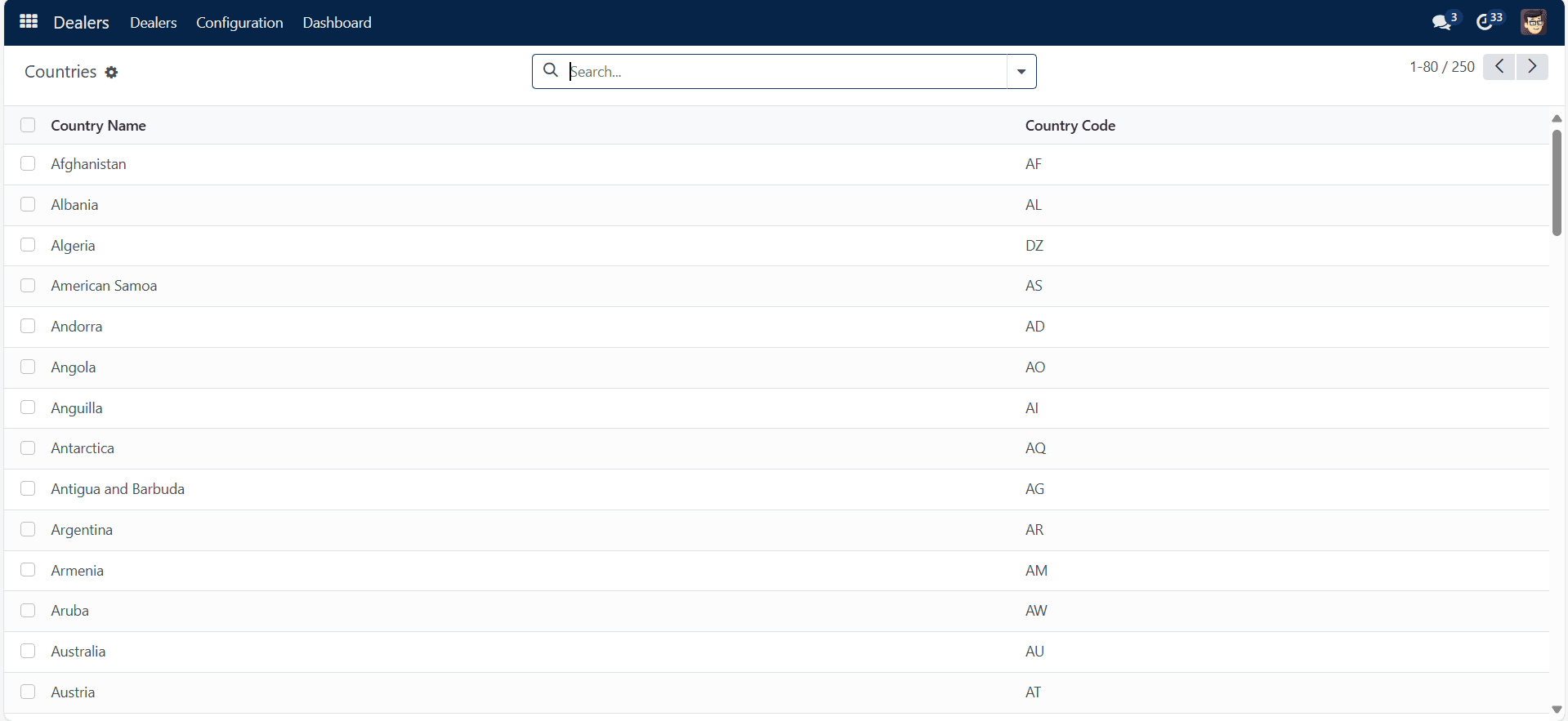
After choosing the countries option, the following page will be displayed to you. You can manage countries from this page.
Fed States:
When you choose the Fed States option, a list of state names, state codes, and country codes are displayed, correspondingly.
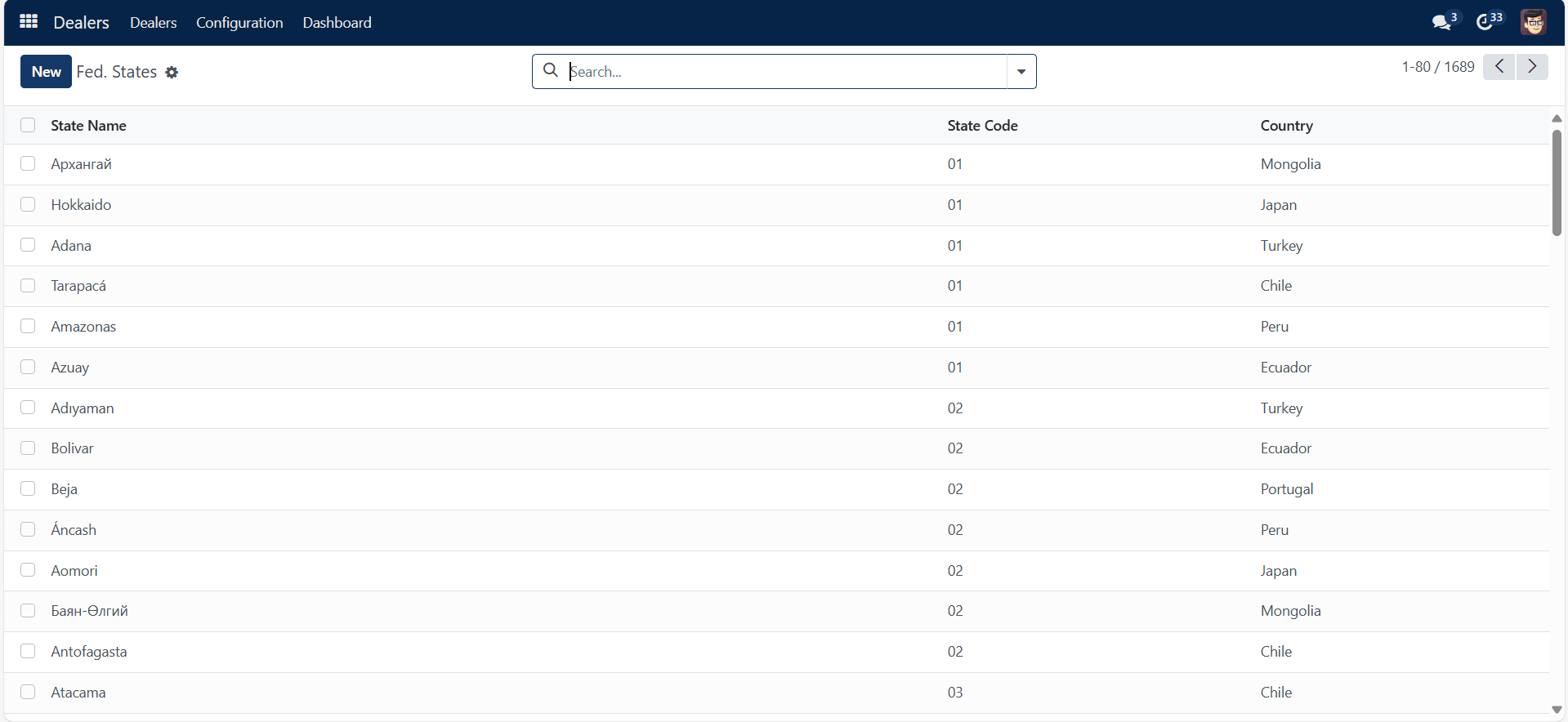
By choosing the New icon, adding a new state is quite simple.
Country Groups:
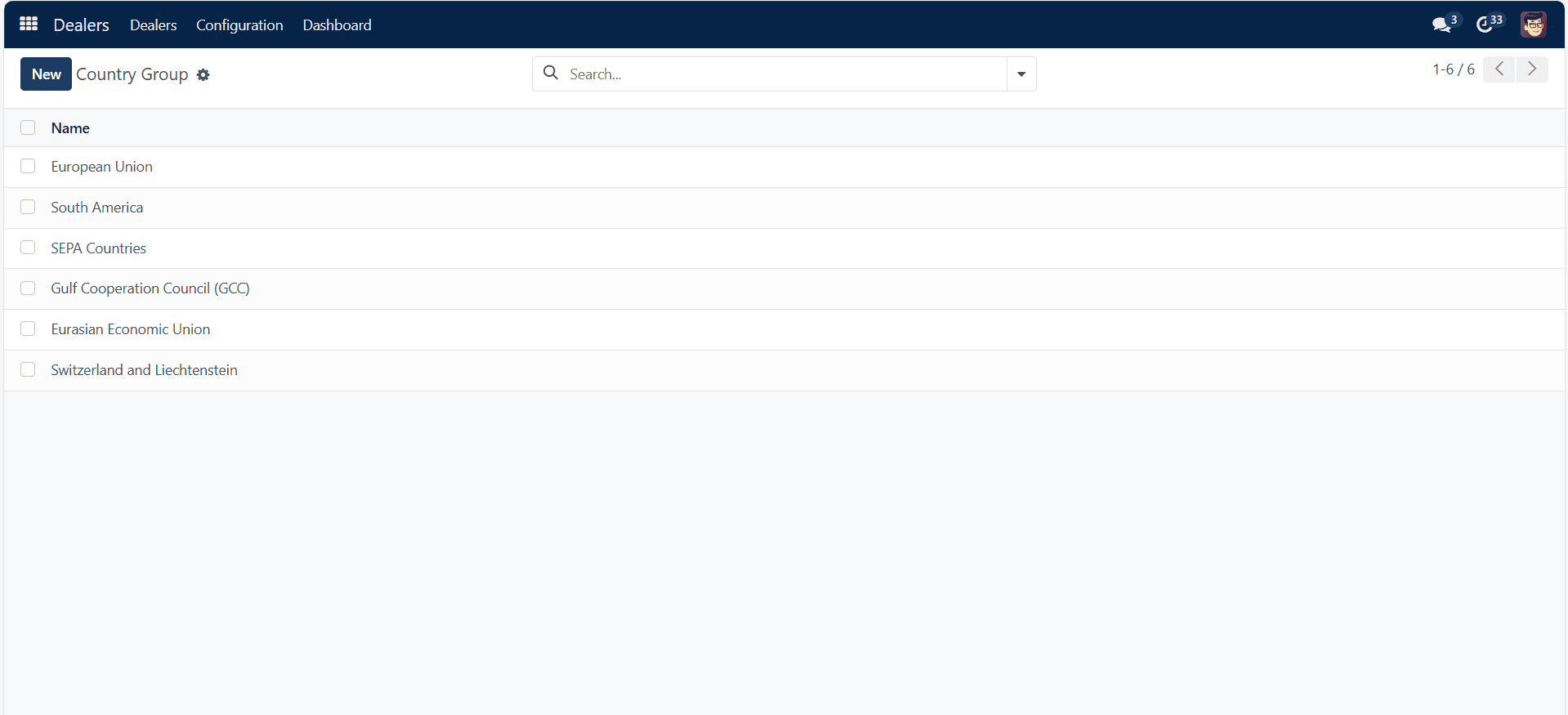
You can create and manage country groups. These groups can help in Invoices for Tax purpose.
City:
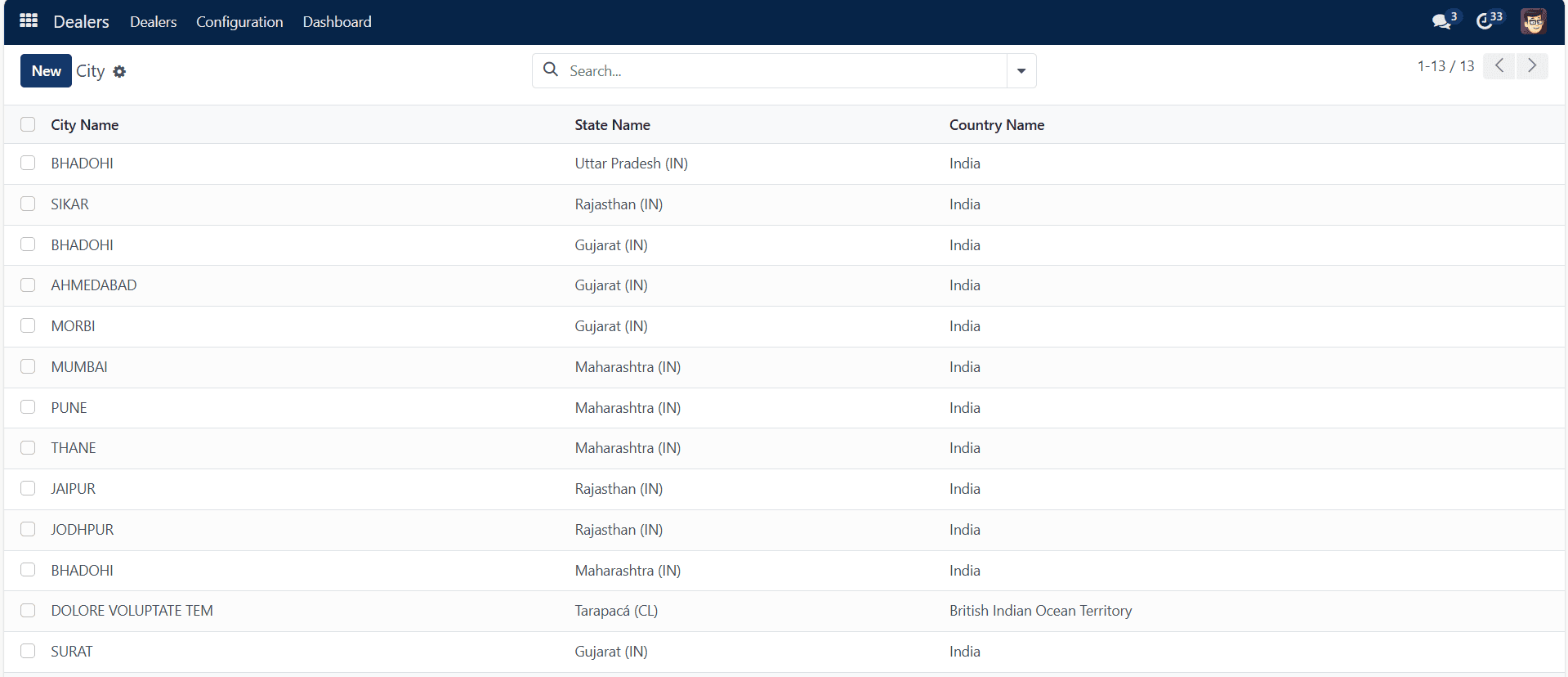
You can create and manage cities.
Banks:
You can add Bank Details from this Page.
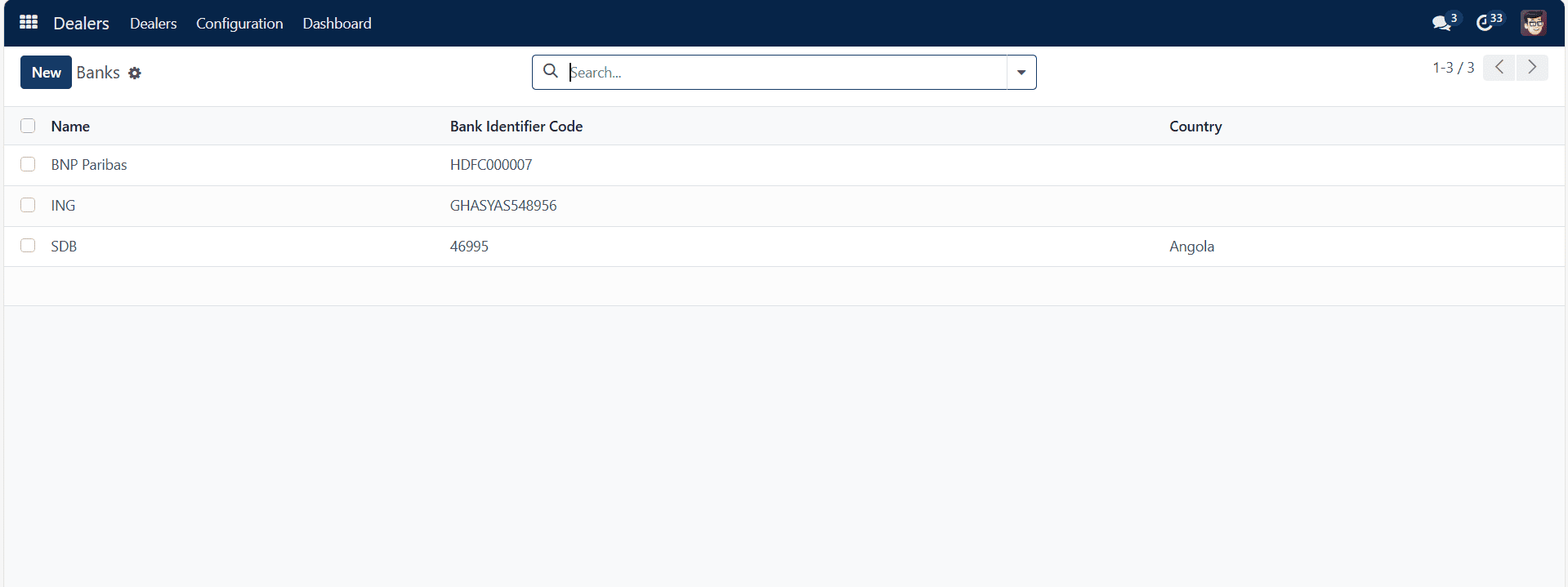
You can find a list of all previously created bank data on this page. The information includes the account number, name, account holder’s name, company name, and trigger if the funds are spent.
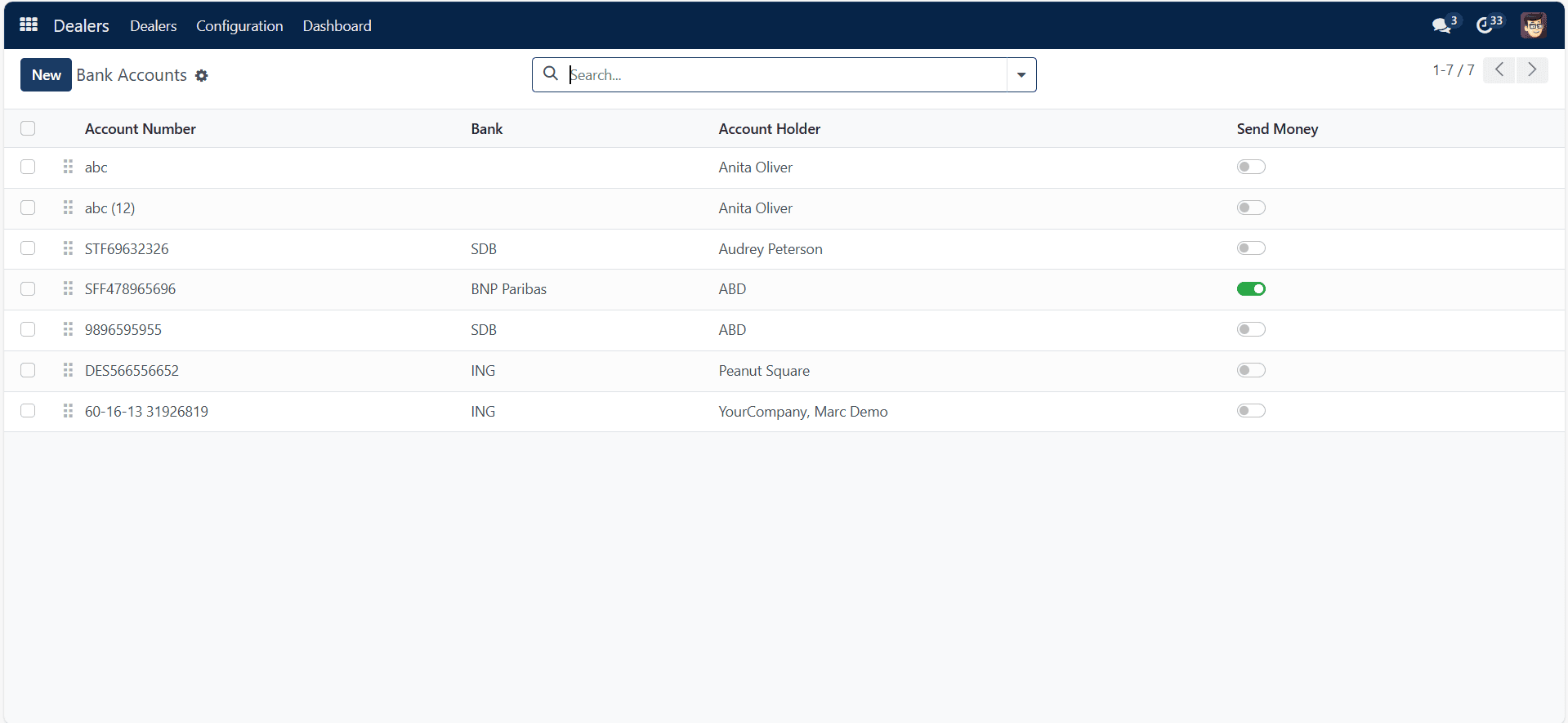
To open a new bank account of a similar kind, just click the New button.
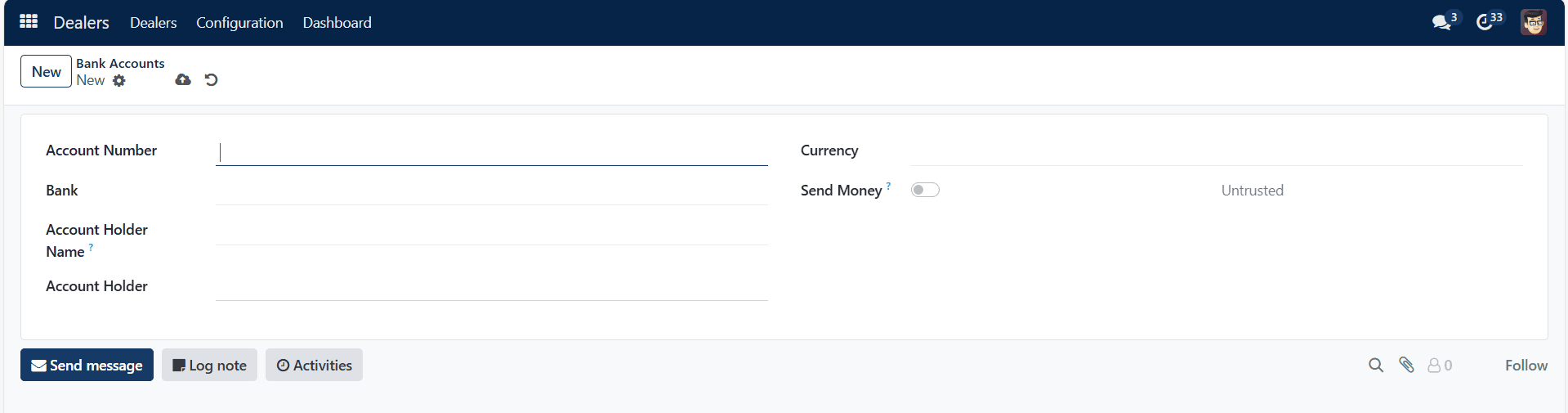
The account number, company name, account holder, bank name, currency, and whether it is ABA or routing can all be included on the creation page. Additionally, there is a way to activate the send money option, activate it for a trusted one. Lastly, click the “Save” button.
FieldsDescriptions Type of CustomerYou can add if the Dealer is a Premium Dealer, Standard Dealer, One time purchase etc GroupYou can create and manage Group, in which you can add as many dealers AreaYou can add and manage Area ReferenceIf any reference to this dealer, you can add that name Stage NameWhether it’s a new Enquiry, Follow-up, Factory Visited etc Competitor BrandsYou can add any Competitor brands DesignationYou can add and manage user designation