Short answer: If you are a paid IndiaMART seller, IndiaMART CRM integration lets you connect IndiaMART's Lead Manager to your CRM through the IndiaMART LMS Leads API. The Push API sends each new lead to your CRM in real time.
The Pull API lets your CRM fetch leads on a schedule. Once connected, every enquiry arrives in your pipeline automatically, with no copy-pasting.
That is the whole idea. The rest of this guide covers what each option does, what you need before you start, and how to make sure a lead that reaches your CRM actually gets a reply.
Why move IndiaMART leads out of the portal at all?
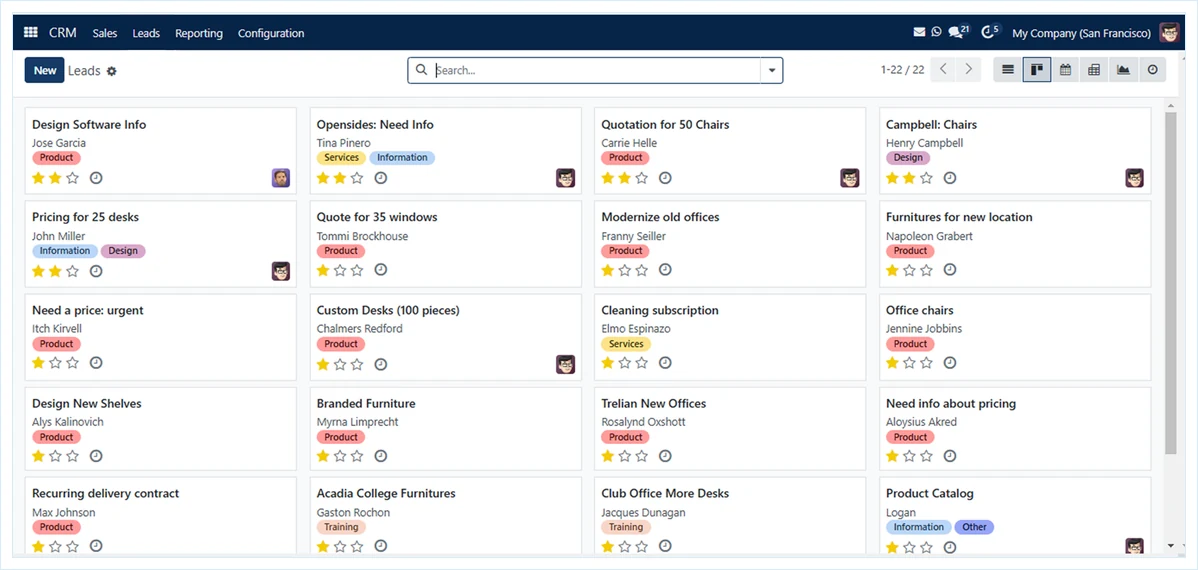
IndiaMART's Lead Manager is a capable inbox, and the natural starting point for IndiaMART CRM integration. The trouble is that IndiaMART is not your only source.
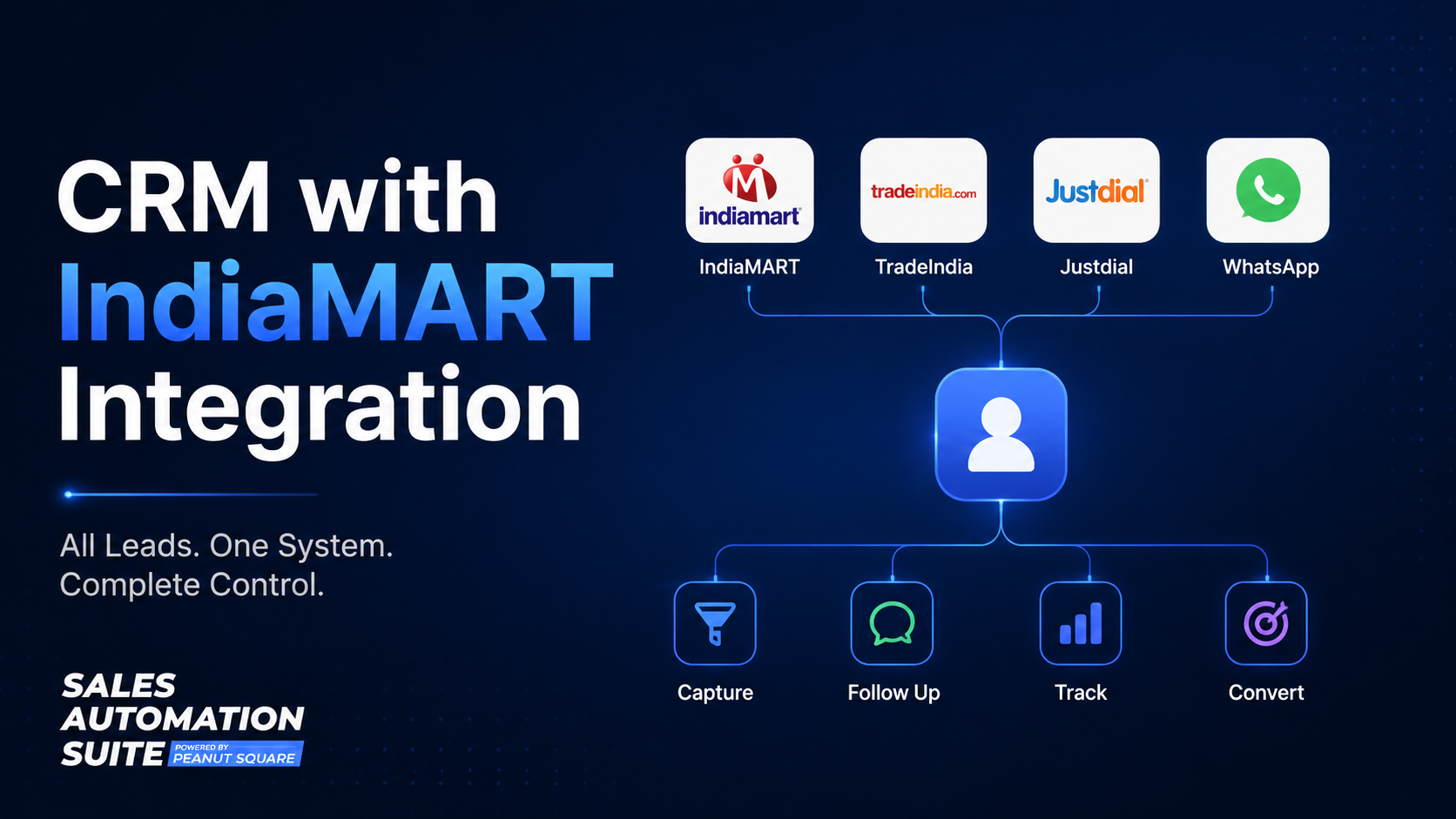
Most B2B sales teams also get enquiries from TradeIndia, JustDial, their website, Meta lead forms and WhatsApp. When each source lives in its own portal, someone has to check every one of them, every few hours, and pass enquiries to the right person by hand.
That handover is where leads slip. Nobody decides not to call a buyer back. The enquiry simply sits in a tab no one opened that afternoon.
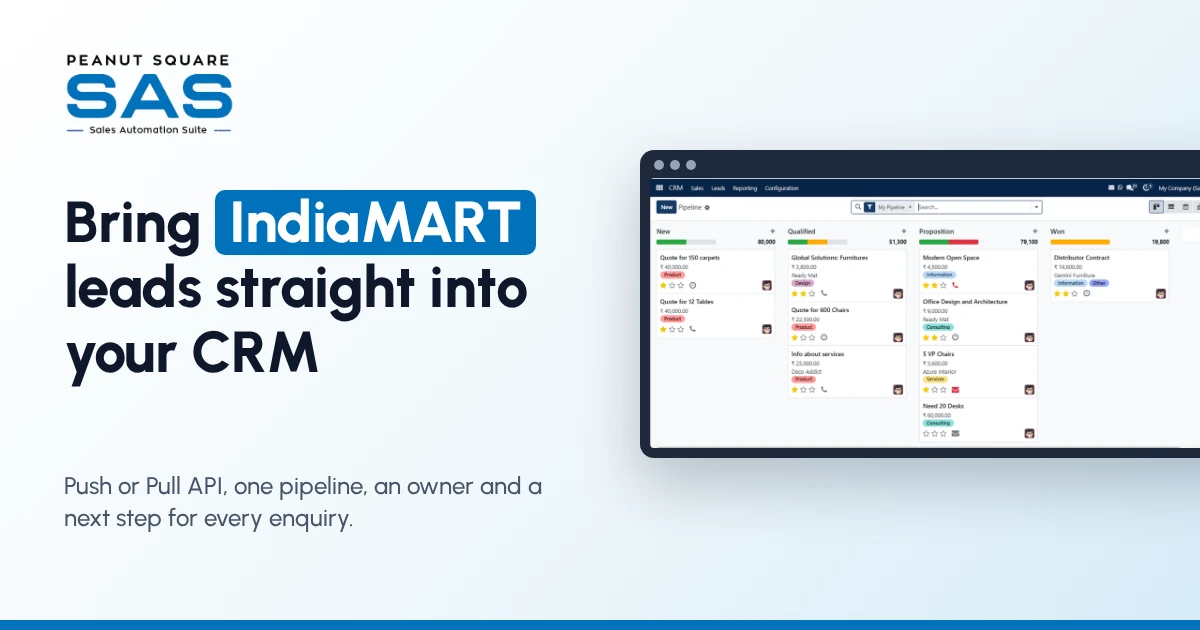
Done well, IndiaMART CRM integration brings leads into the same CRM as your other sources, which means:
one list of open enquiries instead of several,
a named owner for every lead,
a visible next step and follow-up date,
reports that show which source actually turns into orders.
What does IndiaMART offer for CRM integration?
IndiaMART documents this under the name IndiaMART LMS Leads API. According to IndiaMART's help page on the Leads API (checked 10 Oct 2026), it is a paid add-on for sellers and cannot be bought on its own.
IndiaMART also notes that the integration is offered in a do-it-yourself mode, so its technical team does not set it up for you. For questions about the service, IndiaMART points users to their account or relationship manager.
There are two ways to use it.
Push API: real-time delivery
With the Push API, IndiaMART sends each new lead to a webhook URL that your CRM provides, as soon as the lead is generated. You set it up from the Lead Manager: open the three-dots menu, go to Import/Export Leads → Push API, choose your CRM platform (or "Other" and enter the platform name and webhook listener URL), and confirm with the OTP sent to your primary mobile number. IndiaMART also keeps failure logs you can check if a push does not go through.
Pull API: scheduled fetching
With the Pull API, your CRM asks IndiaMART for new leads at regular intervals. You generate a Pull API key from the Lead Manager (**Import/Export Leads → Pull API**, or the key generation page at seller.indiamart.com/leadmanager/crmapi).
According to IndiaMART's Pull API documentation
(checked 10 Oct 2026), you should fetch every 10–15 minutes, with a minimum gap of 5 minutes between calls. Each request can cover at most 7 days, and the API only returns leads from the last 365 days.
The CRM should remember the last end time of each request and continue from there.
Which one should you choose?
If your CRM supports the Push API, it is usually the better choice for day-to-day selling and for most IndiaMART CRM integration setups: leads arrive the moment they are created, and nothing waits for the next scheduled fetch. The Pull API is useful when your CRM only supports scheduled imports, or when you want to bring in older leads from the past year.
Practical tip: monitor the connection. IndiaMART turns off the Push API if your CRM does not accept leads for more than 48 hours, so check the push failure logs if leads stop arriving. To backfill older leads with the Pull API, request them in windows of 7 days or less, because that is the maximum each request can cover.
What do you need before you connect?
A little preparation saves a lot of clean-up later.
A paid IndiaMART seller account with the LMS Leads API add-on. Check with your IndiaMART account manager if you are unsure whether it is active.
Access to the primary mobile number and email on the account. The Push API is activated with an OTP to the primary mobile, and API keys are tied to the account.
A CRM that accepts IndiaMART leads. Either it offers a webhook URL for the Push API, or it can call the Pull API on a schedule.
A decision on who owns new leads. Decide this before leads start flowing: by region, by product line, or in rotation across the team.
Agreed pipeline stages. Keep them simple, for example New → Contacted → Qualified → Quotation → Negotiation → Won/Lost.
How do you set up IndiaMART CRM integration, step by step?
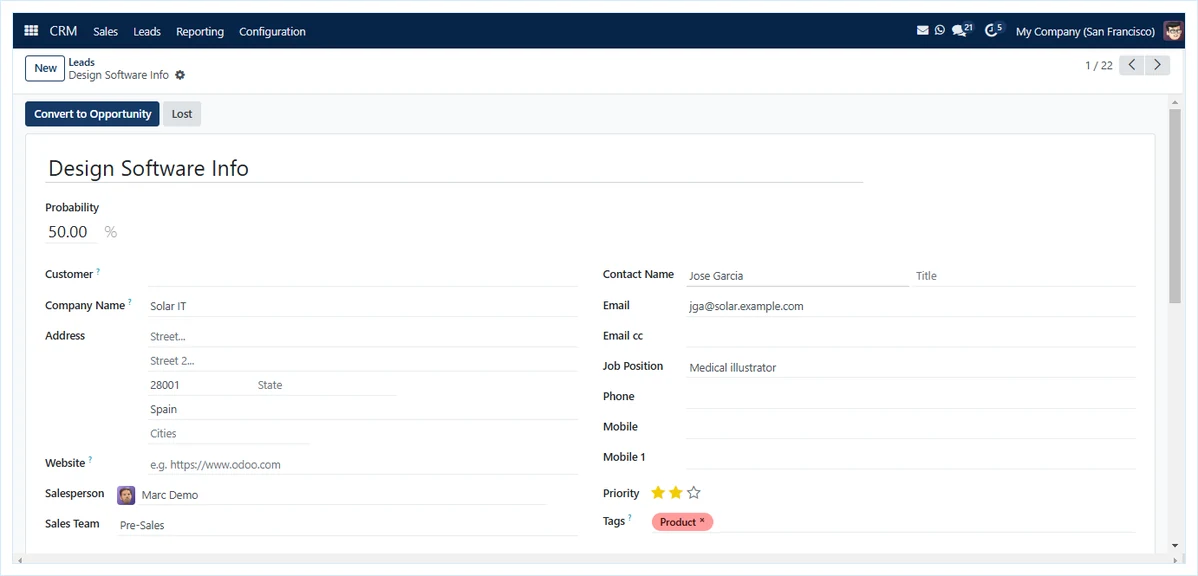
The exact screens depend on your CRM, but every IndiaMART CRM integration follows the same sequence.
Turn on the IndiaMART connection in your CRM. Look for an IndiaMART option in your CRM's integration settings and note whether it uses the Push or Pull method.
Connect from the IndiaMART side. For Push, open Lead Manager → Import/Export Leads → Push API, select your CRM platform or "Other", paste the webhook URL your CRM gives you, and confirm the OTP. For Pull, generate the Pull API key and enter it in your CRM.
Map the fields. Make sure the buyer's name, mobile number, email, company, city, product of interest and enquiry message land in the matching CRM fields. Keep IndiaMART's unique enquiry ID, so the same lead is not created twice.
Tag the source. Every lead should carry "IndiaMART" as its source, so your reports can compare it fairly with other channels.
Set assignment rules. Route new leads to the right salesperson automatically, using the rules you decided on earlier.
Send a test enquiry, or wait for the next real one. Confirm it appears in the CRM with the right owner, source and details. If you use the Push API and nothing arrives, check IndiaMART's push failure logs first.
What should happen after a lead arrives?
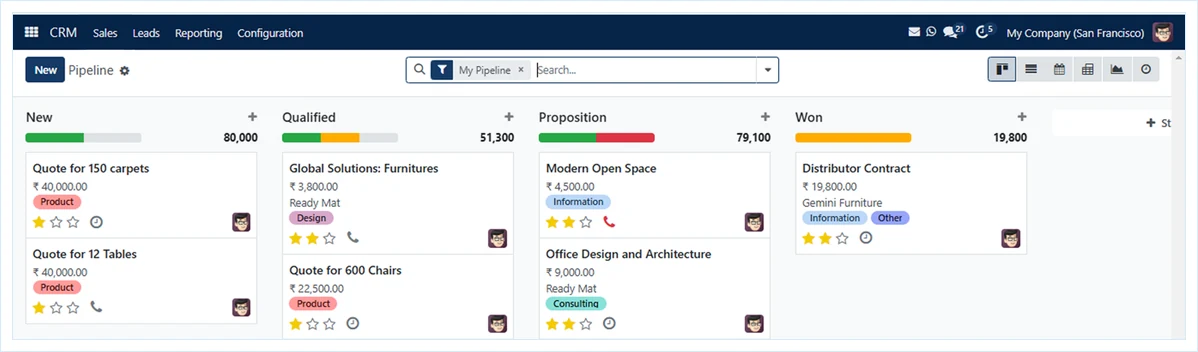
Importing the lead is only the first half of the job. A lead sitting in a CRM with no reply is no better off than one sitting in a portal. That's why IndiaMART CRM integration needs follow-up rules, not just an import.
Reply fast. A buyer may send the same enquiry to several suppliers. A quick, relevant first message matters more than a perfect one.
Give every lead a next step. A call, a sample, a quotation, each with a date and an owner.
Use reminders, not memory. Follow-ups should appear on the salesperson's list on the day they are due.
Close the loop. Mark leads Won or Lost with a reason. Over a few months, this shows you which products, cities and sources are worth more of your time.
How does Sales Automation Suite handle IndiaMART leads?
Sales Automation Suite (SAS) lists IndiaMART among its integrations, alongside TradeIndia, JustDial, Meta forms, a website API and viaSocket. Its CRM app is built around lead management from multiple sources, opportunity tracking and a visual sales pipeline with stages.
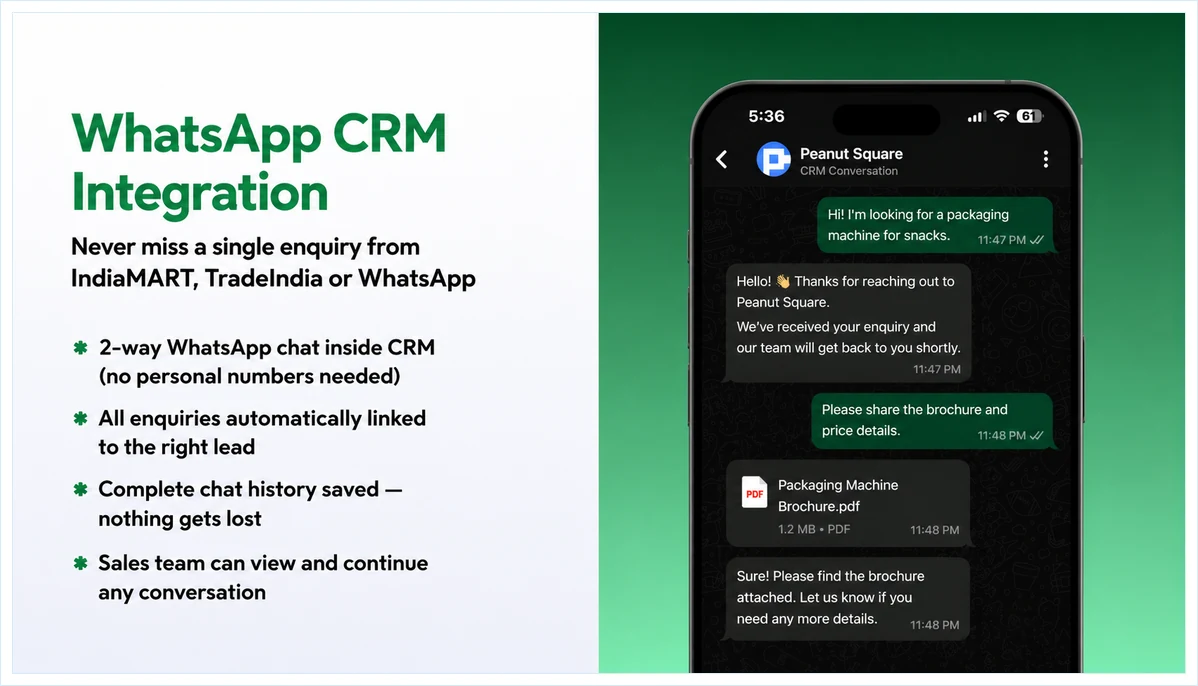
For IndiaMART and TradeIndia enquiries specifically, the SAS CRM page describes a free WhatsApp bot that "Instantly replies to new enquiries from IndiaMART / TradeIndia", along with auto follow-ups, so a buyer hears back even when the enquiry comes in after hours.
SAS is an ERP, not just a CRM: leads flow into quotations, billing and stock in the same system, so an IndiaMART CRM integration can run on the same data as the rest of the business.
₹300 per user per month on Premium, after a listed 40% off ₹500. GST extra, billed yearly, and the discount applies for 12 months to the initial users ordered. Source: pricing page, 10 Oct 2026.
Frequently asked questions
Do I need a paid IndiaMART account to send leads to a CRM?
Yes. IndiaMART describes the LMS Leads API as a paid add-on for sellers, and it cannot be purchased on its own. Your IndiaMART account manager can confirm whether it is active on your account.
What is the difference between IndiaMART's Push API and Pull API?
The Push API sends each lead to your CRM in real time through a webhook. The Pull API lets your CRM fetch leads at scheduled intervals; IndiaMART recommends every 10–15 minutes, with a minimum of 5 minutes between calls.
Can I import IndiaMART leads I received in the past?
IndiaMART says the Pull API can retrieve leads from up to 365 days back, in requests that each cover at most 7 days. Whether you can use this depends on your CRM supporting Pull-based imports.
Will IndiaMART set up the IndiaMART CRM integration for me?
IndiaMART states that the API is offered in do-it-yourself mode and its technical team does not do hands-on integration. In practice, the setup is done from your CRM's side, with the IndiaMART steps described above.
Can I manage IndiaMART leads together with TradeIndia and JustDial leads?
Yes, if your CRM connects to all of them. Sales Automation Suite lists IndiaMART, TradeIndia and JustDial integrations, so leads from all three can sit in one pipeline instead of three separate portals.
How do I stop the same IndiaMART lead from being created twice?
Keep IndiaMART's unique enquiry ID on each CRM record, and make sure your CRM checks it before creating a new lead. This matters most when fetching on a schedule, where time windows can overlap.